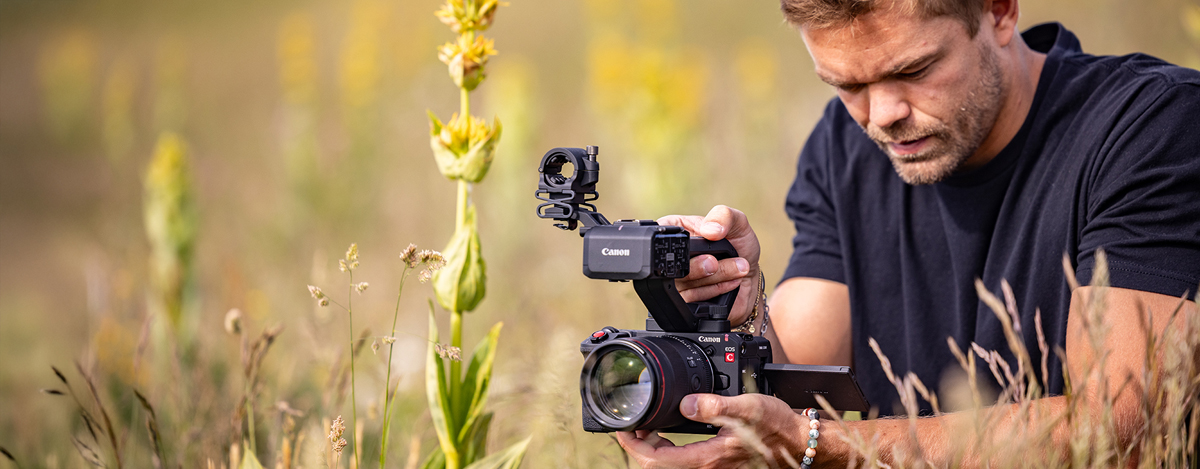
Have you used Canon EOS C50 professional camcorder and recorded some 7K or 4K videos? Before sharing your work, you need to cut off the unwanted parts. Can't import C50 video files to DaVinci Resolve for Editing? This article will help you solve how to convert Canon EOS C50 MXF, RAW and MP4 videos to DaVinci Resolve 20 compatible formats with the best Canon Video Converter and import smoothly.
Canon EOS C50 is a popular high-end camcorder that used by many professional camcorders. It is able to shoot high quality videos and then save in 7K RAW/MP4 and 4K MXF format. C50 has adapted the XF-HEVC S and XF-AVC S codec, the new code enables it to achieve a more efficient workflow. Many fans have waited Canon EOS C50 professional camcorder for long time. To most users, it is not so easy to deal with these files, no matter to edit Canon EOS C50 footage in editing programs like DaVinci Resolve 20.
What's the best Canon EOS C50 to DaVinci Resolve 20 editing workflow?
"Why my DaVinci Resolve 20 can't read Canon EOS C50 RAW and MP4 videos? I can play these videos in my camera well. Who can share the solution with me?"
“Can anyone share the Canon EOS C50 to DaVinci Resolve editing workflow? I have recorded some 4K videos with C50, the recorded files are in MXF format. When I loaded these videos into DaVinci Resolve, I found these footages are not supported, is there something wrong with my method? Thank you for your help.”
You may have got the newly released Canon EOS C50 for some time, and you may have captured lot of videos and now want to import RAW, MXF and MP4 recordings to DaVinci Resolve for editing. If you have tried to do this, you will be disappointed as DaVinci Resolve can't support the Canon EOS C50 videos. Since free DaVinci Resolve only supports limited formats and codecs, so your videos may in unsupported codecs and formats. But please don’t worry, there is an easy method to solve the Canon EOS C50 video to DaVinci Resolve incompatibility issues.
In order to import Canon EOS C50 video files to DaVinci Resolve for editing smoothly, you need to convert Canon EOS C50 clips to DaVinci Resolve supported video formats first. To finish the task, you are recommended to use Acrok Video Converter Ultimate, this is the best Canon video converter on the market.
Acrok Video Converter Ultimate is an all-in-one video converter, it is the best software that can help you transcode any RAW, MXF, MP4 to DaVinci Resolve native supported format with high quality. Besides converting C50 footage for editing in DaVinci Resolve, it is also professional in making C50 recordings compatible with Premiere Pro, Final Cut Pro, Avid Media Composer, Vegas Pro, iMovie, etc to meet all your needs. Now you can download the program and follow the steps to convert your Canon EOS C50 videos to DaVinci Resolve supported formats.
Free download Canon EOS C50 Video Converter
Convert and edit Canon EOS C50 video in DaVinci Resolve 20
1
Add Video
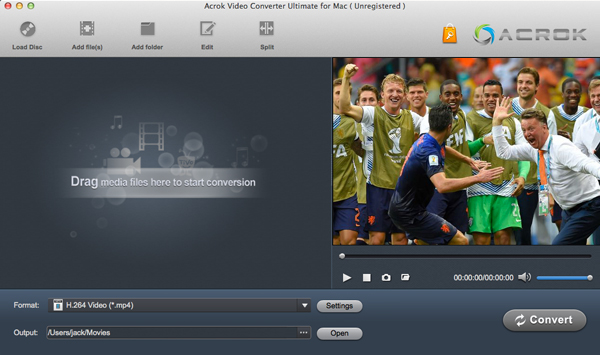
Get Acrok Video Converter Ultimate Windows version or Mac version from the link on this page, and then install them on your computer. Run the Canon Video Converter on your computer, you will see the brief main interface. Click the “Add Files” button to load your files to the program from your computer or camera. You can also directly drag the Canon EOS C50 video files into the program directly.
2
Choose output format
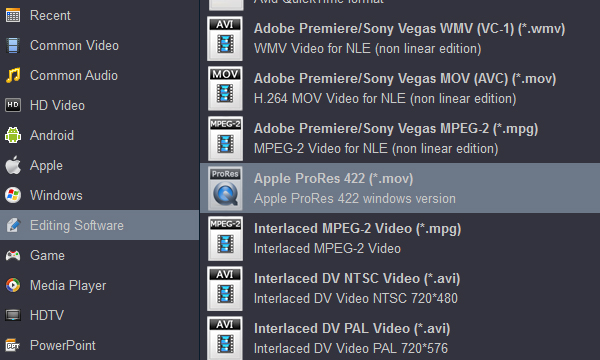
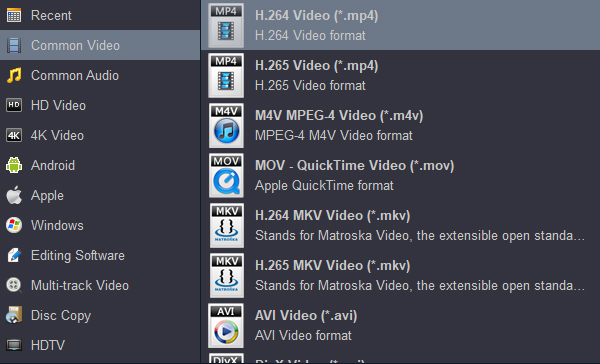
Choose DaVinci Resolve supported format. To make the output videos supported by DaVinci Resolve 20, 19, 18, 17, etc, the optimized output formats are strongly recommended. Click format bar and choose “Editing Software -> Apple ProRes 422 (*.mov)”, this format is fully compatible with DaVinci Resolve. Of course, you can also choose H.265 MP4 from "Common Video" category as the output format, you can choose the output format according to your need.
Tip: If you want to do easy editing on Canon EOS C50 videos, this Canon video converter has built-in video editor. Click "Edit" on the main interface to trim video, crop video, add special effects to your footage.
Click the Settings button beside the profile bar, and drop download the list of Resolution, where you can downscale 4K to 1080p/720p for smaller file size or upscale HD to 4K to fit bigger screens. If don't need to edit, just skip the step.
3
Start conversion
Click the Convert button to start converting videos from Canon EOS C50 to DaVinci Resolve native supported format.
Your Canon EOS C50 videos will be converted at top speed and quality, you can find the converted Canon EOS C50 videos on your computer by clicking the "Open" button. And then you can drag and drop the converted Canon EOS C50 video into your DaVinci Resolve and edit as you want, you don’t need to render anymore, and there will be no issues.







