

 >
Convert MP4 to ProRes
>
Convert MP4 to ProRes
In the world of professional video editing, codecs matter. Two of the most common formats you’ll encounter are MP4 and Apple ProRes. While MP4 is great for distribution and streaming, ProRes is the gold standard for editing. But what if you have an MP4 file and need to convert it to ProRes without installing heavy software? That’s where the best MP4 to Apple ProRes converter online comes in. In this article, we’ll explore what ProRes and MP4 are, why you’d want to convert, and which online tools can get the job done.
Apple ProRes is a high-quality, lossy video compression format developed by Apple Inc. It is widely used in professional post-production workflows, including Final Cut Pro, DaVinci Resolve, Adobe Premiere Pro, and Avid Media Composer. ProRes retains excellent image quality while keeping file sizes manageable for editing. Common variants include:
Because ProRes is an intra-frame codec (every frame is encoded independently), it allows smooth scrubbing, fast rendering, and multi-layer editing - something that long-GOP codecs like H.264/H.265 struggle with.
MP4 (MPEG-4 Part 14) is a digital multimedia container format most commonly used to store video and audio streams compressed with H.264 or H.265 (HEVC). It is the universal standard for online streaming, social media, and portable devices. Most modern cameras, smartphones (iPhone, Android), action cams (GoPro, DJI), drones, and screen recorders output MP4 by default.
Common MP4 sources include:
While MP4 is efficient for storage and sharing, it is not optimized for editing. This leads us to the next question.
If you’ve ever tried editing a long-GOP MP4 file in Final Cut Pro or Premiere Pro, you may have experienced lag, stuttering playback, or even crashes. Here’s why converting MP4 to ProRes is a game-changer:
That’s why video editors often search for a free online video converter for editing that can turn MP4 into ProRes without installing desktop software.
True online conversion to Apple ProRes is challenging because ProRes files are large and require significant server processing. However, several cloud-based services offer reliable MP4 to Apple ProRes converter online tools. Below are the top recommendations, followed by a desktop powerhouse for users who need unlimited file sizes and advanced features.
If you regularly convert large MP4 files (4K, 8K, or long-form content) to Apple ProRes, a desktop converter is far more reliable and faster than online tools. Acrok Video Converter Ultimate for Mac is a standout choice for Mac users.
Why Acrok?
Limitation: Acrok is a paid application (one-time license), but it offers a free trial to test conversions. For professionals, the cost is negligible compared to the time saved.
| Feature | Online Converters | Acrok for Mac |
|---|---|---|
| File size limit | 50MB–200MB (free) | Unlimited |
| Conversion speed | Dependent on server load | Local hardware (faster) |
| Privacy | Files uploaded to cloud | 100% local |
| Batch conversion | Limited | Yes |
| Disc decryption | No | Yes (Blu-ray/DVD) |
| Cost | Free for small files | Paid (one-time) |
If you only need to convert a short MP4 clip occasionally, an online MP4 to Apple ProRes converter like CloudConvert or Convertio works fine. But if you are a video editor handling long 4K timelines, Acrok Video Converter Ultimate for Mac will save you hours and preserve your privacy.
Free download and try MP4 to ProRes Converter
 100% Safe & Clean 100% Safe & Clean
Transcode any MP4 to ProRes codec on Mac
With it, you can do batch conversion from 8K, 6K, 4K, 2K, 1080P MP4 to ProRes codec without quality loss for smooth importing and editing in Final Cut Pro (X, 7, 6). Convert XAVC S, H.264/AVC, XVID, MPEG-4, MJPEG, H.263, DIVX, HEVC/H.265 to ProRes 422 and ProRes 4444 easily.
Convert MP4 to other video codecs
Besides MP4, the program also support other various formats like MXF, MTS, MOV, AVI, VOB, MKV, AVI, etc. What's more, this program offers other professinal encoders like DNxHD, H.265, MPEG-2, Apple Intermediate Codec (AIC), etc. - ensuring maximum editing quality and efficiency when working with DaVinci Resolve, Media Composer, Premiere Pro CC, Vegas Pro, iMovie and more.
Convert Blu-ray and DVD to MP4
If you want to watch a DVD or Blu-ray movie on your video player devices, such as iPad Pro, iPad Mini, iPad Air, you need to convert the movie to a specific video at first. Here you can use MP4 to get a video with high video quality and relatively smaller size. This Apple ProRes Converter can give you a hand.
Play Back 4K MP4 Videos on Mac
If you just simply want to watch your 4K MP4 videos and movies at hand, this Mac MP4 to ProRes Converter is strongly recommended. This all-in-one free player can play nearly everything including Blu-rays, DVDs, MKV, AVI and almost all standard-formatted videos, of course, MP4 is supported. Tests show that the MP4 playback with Acrok software is very smooth. Just grab a free trial of the player to enjoy your MP4 goodies!
Downsize large 4K MP4 videos with nothing lost
An 8K, 6K, 4K MP4 video is usually very large in size, in order to save space while remain the video quality, converting the 4K MP4 video to an H.265 video is the perfect solution. Result is the image quality is the same, but the file size is reduced to half. Cheers!
Install the MP4 to ProRes Converter and run it. Drag the MP4 files to the software. Or you can also click "Add file" icon on the top of the main interface to import video to the program. Batch conversion is supported, so you can load more than one file to save time.
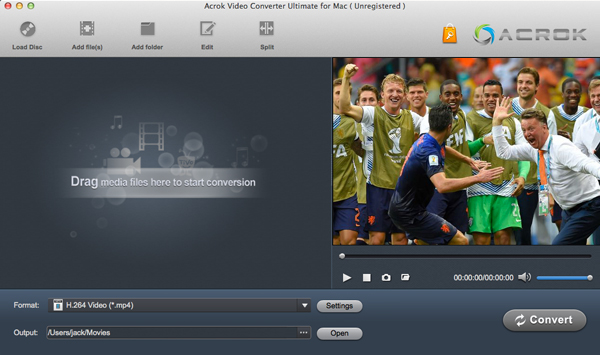
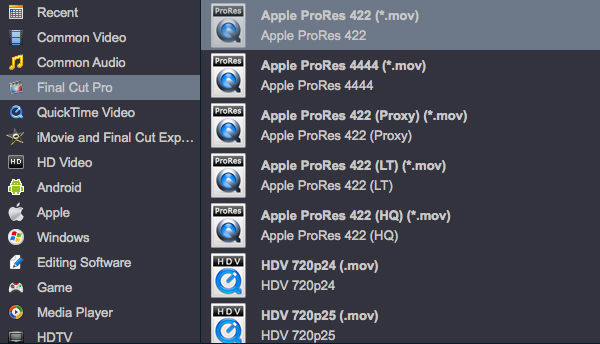
You can directly choose the ProRes profile from "Final Cut Pro" catelog for FCP which has been supplied by the Apple ProRes encoder. The settings fit seamlessly all versions of Final Cut Pro. Note that ProRes is just a codec, the video encoded with ProRes will be wrapped in a MOV container.
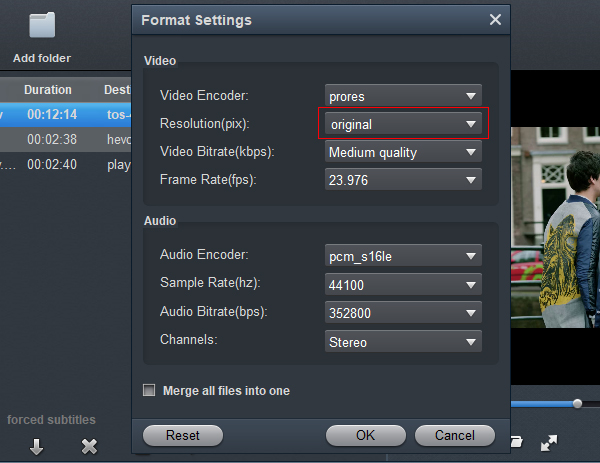
If you are critical about the output quality, you can adjust the parameters about the videos. As is true of video, audio settings is also important in adding a premium to the video quality. Just click "Setting" by the side of "Format" and you are ready to tweak. For getting orginal video resolution, please select "Orginal" in "Resolution (pix)" column. In principle, the larger input values, the better output quality, but the corresponding larger file size.
To know the original video parameters, please go back to the main interface of the software and select your task then click "Show selected tast properties" icon.
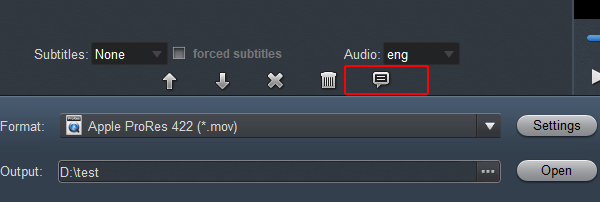
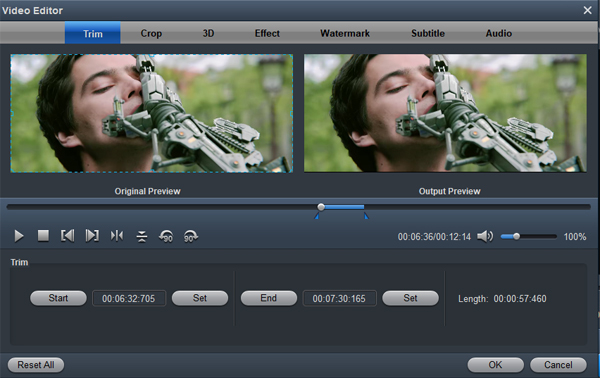
If you delve into the software, you will find its editing functions very useful. To activate the "Edit" menu, you have to select an item first. When a video file is selected, you can click the "Edit" icon on the tool bar of main interface to edit selected file. On the "Video Editor" Window, you can play and preview the original video and output effects. Also you can flip video, trim, add 3D effect, reset, and adjust volume.
As soon as all the above settings are completed, you can press "Convert" button to start MP4 video format to ProRes codec conversion. After conversion is done, simply click "Open" button to find generated ProRes codec encoded MOV files. Afterwards, you can transfer the encoded MP4 files into Final Cut Pro for smooth editing without any problem.
Free download and try MP4 to ProRes Converter
100% Safe & Clean 100% Safe & CleanCloudConvert is one of the most trusted cloud-based ProRes encoding platforms. It supports ProRes 422, 422 HQ, 4444, and LT. You can upload MP4 from your computer, Google Drive, Dropbox, or URL. It offers fine-tuning options (resolution, frame rate, bitrate, pixel format). Free tier allows up to 25 minutes of processing per day. For larger files, paid plans are affordable.
Convertio provides an easy-to-use MP4 to ProRes 422 online tool interface. Upload MP4 (up to 100MB free), choose Apple ProRes as output, and download. It also supports batch conversion. The free version has file size limits, but for short clips, it’s perfect.
Online-Convert offers a dedicated Apple ProRes online conversion service. You can upload MP4 from various sources, adjust video codec settings, and even enable hardware acceleration (server-side). It supports ProRes 422, 422 HQ, and 4444. The free version includes ads and limited queue time.
Zamzar is a veteran online file converter that now supports ProRes. You can convert MP4 to ProRes without software using their web interface. Just upload, select “Apple ProRes” as output, and enter your email. The free version allows files up to 50MB.
AConvert is a lesser-known but fully functional online video converter for Final Cut Pro. It allows you to convert MP4 to ProRes 422 or 4444 directly from a web browser. No registration needed. Supports file upload up to 200MB for free.
When selecting the best online ProRes converter, consider:
If you regularly convert MP4 to ProRes, consider a desktop converter for unlimited file sizes. But for occasional use, these online tools are perfectly fine.
Converting MP4 to Apple ProRes is a game-changer for video editing. It transforms choppy, long-GOP footage into a smooth, frame-independent workflow that lets you scrub, grade, and render with confidence. Whether you’re editing in Final Cut Pro, DaVinci Resolve, or Premiere Pro, ProRes gives you the performance and quality that MP4 alone cannot provide.
For occasional conversions of small files, the best MP4 to Apple ProRes converter online tools – such as CloudConvert, Convertio, Online-Convert, Zamzar, and AConvert – offer a convenient, no-installation solution. They allow you to convert MP4 to ProRes without software directly from your browser, and many include a free online video converter for editing tier for short clips. However, online tools come with file size limits, slower upload/download times, and potential privacy concerns.
That’s where Acrok Video Converter Ultimate (especially Acrok Video Converter Ultimate for Mac) stands out. It is not an online tool – it’s a powerful desktop converter designed for professionals who need to handle large 4K/8K MP4 files, batch conversions, and even encrypted Blu-ray or DVD discs. With Acrok, you can:
Whether you need MP4 to ProRes 4444 online for alpha channel work or a reliable desktop workhorse for daily editing, Acrok delivers the speed, quality, and freedom that online converters cannot match. For serious editors, investing in a tool like Acrok Video Converter Ultimate for Mac pays for itself in time saved and frustration avoided.
In short: Use online converters for quick, small jobs. Use Acrok for everything else.


Acrok Video Converter Ultimate for Mac runs on a pretty high amount of system resources and quickly finishes a transcoding job without causing us any difficulties along the way. Thanks!
White, David
Copyright © 2026 Acrok Studio All Rights Reserved. Terms and Conditions | Privacy | Refund Policy