

 >
Edit Blu-ray in Premiere Elements
>
Edit Blu-ray in Premiere Elements
"Can I put a Blu-ray into Premiere Elements?"
"I plan to make a short movie via my old Blu-ray movies, these classic films represent his different performing style at different time. I like playing football, I also collected some classic movies about football (Hooligans, Fever Pitch, Ballon d'or Le, Victory, United, etc). But I can't load the movies into Premiere Elements, Please tell me how to solve this problem."
"Why does Premiere Elements not read my Blu-ray files?"
"What is the right way to import a Blu-ray to Premiere Elements?"
Bringing Blu-ray into Premiere Elements is simple! I will look at how to efficiently rip and convert your Blu-ray to Premiere Elements compatible format for editing smoothly.
Here is why:
1. Format Problem: Blu-ray (Blu-ray Disc or BD) is a digital optical disc data storage format designed to supersede the DVD format. These files hold the video, audio, and subtitles. Premiere Elements cannot open or edit Blu-ray files, so it will not recognize them if you try to import them.
2. What Premiere Elements Supports: The program only works with certain video formats, like MOV, MPG, MP4 and M4V. These formats are more flexible and can be edited inside Premiere Elements without issues.
3. What You Must Do First: To use Blu-ray content in Premiere Elements, you need to convert it. That means using the best Blu-ray Ripper or Blu-ray to Premiere Elements converter to change the Blu-ray files into MOV, MP4, or M4V.
4. After Conversion: Once the Blu-ray is ripped into the right format, you can open Premiere Elements, click Import, and start editing the video just like any other file.
So, Premiere Elements cannot take Blu-rays on its own. It always needs that extra step. The Blu-ray has to be ripped and converted before you can use it. It is like changing the Blu-ray into a format that Premiere Elements can read. Once you do that, the editing part becomes easy.
Adobe Premiere Elements is a video editing software published by Adobe Systems. As a movie fan, there are occasions that you need to import footage on Blu-ray to Premiere Elements 2026, 2025, 2024, 2023, etc., for further editing. However, Blu-ray footage does not natively work within Premiere Elements on our PC. In order to bring Blu-ray to Premiere Elements all versions, Blu-ray video files must be ripped off disc and then converted. This process works to rip Blu-ray video for use in Premiere Elements on Windows and Mac.
Which software should I choose for ripping and converting Blu-ray movies? To finish the task, you're recommended to use Acrok Video Converter Ultimate, a professional yet easy-to-use Blu-ray ripping software. With it, you can fast convert Blu-ray movies to Premiere Elements highly compatible video format with loss-less quality. Besides, the program also exports optimized presets for you to edit Blu-ray in Premiere Elementsand other hot editing software or to watch Blu-ray movies on smartphone, tablet, smart tv, etc. If you're using a Mac, simply turn to Acrok Video Converter Ultimate for Mac, which allows you to rip Blu-ray to Premiere Elements best editing format on Mac OS X. Now download the right version and follow the tips below to achieve your goal smoothly.
Free download and try Blu-ray to Adobe Premiere Elements Converter here.
 100% Safe & Clean 100% Safe & Clean
This quick start guide takes Blu-ray to Premiere Elements Converter Windows version (Including Windows 11) screenshots as an example. The method to rip Blu-ray to Premiere Elements supported video formats on Mac is the same. All that you should take care is to download the right version according to your situation.
After you open Blu-ray Ripper for Premiere Elements, click "Load Disc" to add the Blu-ray files from BD drive. On the software main interface, there is a viewing window provided for you to preview the Blu-ray movies to ensure the files are what you want to rip. You can also take snapshots of the Blu-ray movies when previewing them.
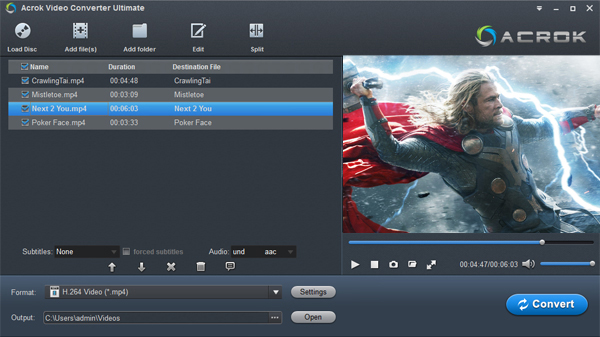
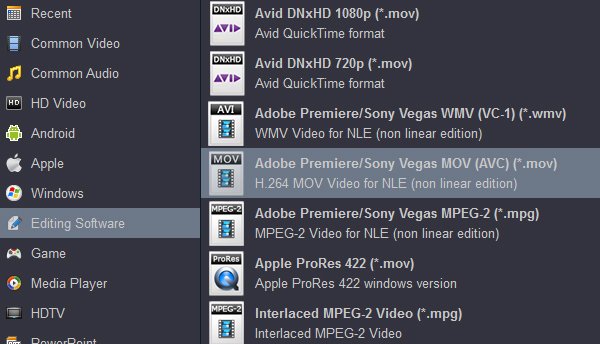
To convert Blu-ray files to Premiere Elements, you can select QuickTime MOV, MPEG-2 MPG or H.264 MOV from "Editing Software" as the output format. All output videos will keep the original quality of Blu-ray video and seamlessly fit Premiere Elements 2026, 2025, 2024, 2023 and more. Before video conversion, you can edit the loaded videos as you needs.
When all is done, click "Convert" to begin the Blu-ray to Premiere Elements native video conversion. Just wait for the process to finish. After that, you can get the converted videos and just open Premiere Elements and import the converted videos for editing. You see, it's just so easy to turn Blu-ray to Premiere Elements supported video formats in a few clicks! Just get the Blu-ray ripper and enjoy Blu-ray editing in Premiere Elements. I firmly believe that you will be able to produce wonderful short stories.
Tip: Acrok program It is a gem of a video conversion application designed especially for users who don't need a lot of fiddly options. With it, you can not only convert video from Blu-ray to Premiere Elements compatible video, so that you can edit Blu-ray disc, Blu-ray ISO, Blu-ray folde in Premiere Elements freely, but support conversion on a list of video files like M4V video, MP4, MOV, and a bunch of others.
When people talk about Premiere Elements rip Blu-ray, they often think the program can do it on its own. But Premiere Elements cannot rip Blu-rays. It only works with formats like MOV, MP4, or M4V. That is why you need to rip the Blu-ray first before editing.
The best way to do this is with Acrok Blu-ray ripping software. It can rip Blu-rays to over 300 formats, keep or even enhance video quality, and work at 30× faster speed. Once done, you can bring your video into Premiere Elements and edit with no trouble.


I use Acrok Video Converter Ultimate to convert some videos into H.265 MP4 format, so that I can watch them on my LG Smart TV. It is so cool!
Sultan Alain
Copyright © 2026 Acrok Studio All Rights Reserved. Terms and Conditions | Privacy | Refund Policy