

 >
Edit MOV in DaVinci Resolve
>
Edit MOV in DaVinci Resolve
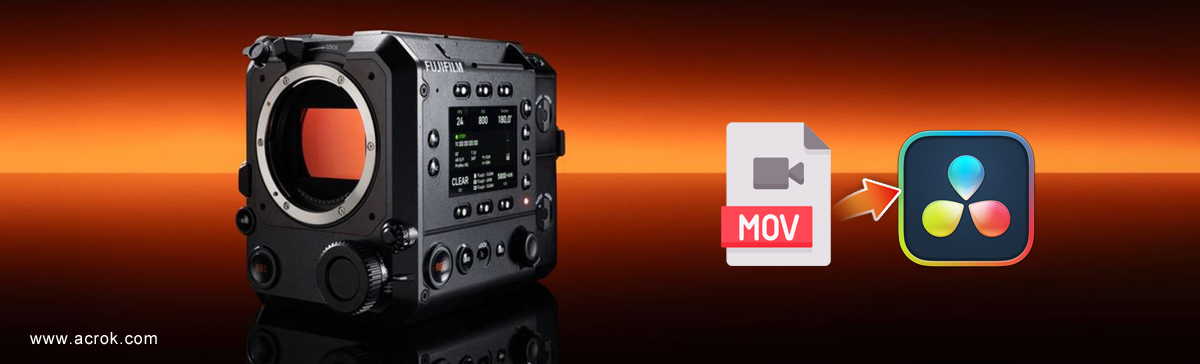
To edit FUJIFILM GFX ETERNA 55 MOV video on computer, there are lots of video editors can help you. The most popular tool would be DaVinci Resolve, it is the easiest video editing solution on Windows and Mac. The second one is Premiere Pro, which is a hot video editing program. And also, Final Cut Pro is another powerful editor which is a bit complicate and is better for pros to use. Today we will discuss how to solve the issue of incompatibility between GFX ETERNA 55's video format and DaVin Resolve.
The FUJIFILM GFX ETERNA 55 is a triumph of focused design. It does not try to be everything to everyone. Instead, it offers a singular, compelling, and almost painterly image quality that stands apart in a market saturated with similar-looking full-frame options. Take full advantage of the GFX ETERNA 55's large sensor and internally record video in Apple ProRes 422/HQ/LT, 4:2:2, 10-bit HEVC/H.265, or H.264 or ProRes proxies. The packaging format of the video is MOV. But usually, you may come across you can’t import FUJIFILM GFX ETERNA 55 MOV to DaVinci Resolve for editing. This is because your MOV files can't be fully compatible with DaVinci Resolve. So if you have the same trouble, just read this article and learn about converting FUJIFILM GFX ETERNA 55 MOV to DaVinci Resolve supported formats easily on Windows/Mac.
Acrok Video Converter Ultimate would be your great helper showing you how to convert FUJIFILM GFX ETERNA 55 MOV to DaVinci Resolve completely compatible files step by step. It supports Blu-ray, DVD, MXF, MTS, MP4, MKV and other 1000+ popular video formats for output, and you can also keep the video quality and original. Just FREE TRIAL and install it, then follow the 3 steps before importing GFX ETERNA 55 footage to DaVinci Resolve 20, 19, 18 for editing.
Freedownload and try MOV to DaVicni Resolve Converter here
 100% Safe & Clean 100% Safe & Clean
 Step 1. Import Video files
Install and launch the MOV to DaVinci Resolve converter, then click "Add File(s)" button to browse to a FUJIFILM GFX ETERNA 55 MOV clip and the software will add it to file list. Repeat the operation to load multiple videos.
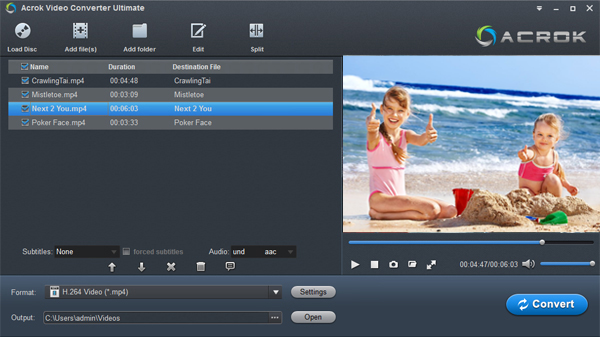
Step 2. Select outout format
You can directly choose the preset for DaVinci Resolve which has been supplied by the MOV to DaVinci Resolve Converter. Of course, you can also choose other options. For example, 4K MP4, QuickTime MOV.
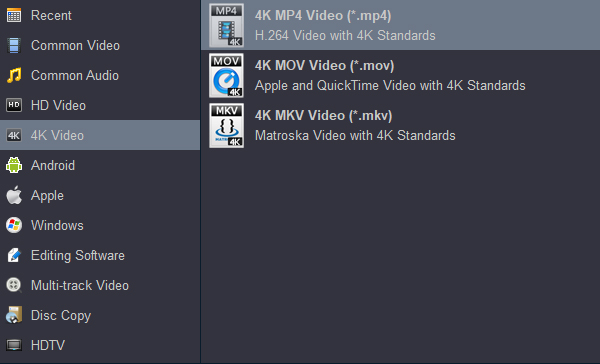
Step 3. Start the video conversion
Click "Convert" to start converting FUJIFILM GFX ETERNA 55 MOV to H.264 encoded MP4 videos for DaVinci Resolve.
After the video to DaVinci Resolve conversion, click "Open" to find videos and import converted files to DaVinci Resolve for editing. Now you can freely use your FUJIFILM GFX ETERNA 55 MOV files on any version of DaVinci Resolve.


"Acrok Video Converter Ultimate. It's the best app you can buy to save your 4K videos on computer. It has too many options and is so fast. I strongly recommend it to anyone!"
Elmer Cerdena Jr.
Copyright © 2026 Acrok Studio All Rights Reserved. Terms and Conditions | Privacy | Refund Policy