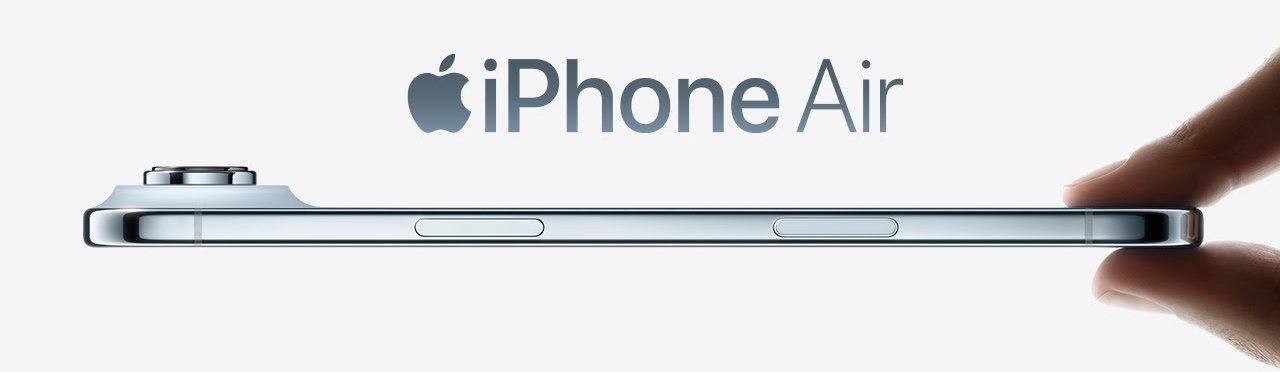
What're the supported video formats for iPhone Air? You'll learn all iPhone Air supported video formats and know the best format converter for iPhone Air.
iPhone Air Supported Formats
Audio: AAC, APAC, MP3, Apple Lossless, FLAC, Dolby Digital, Dolby Digital Plus, and Dolby Atmos
Video: HEVC, H.264, and AV1 in .mp4, .m4v and .mov file formats.
Fix Unsupported iPhone Air Video Formats Issue
Nowadays, people prefer to enjoy movies on portable electronics, rather than watch movies using clunky Smart TVs or computer. Among all phones and tablets, iPhone Air is one of the most popular handsets, because it is easy to carry and delivers crisp clear image on 6.5‑inch all‑screen OLED display. However, iPhone Air i is slightly picky about file formats, which means that not all your videos can be playable on iPhone Air. So, before transferring movies to iPhone Air for more fun, it's necessary to figure out what're iPhone Air supported video formats and how to convert incompatible videos to iPhone Air acceptable video formats using format converter for iPhone Air.
What's the Best Format Converter for iPhone Air?
However, not all format converters can convert inacceptable videos to iPhone Air supported video formats, granted that profiles MP4 and MOV are involved. iPhone Air users may come across a problem that Kenneth experienced before.
I converted some MKV files using Pavtube Video Converter, which converts nearly all types of movie files, into MP4's and MOV's. Apple Devices App loads both these formats into its library but when I attempt to synch it with my iPhone Air, Apple Devices App says that the synch cannot occur because iPhone Air doesnt recognise the format of the file.
How could this happen? Actually, this error occurs because there're various frame rates for MOV and MP4 videos, not all of which are supported by iPhone Air. Instead of setting video audio parameters manually, like frame rate, bit rate, you're suggest to try Acrok Video Converter Ultimate to convert videos to iPhone Air. This is because it has the optimal presets for iPhone and iPad with Retina display. Users don't need to set complicated video audio parameters by themselves. They are only required to perform several mouse clicks to achieve video conversion for iPhone Air. Read on to know how to convert MKV, AVI, WMV to be compatible with iPhone Air.
How to Convert Videos to iPhone Air Supported Video Formats?
Here, let's take iPhone Air video conversion on Windows as an example. For Mac users, please download and install Mac version, namely, Acrok Video Converter Ultimate for Mac, and follow the steps as below.
1. Download and install iPhone Air Format Converter on your computer.
2. Launch the program, click Add files icon to add videos for conversion. For converting DVD and Blu-ray movies, please insert your disc into your BD room then click "Load Disc" icon.
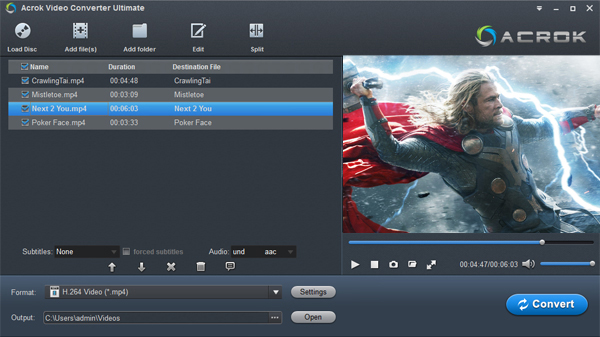
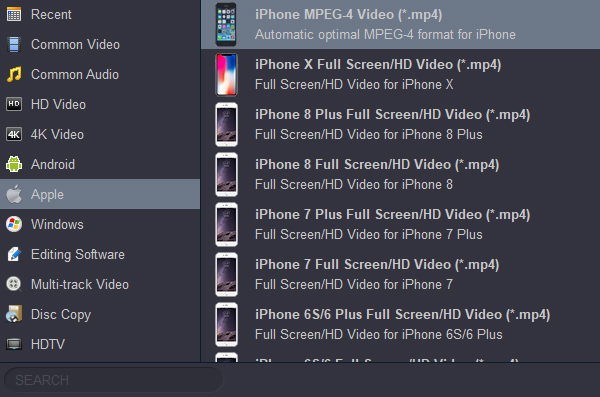
3. Click the "Format" drop-down button to select iPhone Air supported video format from the from "Apple" or "Common Video" Category.
4. Click the Output and specify the folder in which to save the converted files. Ensure you have enough free space on your computer.
5. Click the "Convert" button to start and finish converting unsupported files to iPhone Air supported video format.
6. Once conversion process is completed, attach iPhone Air to your computer and sync it with iTunes or Apple Devices App. To play the converted movie on your iPhone Air, just click iPhone Aie Main Menu > Videos and choose Movies. Select a movie and enjoy!


 100% Safe & Clean




