

 >
MKV to Premiere Pro Workflow
>
MKV to Premiere Pro Workflow
Revised User Questions
1. I have installed a trial version of Premiere Pro on my newly purchased computer, and I am a new user of this software. My friend said it’s easy to use. However, I’ve discovered that I cannot import my MKV-format video into it. Is the software's compatibility with this format inherently poor, or do I need to purchase the paid version to unlock this feature? More importantly, how can I solve this problem? I would prefer the simplest possible method, as I am not very tech-savvy.
2. I downloaded some 1080P MKV movies from a website and plan to edit them in Premiere Pro, but I can't load these MKV videos into the editing software. The collection was saved on my computer's D: drive. After running Premiere Pro on Windows 10, I click "File > Import..." and navigate to the folder containing the files. Unfortunately, the folder appears empty, and the files are not visible. Why is this happening, and how can I make them appear for editing?
3. Alright, so I used an online video downloader to get a video in MKV format, yet Premiere Pro won't let me add it to my project. How can I either download the video directly in a format that Premiere Pro will accept, or convert the existing MKV file to a compatible format? Everything I've tried so far—like changing the player or dragging the file—hasn't worked. Any viable suggestions would be greatly appreciated. Thanks in advance!
Contents
Why Premiere Pro Not Import MKV Files? Solution 1. Transcode MKV to Premiere Pro Compatible Formats (100% Working) Solution 2. Rename the File Extension Solution 3. Install QuickTime or required codec
Adobe Premiere Pro is a timeline-based video editing software application. It is part of the Adobe Creative Cloud suite, which includes various programs for video editing, graphic design, and web development. Launched in 2003, this professional editing software supports high-resolution video editing at up to 10,240 x 8,192 resolution, with up to 32 bits per channel color in both RGB and YUV color spaces. It also offers audio sample-level editing, VST audio plug-in support, and 5.1 surround sound mixing. The newest version is Premiere Pro 2025 (25.0). While Premiere Pro supports a wide variety of video and audio file formats and codecs on both macOS and Windows, the software unfortunately cannot natively read or import MKV files due to its open-source container structure.
Read More: Adobe Premiere Pro Supported Formats
MKV is an open-standard, free container format that can hold an unlimited number of audio, video, subtitle tracks, or even still pictures within a single file. This format offers a richer media experience than many other current formats, making MKV a popular choice for backing up DVD and Blu-ray discs to play on a computer connected to a TV. However, many video editors need to work with MKV files, but their professional editing programs—Premiere Pro included—do not support MKV importing natively. So, how can you get Premiere Pro to read MKV files? Some users look for a direct MKV plugin for Premiere Pro (versions 23.0–25.0, CC, CS6, or CS5). Unfortunately, Adobe does not provide an official MKV importer plugin. As a result, third-party conversion tools, such as the Acrok MKV to Premiere Pro Converter, become an essential and practical solution.
Acrok Video Converter Ultimate (available for both Windows and Mac) is regarded as one of the best Premiere Pro MKV converters. It can efficiently transcode MKV videos into formats that Premiere Pro supports natively on both operating systems. In addition to editing, you can also convert MKV to optimized playback formats for popular tablets, Smart TVs, and smartphones. Moreover, it even supports converting 2D MKV to 3D MP4/AVI/WMV/MOV for playback on 3D media players and televisions.
Key Features of this MKV to Premiere Pro Converter:
Free download: MKV to Premiere Pro Converter
 100% Safe & Clean 100% Safe & Clean
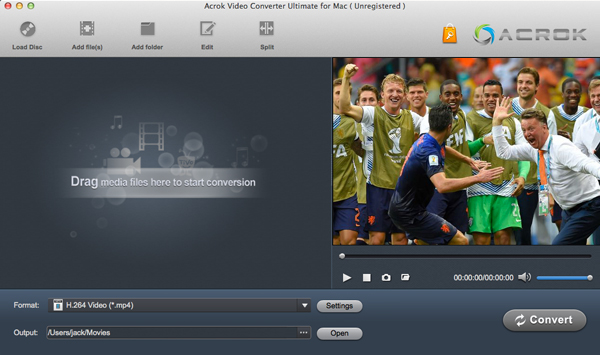
Here is the detailed method to convert MKV files to Premiere Pro supported formats. The instructions for Mac OS X are shown below, but the process for Windows (Windows 11/10) is virtually identical. Just ensure you have downloaded the correct version for your operating system.
Launch the MKV video conversion software on your computer and click Add File to load the MKV files you wish to convert. Alternatively, you can directly drag and drop the MKV videos into the converter interface. Once the files are loaded, you can preview them and take snapshots of your favorite scenes. If you want to merge multiple MKV files into a single video for easier editing, simply click the "Settings" button and check the option "Merge all files into one" to combine them.
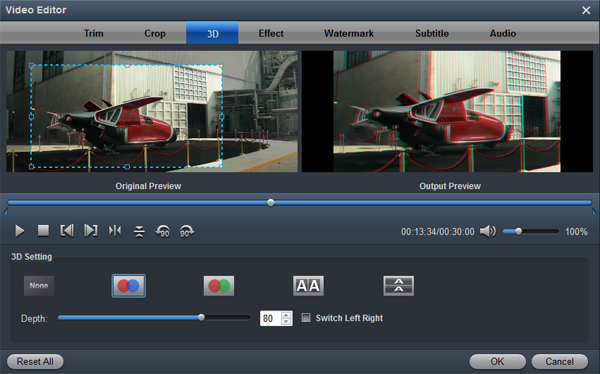
The converter provides several built-in video editing functions, allowing you to personalize your original MKV videos instantly. To access these, click the "Edit" button to open the video editing window. Here, you can trim the video length, crop the frame size, adjust brightness and saturation, add special visual effects, or overlay text/image watermarks. If you want to create a 3D video, click the "3D" option to add a 3D effect to your loaded MKV files.
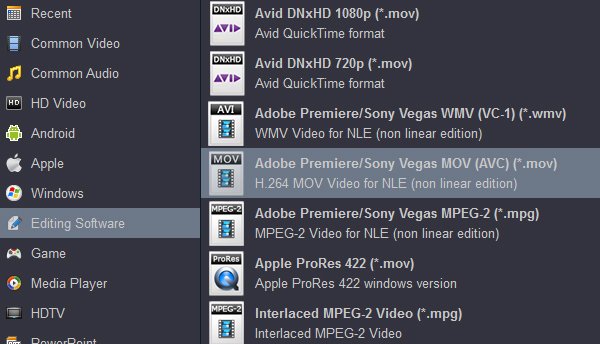
After editing, navigate to the format selection panel at the bottom of the window. Go to the "Editing Software" category and select Adobe Premiere/Sony Vegas MOV (AVC) (*.mov) as the output format. Alternatively, for general editing, you can also choose popular formats like MP4 (H.264), WMV, or AVI, all of which work reliably with Premiere Pro.
Once all your settings are configured, click the big "Convert" button to begin transcoding your MKV files into a Premiere Pro editable format. When the conversion finishes, you can click the "Open" button to locate the newly created high-quality MOV or MP4 files in your output folder. After that, you can smoothly import and edit these converted videos in Premiere Pro to meet all your multimedia needs.
Sometimes, we don't need to make things overly complex. To fix import errors like "The file has no audio or video streams" or "32-bit QuickTime support ending", a few users have reported success by simply renaming the file extension from .mkv to .mov, .mp4, .wmv, or .mpg.
Important Warning: This trick does occasionally get users out of a bind. However, it is not guaranteed to work. Renaming the extension only changes how the operating system identifies the file; it does not change the internal video or audio codec. If Premiere Pro does not support the codec used inside the MKV container (such as H.265/HEVC), simply renaming it will not help, and you will still be unable to load the file.
QuickTime comes bundled with many popular and general-purpose codecs. Installing it may resolve import errors caused by missing codec components. After installing QuickTime, restart Premiere Pro and check if it can now import your MKV video files.
Step 1: Download QuickTime for your PC. (Note: QuickTime 7 for Windows is no longer actively supported by Apple.)
Step 2: Install QuickTime:
Step 3: After the installation finishes, restart your Premiere Pro software.
Step 4: Test whether Premiere Pro can now import your MKV video files.
Critical Security Notice: QuickTime has been officially discontinued on Windows. As a result, using it may pose a security risk. Many Windows 10 and Windows 11 users find that this method simply doesn't work anymore, largely because modern Windows versions have stricter security protocols than Windows 7 or 8.1.
If you cannot install QuickTime or still cannot import MKV files afterward, you can try downloading and installing the required codec packs from reputable, established sources. Before doing this, it is highly recommended that you back up all your important files, as installing new codecs can sometimes cause existing video or audio files to become unreadable or conflict with other software. Furthermore, Adobe Premiere Pro officially advises against downloading third-party codec pack software to avoid potential system conflicts and software instability.
The primary reason Premiere Pro fails to import MKV files is that the required codec is missing from your system, and the container format itself is not natively supported by the software. While renaming extensions or installing outdated codecs might be tempting, these methods are either unreliable or risky.
Therefore, transcoding the MKV file using dedicated conversion software (like Acrok Video Converter Ultimate) is the most effective, reliable, and easiest solution we strongly recommend. Beyond converting to and from MKV, Acrok Video Converter Ultimate can handle over 300 different video and audio formats and codecs. Better still, it is an all-in-one toolbox that supports Blu-ray ripping, video/audio conversion, video editing, online downloading, and screen recording. It features a beginner-friendly interface, super-fast processing speeds, and stable performance—making it the ideal choice for editors who want a simple, hassle-free workflow.
Free download: MKV to Premiere Pro Converter
100% Safe & Clean 100% Safe & Clean

Powerful video converter for converting HD footage and movies. The editing software profiles are useful. They are easy to select and the output quality is well. This as a great piece of software easy to use with great results.
Edwin Low
Copyright © 2026 Acrok Studio All Rights Reserved. Terms and Conditions | Privacy | Refund Policy