

 >
Play MKV on Panasonic TV from USB
>
Play MKV on Panasonic TV from USB
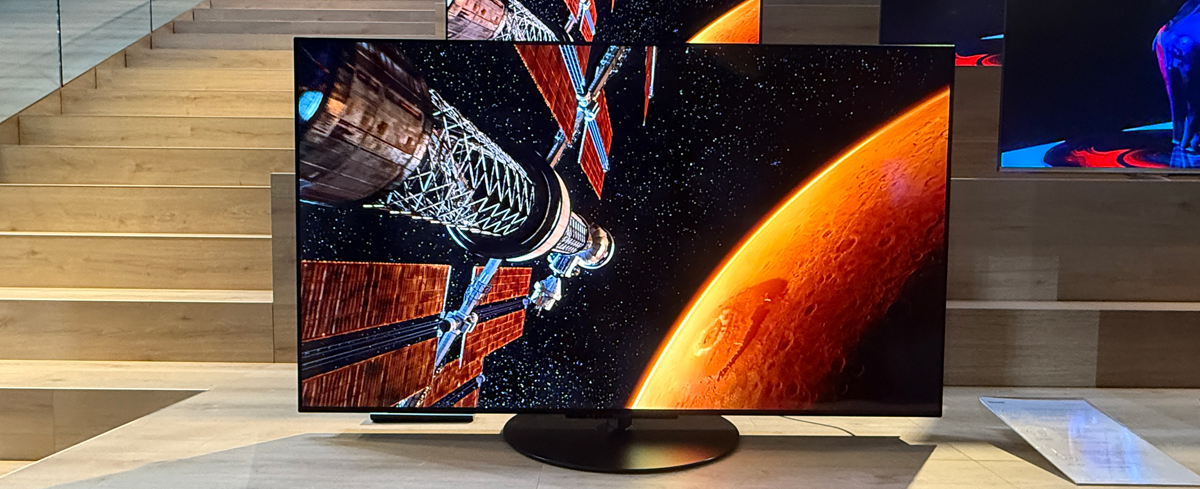
I have some MKV movies I'd like to watch on my Panasonic TV, but certain MKV files won't play—the TV doesn't even recognize them on the USB drive. I know Panasonic TVs support MKV, so what's going on with these specific files? What's wrong with them? Could you explain why this happens and how I can get the TV to detect and play these MKV files from the USB drive? - Jimmy
An MKV file is a video file saved in the Matroska multimedia container format. It supports several types of audio and video codecs and may include .SRT, .SSA, .USF, or VobSub subtitles. Sometimes you will come across such kind of questions: your device has some video format in its support list, but it couldn't play back some of these files occasionally. In this guide, we would like to explain why you can't play MKV files on Panasonic TV and how you can watch all MKV files on Panasonic TV.
Can Panasonic TV play MKV videos? Obviously, Panasonic TV supports multiple video file containers including MKV, FLV, MP4, AVI, MOV, etc. However, these file containers should be in accordance with the specific requirements upon video codec. Panasonic TV only recognizes MKV files in H.264 or MPEG video codec. Therefore, if your MKV files are not encoded in these codecs, Panasonic TV won't see them on your USB drive. You need to make use of video converter or video encoder tools to turn your MKV files into Panasonic TV accepted video format and codec, which are detailed described below.
To encode your MKV files to Panasonic TV supported formats, you need to turn to some professional MKV converter or MKV video encoder tools as mentioned above. You could find a lot of video converter tools on Google. Acrok Video Converter Ultimate offers you the best solution. As a professional media converter tool, Acrok Video Converter Ultimate enables you to convert video, Blu-ray and DVD files between 200+ file formats including MP4, FLV, MKV, AVI, MOV, WMV, M4V, etc. The key feature is that it enables you to encode your video files to desired ones for different devices and players including smartphones, tablets and Smart TVs, VLC, Windows Media Player, QuickTime, etc. With this MKV to Panasonic TV Converter, you could transcode your MKV files to .mp4 with H.264 codec, so that you could freely play back all MKV files on Panasonic TV. First, download and install Acrok MKV Converter on your computer. Then, follow the below steps to learn how to convert 4K/1080P/720P MKV files for Panasonic TV.
Free download and try Panasonic TV Video Converter
 100% Safe & Clean 100% Safe & Clean
Note that the steps below use the screenshots of Acrok Video Converter Ultimate for Windows to show you how to easily get the work done. The way to convert MKV files on Mac is almost the same. Just make sure you download the right version.
Launch Acrok Video Converter Ultimate on your PC, then click the "Add file" icon to browse for and add your source MKV videos.
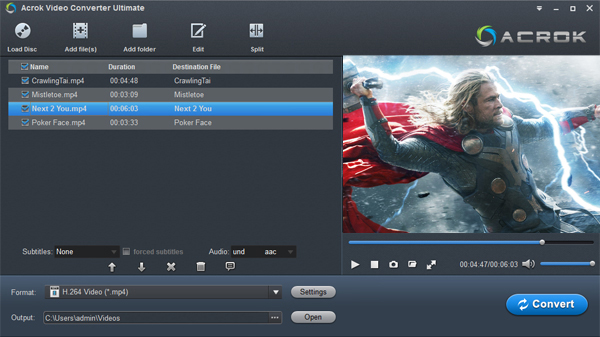
Next to the "Format" option, click the drop-down button to open the "Profile" panel. You need to choose the output format here. H.264 MP4 video under the "Common Video" group is recommended, as it's supported by Panasonic TVs.
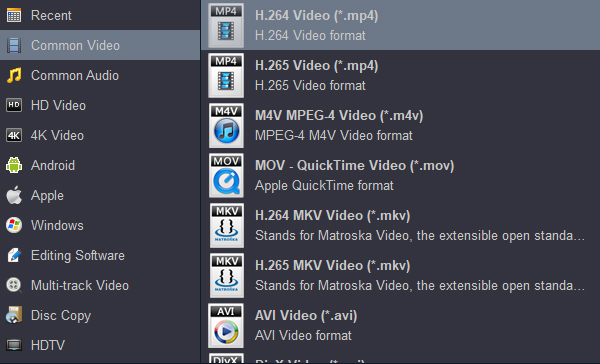
Of course, you can also select "Panasonic HDTV Video (*.mp4)" under the "HDTV" category.
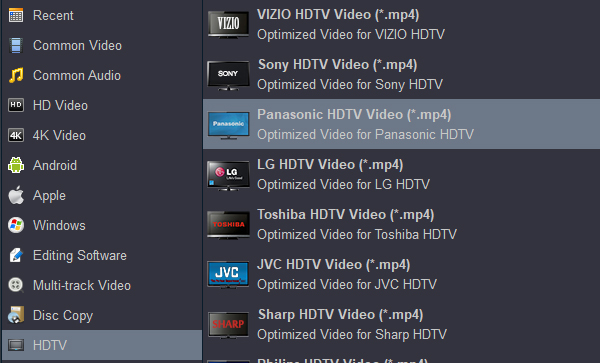
If your Panasonic TV supports 4K video playback, you can select 4K H.264 MP4 as the output format as well.
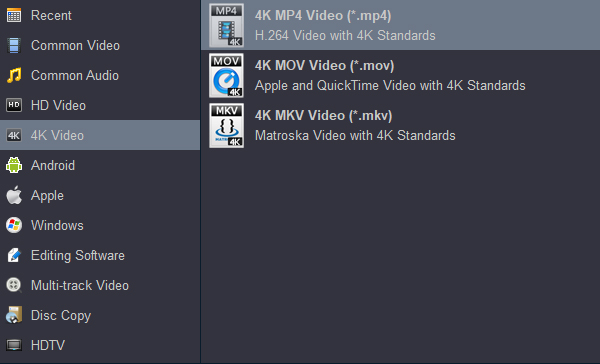
After setting the output profile parameters, go back to the main interface and click the "Output" box to set the output directory.
Finally, click the "Convert" button at the bottom of the right sidebar. Acrok Video Converter Ultimate will then start converting your MKV files for playback on Panasonic TV. The conversion will finish shortly.
After the conversion finishes, you can transfer the converted MKV files to your Panasonic TV via a USB drive. Actually, with Acrok Video Converter Ultimate, you can not only convert videos from one format to another, but also make mobile phone ringtones, convert 2D videos to 3D, edit videos, select subtitles and audio tracks, and more. You can do more than you can imagine with Acrok software.
Also, there are free tools that can help you convert MKV movies to Panasonic TV-compatible video files, so you can play all your MKV files on your Panasonic OLED or 4K UHD Smart TV. You can use free desktop tools like Format Factory, or HandBrake, to convert MKV files for Panasonic TV playback.
Here, we will take HandBrake as an example to show you how to convert MKV files for Panasonic TV for free. It is a professional free video converter that can handle conversions between almost all file formats for free.
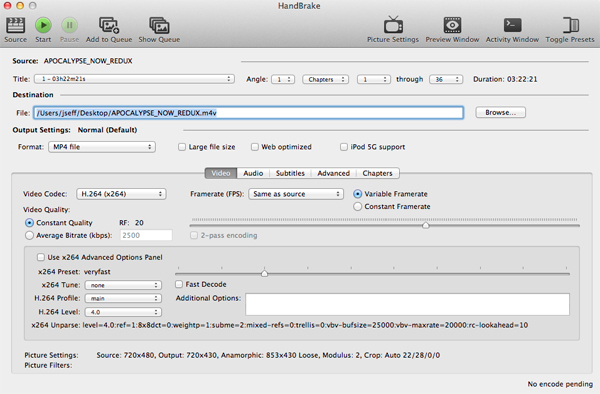
Follow the steps below to learn how to convert MKV files for Panasonic TV for free using this free tool.
First, download and install HandBrake from the official website (compatible with Windows, macOS, and Linux). Once launched, import your MKV file:
After loading, you can see a preview and basic information about the video in the centre of the interface.
In the Summary tab on the right, find the Format dropdown and select MP4.
Note: HandBrake may sometimes automatically name the output file with a .m4v extension – this is common for Apple devices. You can prevent this by going to Preferences > Output Files and setting “MP4 file extension” to “Auto”.
This step determines the final quality, file size, and device compatibility.
Video Settings: Switch to the Video tab.
Video Encoder: For best compatibility, choose H.264 (x264). If your playback devices support it and you want smaller files, select H.265 (x265) – it can save 30-50% of file size at the same perceived quality.
Frame Rate (FPS): Select Same as source to avoid audio-video sync issues.
Quality: Use the Constant Quality mode and adjust the RF (Rate Factor) value to balance quality and size.
RF range is typically 0–51; lower values mean higher quality and larger files.
RF 18-20: Near-lossless, very high quality.
RF 20-22: Excellent balance between quality and file size – recommended for most cases.
RF 22-24: Smaller files, suitable for sharing online, with a slight quality reduction.
Audio Settings: Go to the Audio tab.
For maximum compatibility, set the audio encoder to AAC (avcodec).
The below table shows you some detailed features of Acrok MKV to Panasonic TV Converter and HandBrake, so that you could learn them better and decide which one you might need.
| Aspect | Acrok Video Converter Ultimate | HandBrake |
|---|---|---|
| Pricing | Paid software; $55.30 for a lifetime license | Completely free; open-source (GPLv2) |
| Supported OS | Windows / Mac | Windows / Mac / Linux |
| Input Formats | Supports almost all video formats (MKV, AVI, WMV, MP4, MOV, MTS, MXF, etc.), including encrypted DVD and Blu-ray discs | Supports common video formats; does NOT support DRM-protected DVDs/Blu-rays |
| Output Formats | Wide variety (MP4, MKV, AVI, MOV, FLV, WMV, 3GP, etc.) + device-specific presets | Only MP4, MKV, and WebM container formats |
| Video Encoders | H.264, H.265, etc. | H.264, H.265, AV1, MPEG-4, MPEG-2, VP8, VP9 |
| GPU Hardware Acceleration | ✅ Yes (NVIDIA / AMD) | ✅ Yes |
| Video Editing Features | Crop, trim, effects, watermarks, subtitles, 2D-to-3D conversion, etc. | Basic editing: crop, scale, de-interlacing, filters, etc. |
| DVD / Blu-ray Support | ✅ Directly reads and rips (including encrypted discs) | ❌ Cannot handle encrypted discs directly; requires preprocessing with tools like MakeMKV |
| Batch Conversion | ✅ Yes | ❌ No |
| Built-in Media Player | ✅ Can play DVDs/Blu-rays/videos | ❌ None |
| Target Audience | “Prosumers” who need to handle encrypted discs | Advanced users who value free, open-source software |
| Learning Curve | Clean and intuitive interface | Powerful but with many parameters; has a moderate learning curve |
You need to directly convert encrypted DVD or Blu-ray discs
You require more advanced editing functions (e.g., 2D-to-3D conversion)
You need a wider range of output formats beyond MP4/MKV/WebM
You are willing to pay for a hassle-free, out-of-the-box experience ($55.30 lifetime license)
You don't want to spend money – it's completely free and open-source
You are using Linux
You primarily work with ordinary video files (non-encrypted discs)
You are willing to invest some time in learning parameter tuning to get more control and flexibility
Bottom line: Acrok is a “paid, ready-to-use” solution, especially strong for handling encrypted discs. HandBrake is a “free but requires some tinkering” workhorse, perfect for technically inclined users who enjoy customisation.
What's next? Please download and try the MKV to Panasonic TV Converter:
100% Safe & Clean 100% Safe & CleanAfter converting MKV files to Panasonic TV compatible media file formats, you then need to transfer the converted MKV files to Panasonic TV for playback via USB device. The below steps would show you how to play movies on Panasonic TV via USB device:
Step 1: Add your movies to USB drive and then disconnect your USB drive from computer.
Step 2: Connect the USB device to the Panasonic TV USB port. Turn on the connected USB device if necessary.
Step 3: On the Panasonic TV remote controller, press the "Application" button to reveal the menu.
Step 4: Select "Media Player > Photos, Music or Videos > Select name of connected device", "Devices > USB > Photos, Music or Videos", or "Media Server > USB" option to get to target USB drive.
Step 5: Select the file you want to play back from the list, and then press the play button to start playing movies on Panasonic TV via USB drive. You then could enjoy movies.


It has been very easy to use. This application does it all and at a great price. Updates are regular and easy to install. It's very easy to use and is a one step job. We enjoy the convenience of watching our purchased Blu-ray's on smart tv and this works perfectly.
Jim Schmidt
Copyright © 2026 Acrok Studio All Rights Reserved. Terms and Conditions | Privacy | Refund Policy