

 >
Play MKV on Panasonic TV
>
Play MKV on Panasonic TV
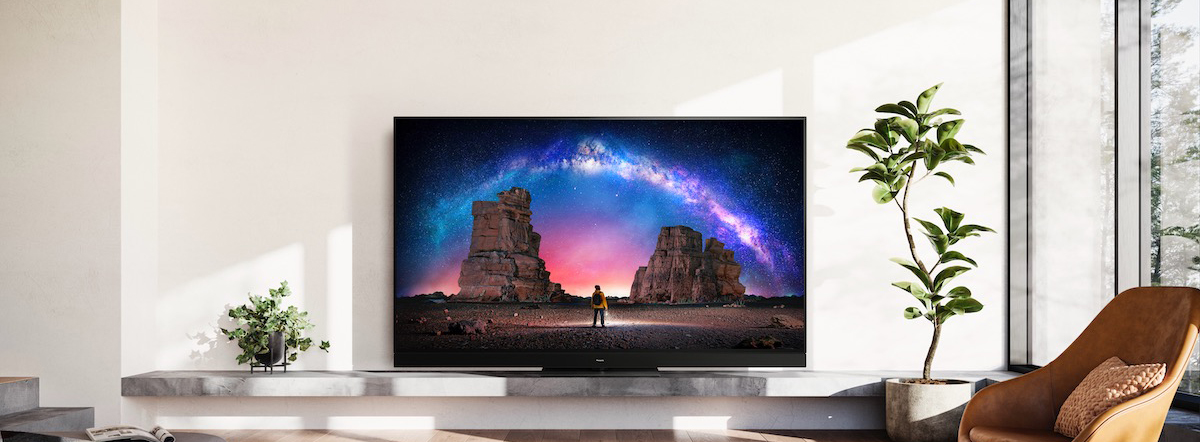
Summary: Learn the best video format for Panasonic TV USB playback and how to play MKV movies on your Panasonic TV from USB. This guide covers Panasonic TV USB supported video formats, why some MKV files won't play, and how to use Acrok Video Converter Ultimate to fix compatibility issues—step by step.
 100% Safe & Clean 100% Safe & Clean
Panasonic Smart TVs can do a lot more than just watch TV channels. With a variety of apps and networking services built in, these TVs offer some of the capabilities of a computer. You can stream videos and music from external devices like mobile phones, computers, and USB drives through HDMI, Wi-Fi, or USB connection, allowing you to enjoy local movies on the big screen.
Normally, Panasonic TVs can play almost all major video files. Sometimes, however, you may find that certain video files—especially MKV files—won't play on your Panasonic TV. If you're stuck with this issue, you're in the right place. This article provides a step-by-step guide on how to play MKV movies on Panasonic TV from USB.
MKV is one of the most popular video formats today. You'll find many movies and TV shows downloaded in MKV format, and you may also discover that many playback devices support it. Chances are you have some MKV video files on hand, and you may wonder: can Panasonic TV support MKV files from USB?
The good news is that Panasonic TVs do support MKV playback via USB. According to Panasonic's official specifications, the supported USB playback formats include AVI, HEVC, MKV, WMV, MP4, M4v, FLV, 3GPP, VRO, VOB, TS, PS, and more.
However, there's an important catch. MKV is just a container format—it wraps together video, audio, and subtitle tracks. Whether your Panasonic TV can actually play a specific MKV file depends on the video and audio codecs used inside that container.
For Panasonic TVs, supported video codecs within MKV typically include H.264/AVC, MPEG-1, MPEG-2, and MPEG-4. Supported audio codecs include AAC, Dolby Digital, Dolby Digital Plus, HE-AAC, MPEG Audio, and MP3. If your MKV file is encoded with unsupported video or audio codecs—such as newer codecs like HEVC (H.265) in some older models, or high-definition audio formats like TrueHD or DTS-HD—you will fail to open them on your Panasonic TV.
Beyond codec compatibility, Panasonic TVs also have specific requirements for USB drive file systems. Most Panasonic models support FAT16, FAT32, and exFAT; newer models (especially OLED lines from 2022 onward) also support NTFS, though this may not always appear in official specifications. If your USB drive is formatted with an unsupported file system, the TV may not recognize it at all.
There are several reasons why an MKV file might not play on your Panasonic TV via USB:
Fortunately, these issues are usually easy to solve.
The easiest and most reliable way to play MKV movies on your Panasonic TV from USB is to convert the unsupported MKV files to a format that your TV fully supports. The best video format for Panasonic TV USB playback is typically MP4 with H.264 video codec and AAC audio codec—this combination is widely supported across Panasonic, Samsung, LG, Sony, and most other TV brands.
A professional TV Format Converter can handle this task efficiently. One highly recommended solution is Acrok Video Converter Ultimate—a full-featured media converter that transforms MKV files into Panasonic TV-compatible formats with just a few clicks.
Free download and try Panasonic TV Video Converter
100% Safe & Clean 100% Safe & CleanAcrok Video Converter Ultimate stands out as a reliable MKV to Panasonic TV Converter for several reasons:
Launch the video converter software on your computer. Load the MKV videos by clicking the "Add File" button or simply drag and drop the MKV files directly into the software. If you want to convert multiple MKV files to Panasonic TV format in batch, just load all of them at once.
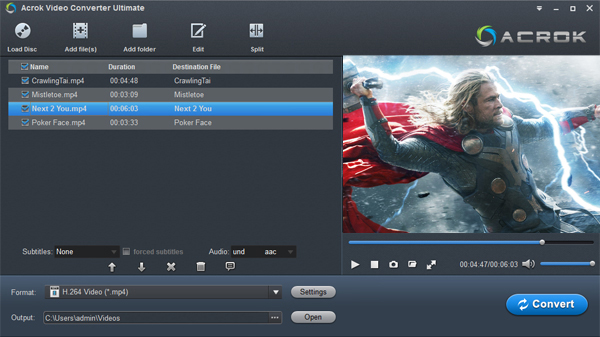
Click the "Format" drop-down menu. Navigate to the Smart TV or Panasonic section and select a Panasonic TV preset—typically something like "Panasonic Viera TV (*.mp4)" or "HDTV 1080P Video (*.mp4)". This preset comes equipped with Panasonic TV supported video and audio codecs. If your Panasonic TV supports 4K video playback, you can select 4K H.264 MP4 as the output format as well.
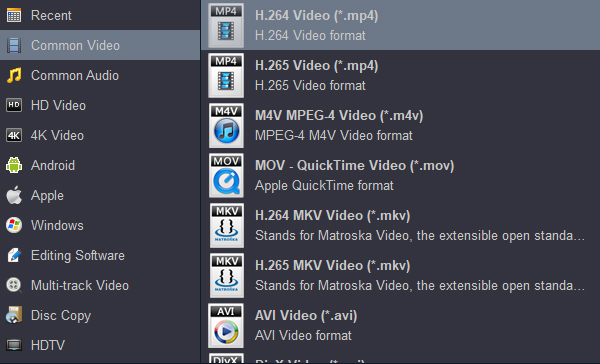
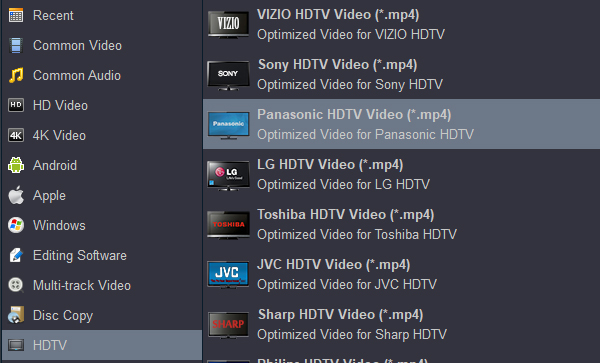
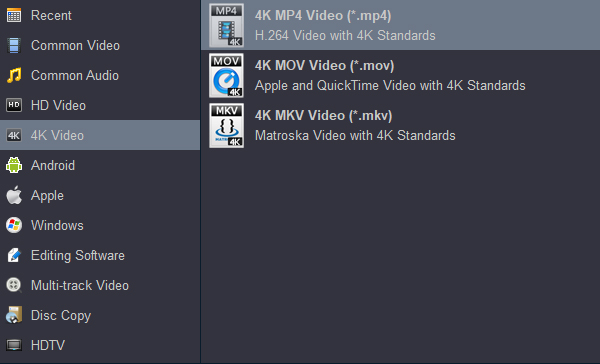
Pro Tip: If you're unsure which format to choose, stick with MP4 using H.264 video and AAC audio. This combination offers the broadest compatibility and is widely regarded as the best video format for Panasonic TV USB playback.
Now it's time to convert your MKV files. Just click the "Convert" button to begin the MKV to Panasonic TV conversion process. Depending on the file size and your computer's performance, this may take anywhere from a few minutes to an hour.
After conversion, connect your USB drive to your computer. Navigate to the destination folder where the converted files are stored, transfer them to the USB drive, then safely eject the drive. Plug the USB into your Panasonic TV's USB port, navigate to the Media Player or USB input, and enjoy your MKV movies on the big screen.
Whether you choose Acrok Video Converter Ultimate or another reliable TV Format Converter, the process is straightforward: load your MKV files, select the Panasonic TV preset, convert, transfer to USB, and enjoy. With the right tool, you'll never have to worry about Panasonic TV USB supported video format compatibility again.
What's next? Please download and try the MKV to Panasonic TV Converter:
100% Safe & Clean 100% Safe & CleanTip: Are you interested in monitoring and managing your child's smartphone using your own mobile device? If so, you will require a parental control app compatible with both Android and Apple iOS platforms. We invite you to read our comprehensive reviews to select the most suitable app.


It has been very easy to use. This application does it all and at a great price. Updates are regular and easy to install. It's very easy to use and is a one step job. We enjoy the convenience of watching our purchased Blu-ray's on smart tv and this works perfectly.
Jim Schmidt
Copyright © 2026 Acrok Studio All Rights Reserved. Terms and Conditions | Privacy | Refund Policy