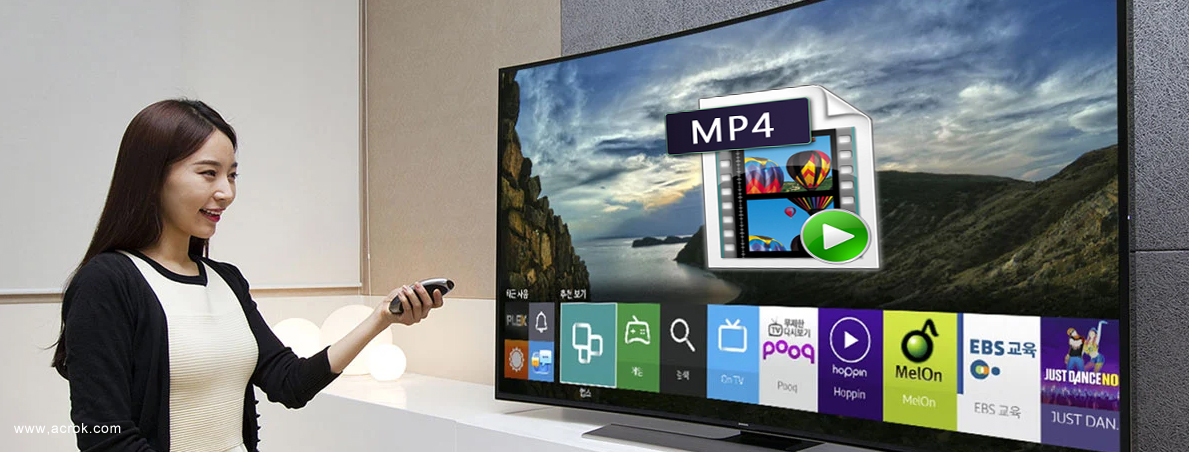
Over the past two years, Samsung has continued to lead the premium TV market with a clear focus on refining its Neo QLED lineup while cautiously stepping into the OLED space with its QD-OLED technology. The overall direction has been toward higher brightness, better contrast, and deeper ecosystem integration. Unfortunately, Samsung TVs have not made significant improvements in video format compatibility, especially the most widely used MP4 format.
The performance and display quality of televisions have significantly improved compared to previous years, offering a much better viewing experience. Gone are the days over a decade ago when we could only watch news and other regular TV programs on television. We can now relegate our home DVD and Blu-ray players to the storeroom. Today, we can install software on our TVs to watch our favorite content, such as TV series, movies, and even concert compilations. We are all exploring new ways to watch content on TV, and it must be admitted that streaming platforms have become quite sophisticated.
On various forums, it's common to see posts discussing how to watch MP4 movies on Samsung Smart TV, OLEF TV, QLED TV, UHD TV, etc. Some of these revolve around issues like being unable to play MP4 movies downloaded onto a USB drive. Today, let's address this problem.
Different brands of TVs support different playback formats, and sometimes even TVs from the same brand but manufactured in different years may vary in the formats they support. Based on parameter analysis, all Samsung TVs with USB ports support MP4 format encoded in H.264. Of course, Full HD TVs support MP4 at 1920 × 1080 pixels, while 4K UHD TVs support MP4 at 3840 × 2160 pixels. Usually, when a Samsung TV cannot play MP4 videos from a USB drive, it is caused by incompatible video codec formats. Therefore, provided that the USB flash drive (Only Support FAT32) is compatible with the TV, what you'll need to do is convert the MP4 videos that cannot be played into a format supported by the Samsung TV.
Best Workaround - How to play MP4 on Samsung TV from USB?
Can't play MP4 files on Samsung TV from USB? Converting MP4 video to a format supported by Samsung TV can solve this problem. I will share with you three video converters that have received high online ratings. You can choose the one that best suits your needs.
NO.1 Acrok Video Converter Ultimate
Acrok Video Converter Ultimate (For Windows | For Mac) is a complete media toolbox to process 8K/4K/1080P video files, audio files and physical Blu-ray/DVD discs to Samsung TV supported video format with simple clicks. Leveraging advanced GPU acceleration technology, it can fast convert, compress, edit videos, backup and rip your Blu-rays & DVDs for easier playback, sharing, editing and much more without compromising quality. Plus, it handles batch conversion, making your media converting tasks a breeze! Thus, it’s an ideal tool to convert any MP4 files for playing on Samsung TV from USB.
Features of this best MP4 to Samsung TV Converter
Convert downloaded & recorded MP4 files to Samsung TV USB supported format
Convert other common formats such as MKV, AVI, MOV, WMV, RMVB movies for playing on Samsung TV from USB.
Rip & convert Blu-ray/DVD movies to the optimal format for Samsung TV.
Convert format from and to MP4 with H.264, MPEG-4 and H.265 codec.
Convert camera videos, downloaded movies, and old discs for playback on other brands of TVs with USB ports.
Convert own movies for playing on hot smartphone and tablet.
And so on.
The step-by-step guide is almost the same on PC and Mac.
1. To download and install Acrok Video Converter Ultimate, click the button below.
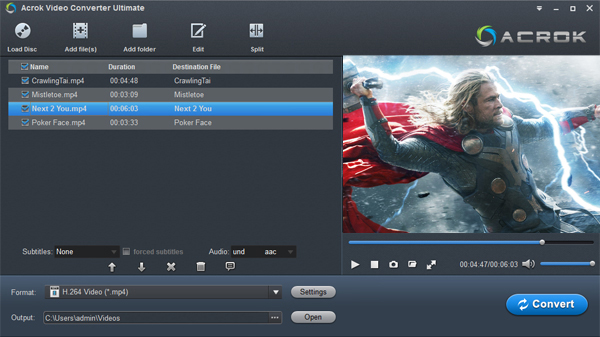
2. Launch the idea Samsung TV Format Converter. Click the Add Files or the Add Folder icon to load the MP4 (H.264, H.265, MPEG-4) video.
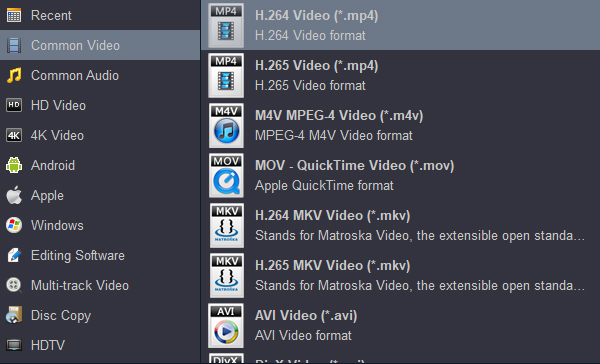
3. Now click the Format bar to reveal output panel, move mouse cursor to Common Video category to select H.264 Video (*.mp4) as the output format.
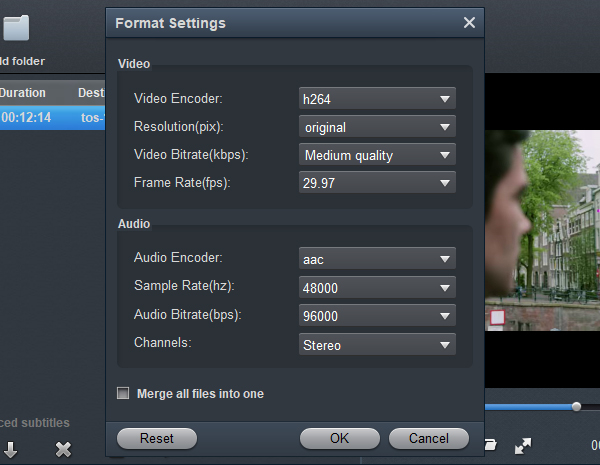
4. Refer to the TV's user manual to determine the screen resolution; then configure the output video parameters based on this specification.
5. Click Convert button to begin the process. When you see Success, it means the conversion has finished.
6. After the conversion is over, click Open button to locate the converted files.
7. Transfer the movies to your USB flash drive. Insert the USB drive into the TV's USB port. You can freely enjoy the converted MP4 movies on your Samsung TV from USB without any trouble.
NO.2 Handbrake
HandBrake is a longstanding favorite in the world of free, open-source video conversion software. If you want professional-grade control without spending a penny-and don't mind skipping DRM-protected sources-HandBrake remains one of the best video converters available. Its active community, regular updates, and transparent development add to its trustworthiness and longevity. If you have Handbrake, you can use it for video conversion. But if you do not want to be held back by slow processing and poor output quality, Acrok software is there for you. Here is how to convert MP4 format into a format supported by Samsung TV.
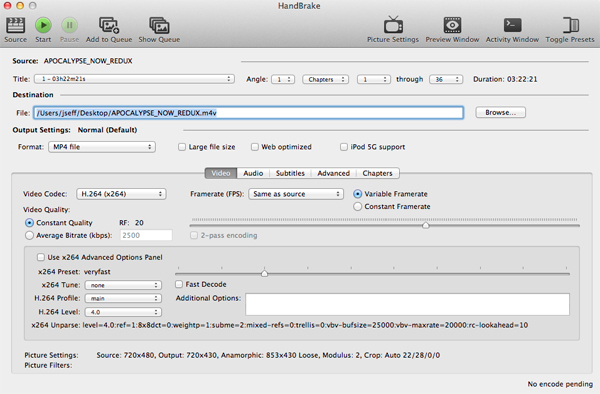
Core Functions of HandBrake
Converts video files from nearly any format.
Features a large list of built-in, optimized settings ("presets") for specific devices.
Provides fine-grained control over the output file's size and quality.
Can queue multiple videos for conversion, allowing for overnight or unattended encoding of entire libraries or folders.
Can read and create chapter markers from the source, which are useful for navigation in media players.
1. Go to handbrake.fr and download the version for your operating system.
2. Open HandBrake. Click "Open Source" (or drag and drop your MP4 video file into the window).
3. On the right side, under "Presets", select a built-in profile based on your target device or need.
4. Click "Browse" at the bottom to set where the converted file will be saved.
5. Click the "Start" button (green arrow) at the top.
If you need to handle encrypted videos or prefer an all-in-one solution for downloading, editing, and converting, commercial software would be more suitable. If you prioritize customization control and have a limited budget, HandBrake remains an excellent choice.
NO.3 Online Video Converter
Users can use this converter online through this link: https://video-converter.com/
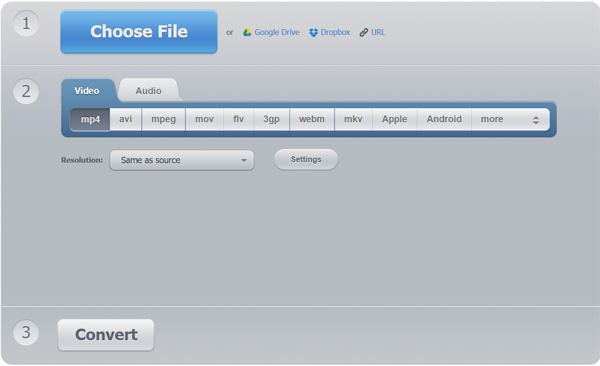
While online video converters offer convenience and quick access without software installation, they come with several notable drawbacks:
Security and Privacy Risks
File Size and Duration Limits
Internet Dependency and Speed
Limited Output Quality and Control
Lack of Advanced Features
Unstable Service and Ads
Format and Codec Support Restrictions
No DRM or Copyrighted Content Processing
Environmental and Transparency Concerns
In summary, online video converters are suitable for quick, one-off tasks with non-sensitive content. However, for frequent use, large files, high-quality output, or privacy‑sensitive material, offline desktop software remains a more secure, flexible, and reliable choice.
Conclusion
MP4 is a popular container format with many advantages. It provides users with a vivid visual experience. How to play download or recorded video files on Samsung TV? This post offers simple way to convert MP4 to Samsung TV usb supported format and 3 idea converters to solve the playback issue. Pick one and start playing your MP4 file on the Samsung TV.
Free download and try best MP4 to Samsug TV Converter


 100% Safe & Clean




