Want to turn your video clips into fantastic productions for YouTube? Want to express your unique perspective like a film director? It all starts with Adobe Premiere Elements. Edit your videos with this tool and unleash what you truly want to show. This post shares useful way to import unsupported videos into Premiere Elements without error. You'll also find the answers to "Does Premiere Elements support MOV?" and "Why you can't import MP4 to Premiere Elements?"
About Premiere Elements 2026
Adobe Premiere Elements is the perfect video editing gateway for enthusiasts and hobbyists. It strips away the overwhelming complexity of professional suites, offering a clean, guided interface that makes editing intuitive.
Its core strength is smart automation. Features like Auto Creations-which automatically generate themed movies from your clips-and Guided Edits provide step-by-step tutorials for complex effects. You get robust essentials: multi-track editing, color correction, animated titles, and a wide range of effects and transitions. Crucially, it supports modern formats including 4K video.
While it lacks the advanced precision tools of Premiere Pro, that's the point. For quickly turning family footage, travel videos, or simple projects into polished, shareable movies without a steep learning curve, it's excellent. It's a powerful, affordable, and surprisingly capable editor that proves you don't need professional complexity to create professional-looking results. Now, let's see what video and audio files Premiere Elements support and then you will know what files you can import to Premiere Elements for editing.
Any Video To Premiere Elements Converter
Supported Formats of Premiere Elements 2026
Note:
To export in other formats and file extensions select Export & Share > Devices or Image > Custom > Advance Settings. You may choose the desired Format from the drop-down list. Click ok and save to add it as your custom preset.
"File format not supported" is a frequent error message when importing videos to Premiere Elements. The error happens even importing MP4 and MOV files, let alone some incompatible formats like MKV, FLV, SWF, etc. To solve the error, you are suggested to convert videos to Premiere Elements-supported formats and codecs first with Acrok Video Converter Ultimate.
How to Import Unsupported Video Files into Premiere Elements 2026?
As shown above, Premiere Elements can't handle any video and audio file. How can you do when you want to import some Premiere Elements unsupported files to edit? For example, you have some videos and want to edit MKV/AVI/MP4/MOV in Premiere Elements. In this case, you can use some video converters to convert these unsupported video to Premiere Elements supported video and audio formats.
A web seach for "Premiere Elements Video Converter", you will be recommended for many video converter applications. Among these software, Acrok Video Converter Ultimateis suggested strongly. It can convert any video and audio files to Premiere Elements. It can convert Premiere Elements unsupported MKV, AVI, TS, Tivo, OBS recordings, camera & camcorder recordings, etc to Premiere Elements and also can compress unsupported 4K video to 1080P video for Premiere Elements when you are runing a low-end computer that can't handle 4K video. You can change video and audio encoder, resolution, bitrate, frame rate, sample rate to make the output video more compatible with Premiere Elements.
Free download and try Premiere Elements Format Converter
In addition, Acrok Video Converter Ultimate is also an excellent video editing tool with some simple video editing function. You can trim video, crop video, merge video, split video. You also can add subtitle/watermark, rotate/flip video, edit audio. For Mac users, you can turn to Acrok Video Converter Ultimate for Mac to solve all Premiere Elements media loading problems.
How to convert Unsupported to Premiere Elements best editing format?
Free download and install the Premiere Elements format converter on your desktop, then follow the step-by-step instruction below. Windows and Mac version share the same process.
Step 1. Load video source.
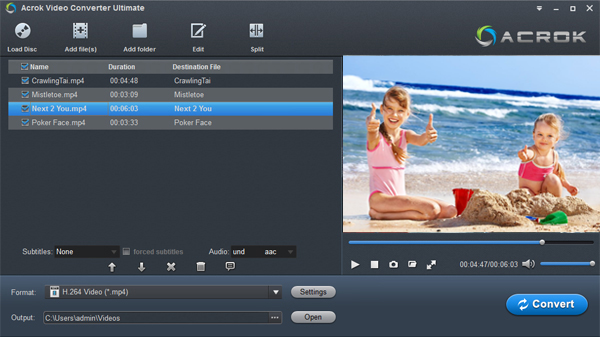
Make sure your video files are stored on your computer. Open Acrok any video to Premiere Elements converter and then click "Add file" button to import the video source. Left click on the imported video file, and you can play it in the preview window. If you need to transcode multiple video files for editing in Premiere Elements, simply choose all of them for batch conversion.
Step 2. Choose Premiere Elements supported format
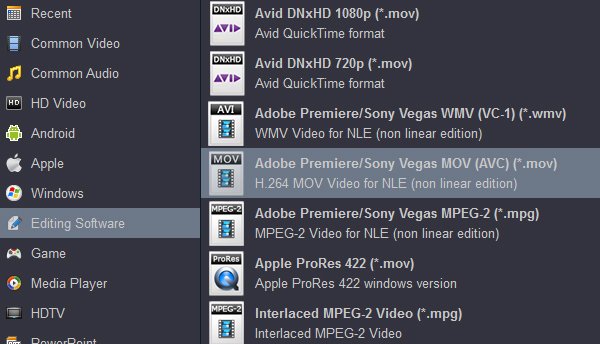
Click "Format" and move cursor to "Editing Software" category, then click and select "Adobe Premiere MOV (AVC) (*.mov)" as the output format. The end result is a high-quality MOV video file with smaller size that can be directly imported into Premiere Elements.
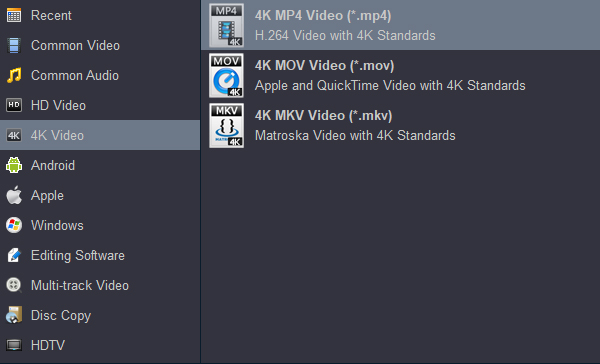
If you want to convert 4K UHD movies to 4K videos for playing on your 4K device, you can choose "4K MP4 (*.mp4)"from the "4K Video" category as the output file. But please make sure your 4K device can decode and playback 4K videos. If not, please turn to select "HD MP4 (*.mp4)" from the "HD Video" category.
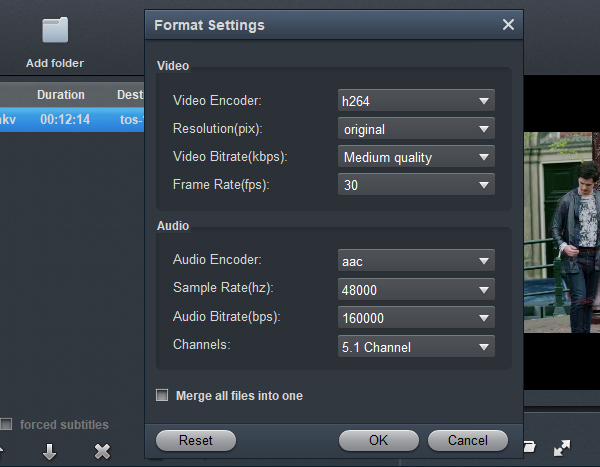
Step 3 (optional). Adjust settings.
Back on the main interface, click the "Settings" button next to the selected profile, you can adjust video audio parameters. But if you don't know parameters very well, just keep them as default which are the best settings for converting unsupported video files for Premiere Elements.
Step 4. Initiate the conversion process
After selecting your desired format and the destination file you can opt to make changes or settings and if you are OK with the way the format is click the "Convert" button to start transcoding video to Premiere Elements supported video format at lightning speed with best quality.


 100% Safe & Clean




