

 >
Play MKV on Sony TV from USB
>
Play MKV on Sony TV from USB
You've downloaded a great MKV movie, plugged your USB drive into your Sony TV, and… nothing. The file doesn't show up. Or worse, it shows up but won't play.
If this sounds familiar, you're not alone. Many Sony TV owners face this exact issue. The good news? It's almost always fixable—and you don't need to be a tech expert to do it.
Here's the key thing to understand: MKV is just a container—think of it like a box that holds video, audio, and subtitle tracks together. The box itself isn't the problem. What's inside the box—the video and audio codecs—determines whether your Sony TV can play it.
Sony TVs do support MKV files via USB. However, Sony TVs typically only recognize MKV files that use specific codec combinations. If your MKV file uses unsupported video or audio codecs—like H.265/HEVC on older models, or DTS audio—your Sony TV simply won't play it.
Common error messages you might see include:
So what does work? The Sony TV USB supported video format varies slightly by model, but here's what most Sony TVs support:
| Container | Supported Video Codecs | Supported Audio Codecs |
|---|---|---|
| MKV (.mkv) | H.264, MPEG4, WMV v9, VC-1 | AAC, MP3, PCM |
| MP4 (.mp4) | H.264, H.265/HEVC (4K models), MPEG4 | AAC, MP3, Dolby Digital |
| AVI (.avi) | MPEG1, MPEG2, Xvid, H.264 | PCM, MP3, AAC |
The best video format for Sony TV USB playback is MP4 with H.264 video codec and AAC audio codec—this combination offers the broadest compatibility across virtually all Sony TV models, from older Bravia units to the latest 4K and OLED screens.
Also worth noting: Sony TVs support USB drives formatted with FAT12, FAT16, FAT32, and exFAT file systems. If your USB drive is formatted as NTFS, some older Sony models may not recognize it. And if your MKV file is larger than 4GB, you'll need to use the exFAT file system.
Before diving into conversion, try these simple solutions:
If none of these work, your MKV file likely uses an unsupported codec—and the most reliable solution is to convert it.
The most reliable way to play MKV movies on your Sony TV from USB is to convert the unsupported MKV files to a format that your TV fully supports. A professional TV Format Converter can handle this task efficiently.
One highly recommended solution is Acrok Video Converter Ultimate—a full-featured media converter that transforms MKV files into Sony TV-compatible formats with just a few clicks.
Free download and try Sony TV Video Converter
 100% Safe & Clean 100% Safe & Clean
Let's be honest—nobody wants to spend hours researching video codecs just to watch a movie. Acrok Video Converter Ultimate was built to eliminate that hassle entirely.
One-click Sony TV optimization. Instead of wrestling with resolution, bitrate, frame rate, or audio channels, you just pick the Sony TV preset. The software automatically applies the exact settings your TV expects—whether you're using an older Bravia or the latest 4K OLED model.
From MKV to Sony-friendly in minutes. The conversion engine is optimized for speed without sacrificing quality. Thanks to GPU acceleration, even 4K MKV files convert quickly, so you can get back to what matters—enjoying your movies.
Your USB drive, your way. Acrok doesn't just convert video—it also lets you adjust file size and quality to fit your USB storage. Going on a trip and need to squeeze more movies onto a smaller drive? You can balance quality and file size with a few simple sliders.
Subtitles that actually work. One of the most common frustrations with MKV playback on Sony TVs is subtitle support. Acrok lets you embed external subtitle files (.srt, .ass, .ssa) directly into the converted video, so subtitles appear correctly on your TV screen every time.
A single tool for all your video needs. Beyond MKV to Sony TV conversion, Acrok supports virtually every video format you might encounter—AVI, MOV, WMV, MTS, and more. It's the last video converter you'll ever need.
Whether you're converting one movie or an entire collection, Acrok Video Converter Ultimate turns a technically complex process into something anyone can do in minutes.
Launch Acrok Video Converter Ultimate on your computer. Click the "Add File" icon to browse for and add your source MKV videos. Batch conversion is supported, so you can load multiple files at once.
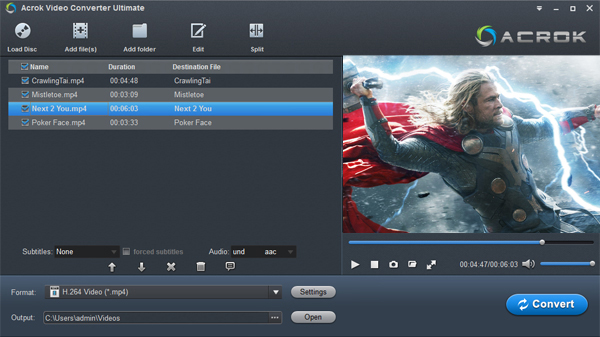
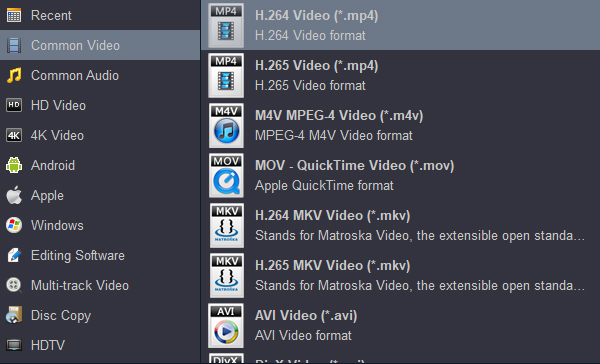
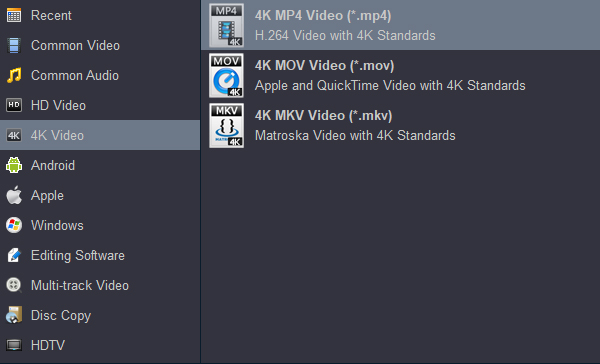
Click the "Format" drop-down menu. Navigate to the Smart TV or Sony section and select a Sony TV preset—typically something like "H.264 (*.mp4)" or "HDTV 1080P Video (*.mp4)". This preset comes equipped with Sony TV supported video and audio codecs.
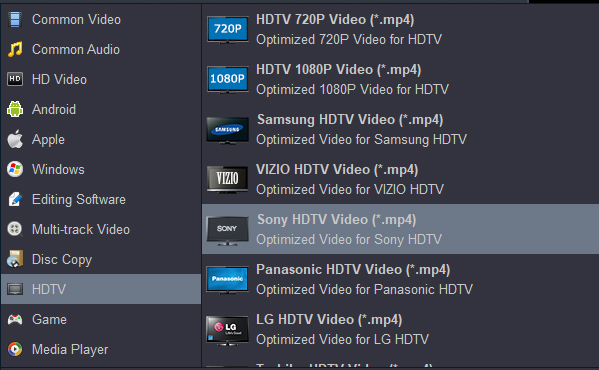
Of course, you can also select "Sony HDTV Video (*.mp4)" under the "HDTV" category.
If your Sony TV supports 4K video playback, you can select 4K H.264 MP4 as the output format as well.
After setting the output profile parameters, go back to the main interface and click the "Output" box to set the output directory.
Once you've selected the output format, click the "Convert" button to begin the conversion process. Thanks to hardware acceleration, the conversion completes faster than most competing tools.
After conversion, connect your USB drive to your computer. Navigate to the destination folder where the converted files are stored, transfer them to the USB drive, then safely eject the drive. Plug the USB into your Sony TV's USB port, open the pre-installed Video app, navigate to the USB input, and enjoy your MKV movies on the big screen.
Why won't my Sony TV play MKV files? The answer usually comes down to codec compatibility—not the MKV container itself. Your Sony TV expects specific video and audio codecs inside that MKV file, and if they don't match, playback fails.
The good news is that the solution is simple. Whether you choose Acrok Video Converter Ultimate or another reliable TV Format Converter, the process is straightforward: load your MKV files, select the Sony TV preset, convert, transfer to USB, and enjoy. With the right tool, you'll never have to worry about Sony TV USB supported video format compatibility again.
Understanding the best video format for Sony TV—MP4 with H.264 video and AAC audio—gives you a reliable fallback for any video file. And with a quality MKV to Sony TV Converter like Acrok Video Converter Ultimate, you can convert your entire MKV collection in batch, saving time and frustration.
Now grab your USB drive, fire up your converter, and start enjoying your MKV movie collection on the big screen. No more "Playback not available"—just great movies, the way they were meant to be watched.
What's next? Please download and try the MKV to Sony TV Converter:
100% Safe & Clean 100% Safe & CleanTip: Want to monitor and manage your child's smartphone using your own phone? Then you need a parental control app that works on both Android and Apple iOS systems. You can read our review articles to choose the best app.


It has been very easy to use. This application does it all and at a great price. Updates are regular and easy to install. It's very easy to use and is a one step job. We enjoy the convenience of watching our purchased Blu-ray's on smart tv and this works perfectly.
Jim Schmidt
Copyright © 2026 Acrok Studio All Rights Reserved. Terms and Conditions | Privacy | Refund Policy