"Can't Import XAVC HS from Sony a7 IV to DaVinci Resolve. Just got the free version of DaVinci Resolve, but I found it won't accept XAVC HS, I'm trying to transcode some Sony a7 IV XAVC HS files into some format DaVinci Resolve accepts so that I can cut and compile clips in DaVinci Resolve from several of these files into one silly video. I've tried VLC, but nothing I do produces a file that will work in DaVinci Resolve. I'm looking for a quick workaround to help me import and edit XAVC HS in DaVinci Resolve easily."
The Sony a7 IV is the fourth generation of the company's core a7 full-frame mirrorless camera model. Making full use of the high-resolution 33MP sensor and fast processing capabilities, UHD 4K 30p XAVC HS 10-bit recording is possible using the full width of the sensor, offering 7K oversampling for impressive sharpness and realism. The a7 IV employs a pair of codecs to suit different workflows: XAVC HS, which uses HEVC/H.265 encoding to retain more detail at smaller bitrates and XAVC S-I, which is an intraframe codec for consistent performance and quality at bitrates up to 600 Mb/s. As mentioned above, Sony a7 IV can support various video formats; while, 60Mbps XAVC HS is the favored format for most of its users, for it brings better quality and convenient for broadcasting.
As we know, DaVinci Resolve is a computer-based professional non-linear editing system for editing and mastering digital video in various formats, including 2K and 4K resolutions. You may just start to use DaVinci Resolve and try to import and edit some media files like in MP4, MOV, WMV, MKV. The only problem usually occurred during the editing process. XAVC HS still cannot fully supported by some video editors like DaVinci Resolve can't ingest 4K XAVC HS .mp4 video from Sony a7 IV, Sony a1, Sony a7S III, Sony FX3, Sony FX2, etc.
Why XAVC HS Video May Not Import into DaVinci Resolve?
XAVC HS is a video format developed by Sony that uses the H.265/HEVC codec for high compression efficiency while maintaining high quality. If you’re unable to import XAVC HS files into DaVinci Resolve, the issue is usually related to one of the following:
1. Software Version
lder versions of DaVinci Resolve (especially the free version) may not support H.265/HEVC decoding, or may lack specific support for XAVC HS. Ensure you’re using the latest version of DaVinci Resolve.
2. Operating System Limitations
On Windows, HEVC/H.265 support often requires an additional paid codec from the Microsoft Store, or installation of manufacturer’s software.
On macOS, HEVC is natively supported from macOS High Sierra (10.13) onward, but very recent XAVC HS profiles might still need updates.
3. Hardware and Performance
XAVC HS is computationally intensive to decode. If your system lacks a capable GPU or CPU with hardware-accelerated HEVC decoding, Resolve may fail to import or play the files smoothly.
4. File Corruption or Unsupported Settings
Some XAVC HS files recorded with very high bit depth, frame rate, or specific color sampling (e.g., 4:2:2 10-bit) may require the DaVinci Resolve Studio (paid) version for full support.
How to Fix It:
Update DaVinci Resolve to the latest version.
On Windows, install the HEVC Video Extensions from Microsoft Store (may require purchase) or use software to transcode to an intermediate format like H.264, ProRes or DNxHR.
Ensure your GPU drivers are updated.
Consider converting XAVC HS to a more edit-friendly format using third-party software.
Best Solution: Convert XAVC HS to DaVinci Resolve Compatible Formats
The easiest workaround is to convert XAVC HS to H.264, which is the most compatible format for DaVinci Resolve on Mac Sequoia and Windows, which will make the editing work much smooth and easier.
A fast and fluid workflow for editing XAVC HS in DaVinci Resolve is to encode H.265 codec to a editable codec with a powerful third party program. Here Acrok Video Converter Ultimate (Windows Version | Mac Version) is highly recommended to you which is professional on dealing with XAVC HS to H.264, Apple ProRes or DNxHD codecc for editing in DaVinci Reolve 20, 19, 18, 17 easily and efficiently. Besides the two editing software, it also offers other optimized codec for non-linear editing programs, such as MPEG-2 for Premiere Pro/Vegas Pro, DNxHD for Avid Media Composer, Apple ProRes for Final Cut Pro,
Apple Intermediate Codec for iMovie, etc. Now, download the software on Mac and follow the guide below to start conversion.
Free download Sony XAVC HS Video Converter
Guide on transcoding XAVC HS for DaVinci Resolve:
1
Load XAVC HS footage
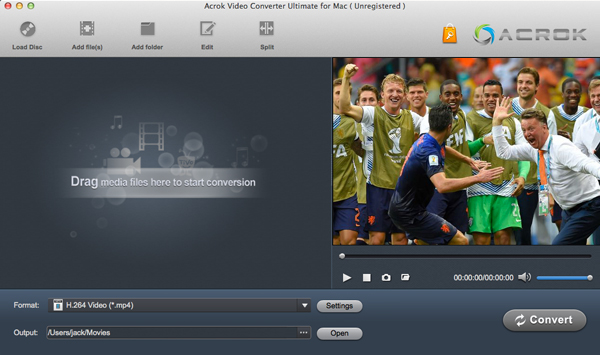
Install and run the best Sony XAVC HS Video Converter. Click the "Add file" button to import .mp4 files from the camera. Batch conversion is supported. You can play the loaded vides via this free XAVC HS media player.
2
Set output format
Hit the Format box and select "4K Video >4K MP4 Video (*.mp4)" as output format for editing XAVC HS video in DaVinci Resolve 20, 19, 18, 17, etc easily.
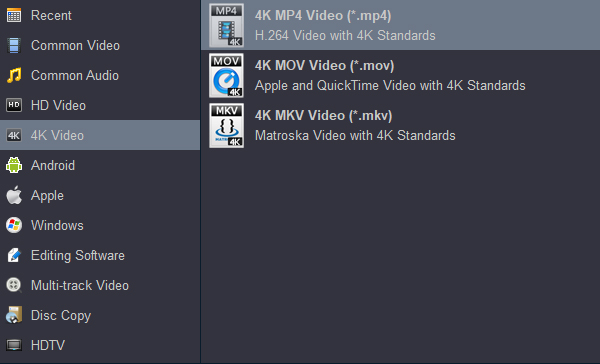
Tip: For iMovie users, please "iMovie AIC Video (*.mov)" under "iMovie" category. AIC MOV is the best editing format for all versions of iMovie, including iMovie 10.2.4; To load and edit XAVC HS in Premiere Pro without rendering, please choose "Editing Software > Adobe Premiere MOV AVC (*.mov)" as output format; How to edit 4K XAVC HS in Avid Media Composer, you'd better select Avid DNxHD (*.mov) as output format, you can get it undeer "Ediitng Software" category; To play XAVC HS on tablet or smart tv, H.264 MP4 is your best choice.
3
Settings
Click the "Settings" icon to do some audio, video parameter settings like video bitrate, frame rate, audio sample rate, audio channel, etc. For your original 4K files, we recommend you to set the video size as 3840 * 2160 and select "Orginal" in Video Bitrate (kbps) column to make lossless XAVC HS conversion.
To know the original video parameters, please go back to the main interface of the software and select your task then click "Show selected tast properties" icon.
4
Edit XAVC HS video (Optional)
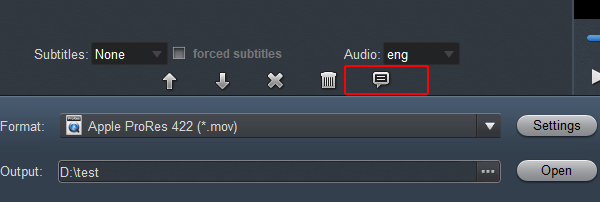
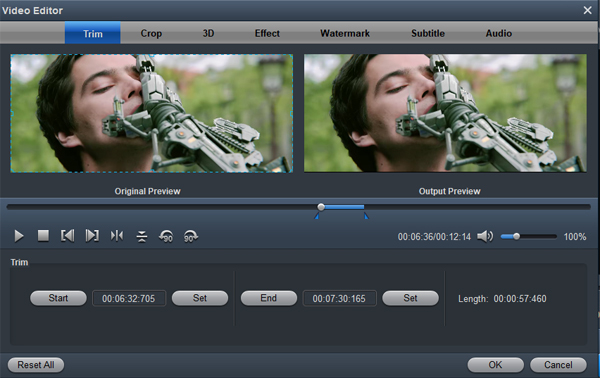
Click "Edit", you can trim, crop the XAVC HS video on PC. For getting 3D videos, this XAVC HS to DaVinci Resolve Converter can add 3D effects onto XAVC HS video.
5
Start video conversion
Click the convert button under the preview window, the XAVC HS converter will start the conversion from XAVC HS to H.264 codec immediately.
After the conversion, you will be able to get the output files via clicking on "Open" button effortlessly. Afterwards, you can import Sony a7 IV, Sony a1, Sony a7S III, Sony FX3A, Sony FX2 XAVC HS footages to DaVinci Resolve for further editing easily.


 100% Safe & Clean




