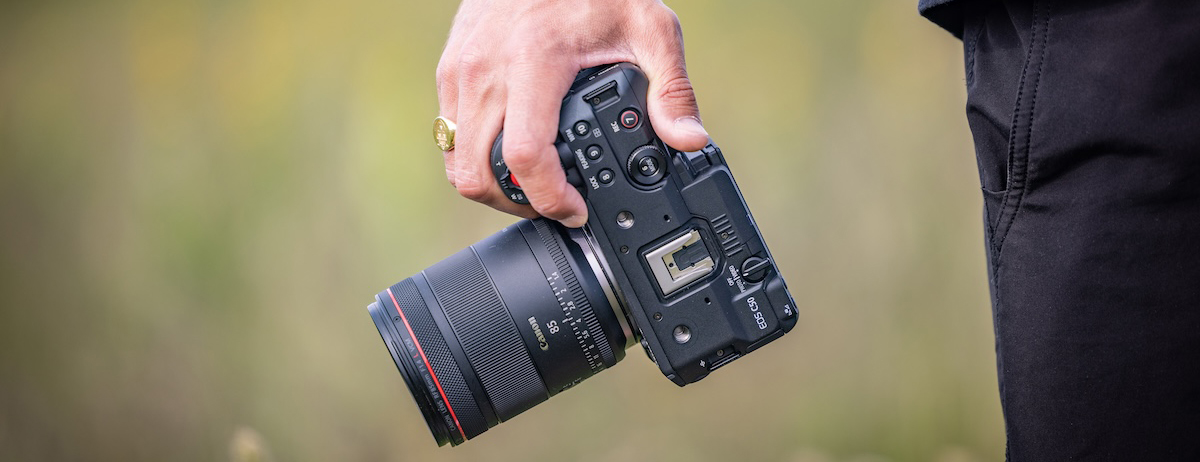
The Canon EOS C50 records video internally using several professional formats, including 12-bit Cinema RAW Light, XF-AVC (MXF), and XF-AVC S / XF-HEVC S (MP4). It uses dual memory card slots (CFexpress Type B and SD UHS-II) for recording. Featuring a newly developed 7K full-frame CMOS sensor, the Canon EOS C50 Cinema Camera is a compact powerhouse for your video and photo needs.
MXF file format seems to be one of the widely-supported native video formats. But you might sometimes fail to import Canon EOS C50 7K and 4K files to Adobe Premiere Pro. Does Premiere Pro support Canon EOS C50 MXF footage? And what is the best solution to fix the C50 recordings in Premiere Pro error? Read on to unlock the answers!
To edit Canon EOS C50 MXF files in Premiere Pro, import them using the Media Browser and ensure you have the correct folder structure, or use a third-party converter to transcode them to an edit-friendly format like MOV or MP4 first. Once imported, you can drag them to the timeline to start editing.
As for can't load MP4 files from Canon EOS C50 to Premeire Pro, you heve to transcode the new XF-AVC S to Premiere Pro best editing codec - MPEG-2. XF-AVC S is a video recording format developed by Canon. It is part of the professional XF series of Canon video formats. At present, we are unable to directly import this format into Adobe editing software, including Premiere Pro, After Effects, Premeire Elements, etc.
Best Video Converter for Canon EOS C50
Transcoding Canon EOS C50 footage should be a very helpful method. If you have Adobe Media Encoder, you can use it for video conversion. If you don't have that tool or can't manage to convert the problematic MXF files to the desired format with Media Encoder, you might as well try an easier-to-use yet powerful video converter and decoder - Acrok Video Converter Ultimate. To solve the Canon EOS C50 files or other incompatible issues, free download and install Acrok software on your PC or Mac computer, and follow the detailed steps below.
Free download and try Canon EOS C50 Video Converter
Acrok ultimate converter can automatically remove any common Blu-ray copy protections, and it can also decrypt protected DVDs. Even if your discs are scratched, damaged or unplayable, the software is here to offer a solution. With Acrok, you can Convert Blu-ray/DVD to Any Popular Formats and Devices. By the way, it's a free audio converter too.
How to convert Canon EOS C50 MXF for Premiere Pro Editing?
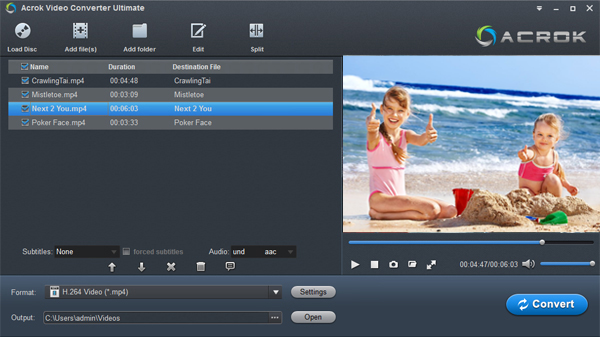
Step 1: Load video files.
Open Acrok Video Converter Ultimate, then import target Canon EOS C50 MXF file into this Canon Video Converter by dragging-and-dropping or by clicking Add files icon in the top left corner.
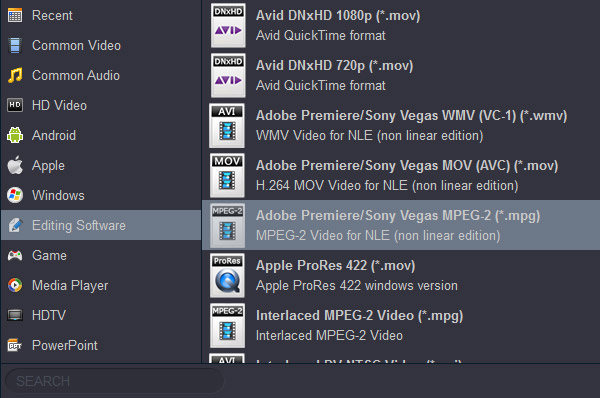
Step 2: Choose output file format.
Clicking the Format bar, from its drop-down list, scroll the mouse pointer to "Editing Software" option, select Premiere Probest editing codec - MPEG .mpg.
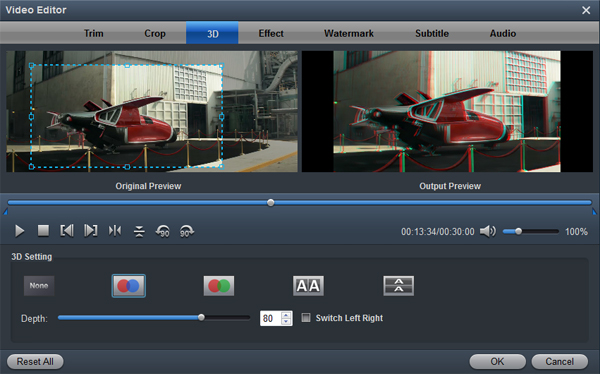
Step 3: Edit and Settings (Optional)
On the top tool bar on the main interface, click the "Edit" icon to open "Video Editor" window, you can trim C50 footage to remove the unwanted parts by setting the start and end time, crop to remove the black borders or unwanted area by dragging the dash line around the video frame, flip video, add text/image/video watermark, change video picture effect, replace/remove audio in video, add external subtitles, etc.
Click the "Settings" button and customize proper video/audio parameters if necessary. Video size, bitrate and fame rate are flexible and can be adjusted as you like.
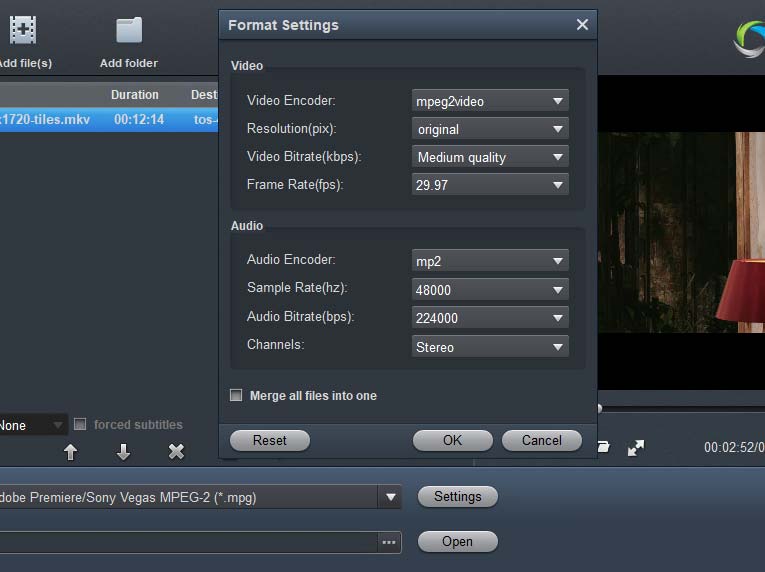
Step 4: Start the conversion process.
After all setting is over, go back to the main interface and hit right-bottom "Convert" button to start to convert Canon EOS C50 MXF video to Premiere Pro specially optimized editing formats encoding process.
Before Premiere Pro import Canon C50 videos became possible, you either needed to update Premiere Pro to get its experimental MXF-supported version, or you could simply convert it. Thus, updating Premiere Pro does not guarantee a complete solution to the compatibility problem, which is why many users opt for conversion.


 100% Safe & Clean




