

 > Kinefinity VISTA Premeire Pro
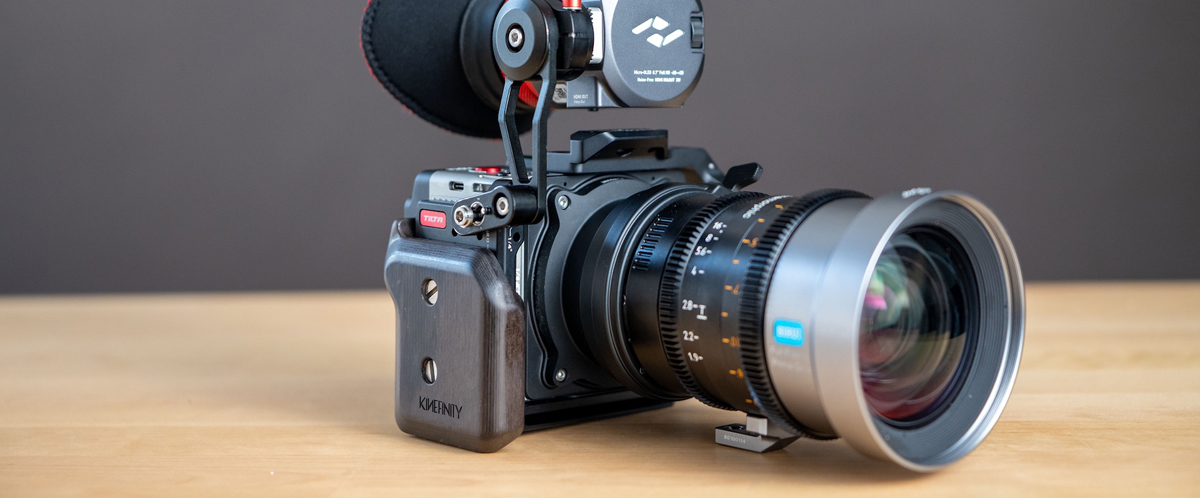
Many editors run into trouble when trying to import Kinefinity VISTA MOV footage into Adobe Premiere Pro. The error messages vary, but the frustration is always the same.
"Premiere Pro won't read my MOV file from Kinefinity. Any fix?"
"Can't open Kinefinity VISTA MOV in Premiere Pro 2024. Is there a workaround?"
"Premiere crashes every time I import MOV clips from the VISTA camera – not the usual codec issue."
Although MOV is generally a supported format in Premiere Pro, not all MOV files are created equal. The Kinefinity VISTA camera often records with specific codecs (like CinemaDNG or compressed H.265) that Premiere Pro may not handle natively. As a result, you might see errors such as "File format not supported", "Uncompressed MOV has no audio or video streams", or Premiere may only import the audio track, leaving you with a silent, black video on the timeline.
Why Premiere Pro Fails to Open Certain Kinefinity VISTA MOV Files?
While all these factors can contribute, the number one culprit is codec incompatibility. Therefore, the most reliable and permanent solution is to convert or transcode the Kinefinity MOV files into a codec/format that Premiere Pro loves.
Depending on shooting preferences, Kinefinity VISTA records in the widely recognized MOV container format, utilizing either the Apple ProRes family of codecs or the proprietary KineRAW codec for raw video capture. While MOV is generally considered a compatible container, Premiere Pro often struggles with the specific data rates, variable frame rates, and rich color metadata embedded within these cinema-grade files. This is precisely why many editors run into issues when they try to drag and drop these clips directly onto the Premiere Pro timeline.
The Key: Convert your MOV files to Premiere-friendly formats like MOV (H.264), MPEG-2, WMV, or Apple ProRes.
Acrok Video Converter Ultimate makes this job incredibly easy. It can transcode Kinefinity VISTA MOV videos and any other clips to Premiere Pro supported codecs (e.g., H.264 in MOV, MPEG-2, or ProRes). This directly solves the codec mismatch.
Worried about quality loss? Don't be. With its constantly optimized conversion engine and advanced High Quality Engine, it preserves up to 98% of the original image quality – fine details like wrinkles or textures remain crisp and clear.
Beyond codec correction, this tool excels at handling compute-hungry 4K/8K MOV files. You can downscale 4K to 1080p, reduce 60fps to 30fps, adjust bitrate, and more – all to better match your hardware and ensure smooth importing and editing in Premiere Pro (whether you're using the latest version or older releases).
Download, install, and launch Acrok Video Converter Ultimate on your Windows PC or Mac.
Click Add File to load your Kinefinity MOV file(s). Batch conversion is supported – you can add multiple files at once.
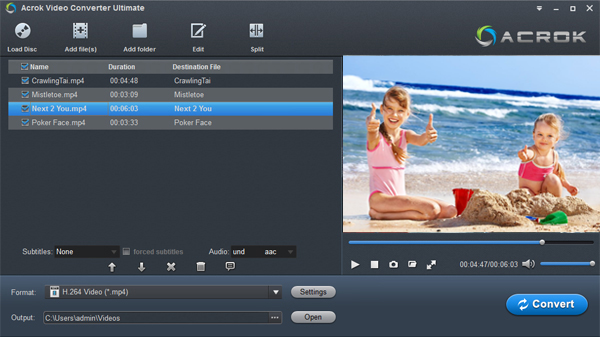
Click the Format bar and navigate to the Editing Software category. Select Premiere Pro (MOV H.264) or Premiere Pro (MPEG-2) as the output format. These presets are tailor-made for seamless compatibility with all Premiere Pro versions (including 2025, 2024, 2023, etc.) while retaining excellent quality. Alternatively, you can choose WMV or Apple ProRes if you prefer.
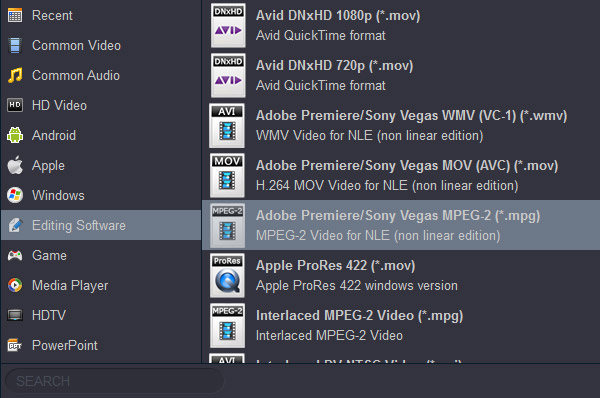
If you want to fine-tune the output video's parameters for better quality or smaller file size, click the “Settings” button. Here, you can adjust the video frame rate, resolution (e.g., downscale 6K to 4K), and bitrate to match your desired quality for converting Kinefinity VISTA MOV files.
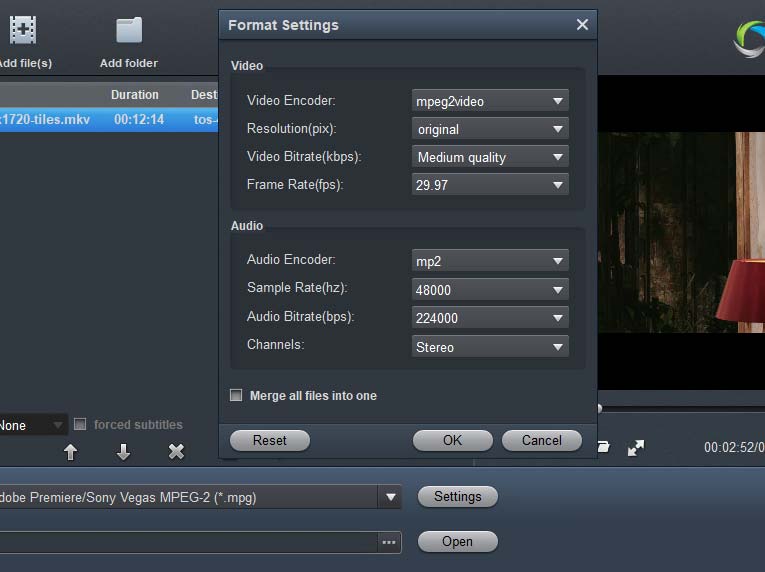
Hit the Convert button. The program will rapidly decode, convert, and process your MOV video in one go.
Once finished, click the Open button to locate the converted files. You can now import the converted Kinefinity VISTA video files into Premiere Pro without any errors or crashes – they will appear with full video and audio tracks, ready for editing.
Option 1 – Upgrade Premiere Pro or Your Hardware
Update to the latest version of Adobe Premiere Pro (e.g., 2025 or 2024), as newer releases often add better support for high-end camera formats. However, editing 4K/8K MOV footage is still resource-intensive; upgrading your RAM, GPU, or CPU will significantly reduce lag and improve rendering times.
Option 2 – Install Third-Party Codecs
Install the K-Lite Codec Pack (or the QuickTime Player for Windows) to ensure all necessary MOV codecs are available on your system. This can help Premiere Pro recognize and decode the file correctly.
Option 3 – Reinstall Premiere Pro
If the issue persists due to a corrupted installation (e.g., after a Windows update or malware infection), uninstall Premiere Pro completely, restart your computer, and then reinstall the latest version. This can fix hidden glitches that prevent MOV files from opening.
With these methods at your disposal, you can finally say goodbye to the "Can't Import Kinefinity VISTA MOV" headache and focus on what really matters – your creative editing.


This 4K MOV converter is the best choice. I did not know that there are so many video formats. And this Acrok tool provides a lot. Very good software. I have to recommend your applications to my friends. Much obliged for your assistance.
Wasim Batliwala
Copyright © 2026 Acrok Studio All Rights Reserved. Terms and Conditions | Privacy | Refund Policy