

 > LG Blu-ray player USB Video Formats
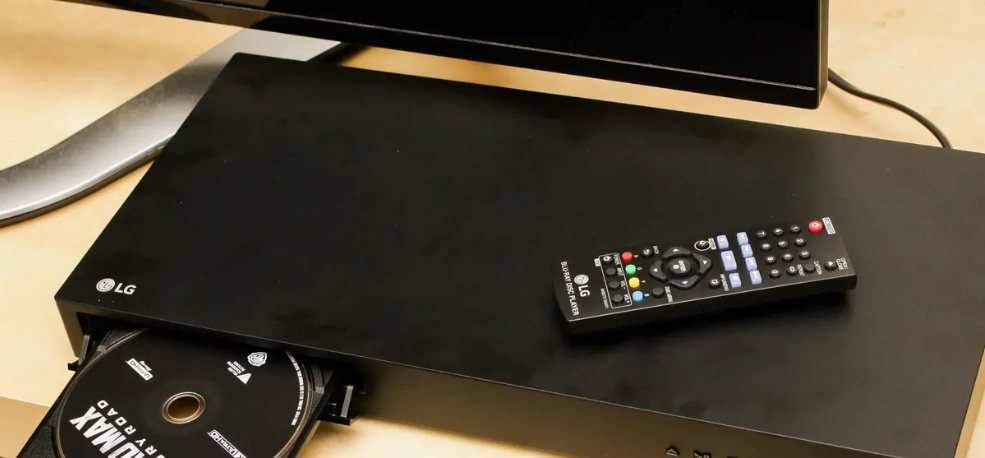
"My LG Blu-ray player won't play MKV videos from USB!"
Hi, I bought a brand new LG Blu-ray player last week. Last night I watched a bundled movie on my 4K LG OLED TV, and the picture quality was stunning. Today, I put some MKV files onto a USB drive — they're mixed with DTS audio tracks. For some reason, when I navigate to the "Movie" section with the remote, the player sees nothing at all. I've already updated the firmware to the latest version, but that didn't fix the issue. Any help would be appreciated. Thanks.
Many LG Blu-ray player owners experience frustration when they try to play downloaded movies directly from a USB drive, only to find that the files are not recognized or fail to play properly. This compatibility issue stems primarily from format mismatches: LG Blu-ray players support a specific set of video codecs, container formats, audio codecs, and subtitle types. Most downloaded movies use modern formats such as H.265 (HEVC), MKV containers with DTS audio tracks, or ASS/SSA subtitles, which may not be fully supported on all LG models. Additionally, USB drives formatted with unsupported file systems or video files exceeding the player's resolution and bitrate limits can further prevent successful playback.
The good news is that this problem has a straightforward solution: convert your video files into a format that your LG Blu-ray player can natively understand. By transcoding incompatible videos into the player's preferred specifications, you can enjoy your entire media library directly from a USB drive without any playback issues.
LG Blu-ray players have relatively standardized support for USB devices (USB flash drives, external hard drives) playback. The table below shows commonly supported containers and codecs across various LG models:
| Container (File Extension) | Video Codec | Notes |
|---|---|---|
| MP4 | MPEG-4 AVC (H.264), H.265 (HEVC) on 4K models | Best compatibility; supported by almost all LG Blu-ray players |
| MKV | H.264, H.265 (HEVC) on some models | Note: LG has limited audio support for MKV (often needs AC3 or AAC; DTS may not decode) |
| AVI | MPEG-4 (DivX/Xvid), Motion JPEG | Widely supported, but high resolution or high bitrate may stutter |
| MPEG-2 PS/TS | MPEG-2 | Common in digital TV recordings; extensions .mpg, .m2ts, .mts |
| AVCHD | H.264 | HD format from camcorders; playable directly |
| WMV | WMV9 (VC-1) | Supports Microsoft format, but DRM-protected files cannot play |
| MOV | H.264, MPEG-4 | Commonly supported on newer LG models |
| VOB | MPEG-2 | DVD video format; supported on most models |
| FLV | H.264, Sorenson Spark | Flash video format; supported on many LG players |
| 3GP | MPEG-4, H.263 | Mobile video format; supported on select models |
| DivX | DivX 4/5/6 | Requires DivX-certified models (most LG models are certified) |
| Xvid | Xvid | Usually supported together with AVI; equivalent to MPEG-4 ASP |
Different LG Blu-ray player models may have varying levels of LG Blu-ray player USB supported formats. Here is a breakdown by popular models:
| Model | Supported Video Formats |
|---|---|
| BP556 | WMV, MKV, M4V, MP4, MOV, VOB, FLV, 3GP, AVCHD, AVC Rec, TS, DAT, MPEG1, MPEG2, MPEG4 AVC (H.264), SMPTE VC1 (VC-9) |
| BP125 | MPEG-1, MPEG2, MPEG4 AVC (H.264), SMPTE VC1, DivX & DivX HD, MKV, AVCHD, M4V, WMV, 3GP, MP4, FLV, VOB |
| BP350 | MPEG-2/4 AVC, Xvid, MKV, MP4, MOV, FLV, VOB, TS, WMV, AVCHD |
| UP970 | WMV, MKV, M4V, MP4, MOV, VOB, FLV, 3GP, AVCHD, AVC Rec, TS, DAT, MPEG1, MPEG2, MPEG4 AVC (H.264), SMPTE VC1 (VC-9) |
| UBK90 | 3GP, AVC, AVCHD, DAT, FLV, H.264, H.265, M4V, MKV, MOV, MP4, MPEG1, MPEG2-PS, MPEG2-TS, MPEG4, TS, VOB, WMV, XVID |
Note: For 4K UHD Blu-ray players like the UBK90 and UP970, H.265 (HEVC) support is available for 4K video playback via USB.
Before you play movies on LG Blu-ray via USB, ensure your USB drive is properly formatted. LG players typically support:
Most LG Blu-ray players support external HDD playback via USB, making it convenient to access large media libraries.
Understanding LG Blu-ray USB video compatibility requires knowing these limitations:
Resolution limits: Standard Blu-ray players support up to 1920×1080 (1080p). 4K UHD Blu-ray players can handle up to 3840×2160 (4K), but only for H.265-encoded 4K files played via USB.
File system: USB drives must be formatted as FAT32 or NTFS for optimal compatibility.
Bitrate: 4K files with bitrates exceeding 50 Mbps may not play smoothly.
Filename and path: Avoid special characters and overly long paths. While some models support Chinese characters, using English letters and numbers is recommended for best results.
Audio codec limitations: MKV files with DTS audio tracks may not decode properly on many LG models. For best results, use AC3 or AAC audio tracks.
When dealing with unsupported video formats LG Blu-ray USB, be aware that the following may not work:
To accomplish this conversion efficiently and with high quality, Acrok Video Converter Ultimate is an excellent choice. This powerful software is specifically designed to convert virtually any video format, including MKV, AVI, WMV, MOV, MTS, MXF, VOB, DVD, and Blu-ray, into formats optimized for various playback devices, including LG Blu-ray players.
 100% Safe & Clean 100% Safe & Clean
If you encounter unsupported video formats LG Blu-ray USB, the most reliable solution is to convert your videos. Here's what you need to know to convert video to LG Blu-ray player USB:
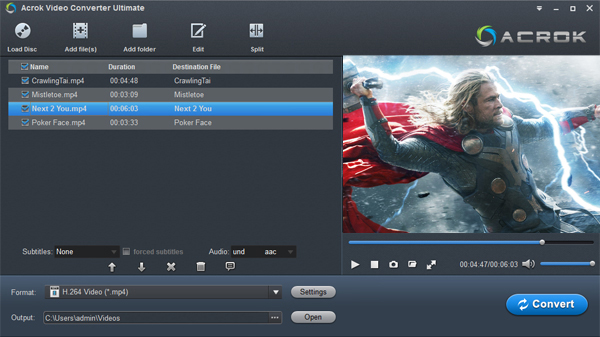
Recommended output settings:
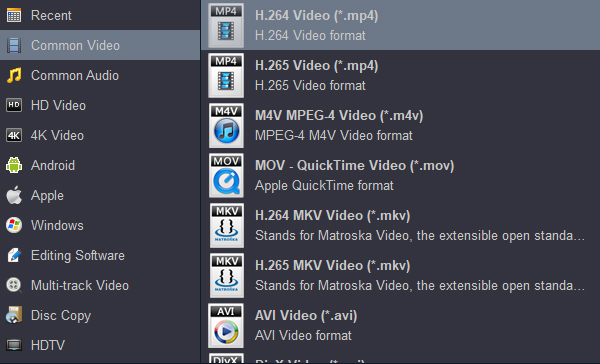
When you convert video to LG Blu-ray player USB, use a reliable video converter that supports batch processing. This allows you to convert multiple files at once, saving time and effort.
"Device not supported" or USB not recognized:
Video stutters or plays choppily:
Audio plays but no video, or video plays but no audio:
Files not showing up in the menu:
Understanding LG Blu-ray player USB supported formats is the key to enjoying your media collection without frustration. While LG players support a wide range of formats including MP4, MKV, AVI, and more, compatibility varies by model. The safest approach is to:
By following these guidelines, you can play movies on LG Blu-ray via USB smoothly and enjoy your entire video library on the big screen.
What LG Blu-ray player model do you own? Have you encountered any USB playback issues? Feel free to leave a comment below — I'll do my best to help you troubleshoot!


Acrok Video Converter Ultimate is so much faster than what I was using before - it's silly. Very satisfied! There has been absolutely NO conversion that it has not tackled flawlessly. Quick, clean interface and simple to use.
Barry Campbell
Copyright © 2026 Acrok Studio All Rights Reserved. Terms and Conditions | Privacy | Refund Policy