Vegas Pro is a powerful video editing software, but many users encounter issues when trying to import and edit MP4 files. This guide will walk you through the entire process, from importing your MP4 footage to performing basic edits, and troubleshooting common problems.
Questions:
Vegas Pro no longer allows me to import MP4 files?
"I have a lot of 4K clips which is converted to .mp4 files, for editing in Vegas Pro. My backup files are also .mp4, and I have deleted the native 4K RAW files. Recently I bought Vegas Pro for editing in Vegas Pro, and I am not going to use Final Cut Pro (actually, I don't have it anymore). But it looks like Vegas Pro don't handle my .mp4 files very well. It looks like bad streaming, like its something wrong with the frame rate. When I import native 4K files everything works perfectly fine. But the problem is all my old files, which is converted to .mp4. I have to find a way I can use them in Vegas Pro."
Can't load iPhone 17 Pro Max MP4 files into Vegas Pro
"I got the MP4 videos from my stuff without original video information. It can be played well in Windows Media Player player. However when I import the iPhone 17 Pro Max MP4 files to Vegas Pro for editing, there is no audio. What’s wrong? Can you help me?"
The Vegas Pro can't recognize UHD 4K MP4 footage
"I recorded some UHD 4K footage with the Canon EOS C50. But I can't load the AVC-LongG/MP4 files into Vegas Pro on Windows 10. Who can tell me how to load the MP4 into Vegas Pro for smoothly editing? I read a lot of posts in some forums, but I didn't find the right solution. In another week, I have to send the edited video to my friends. It's annoying. About my video: UHD 4K (3840 x 2160) at 23.98p, 4:2:2 10-Bit, .mp4."
Can't import MP4
"I'm using a trial version of VEGAS Pro 23 and I cannot import a certain mp4 file. I have three files, two of which imported fine, but the third one did not. These videos were all taken with Canon cameras."
Step 1: Importing MP4 Files into Vegas Pro
- Launch Vegas Pro and create a new project or open an existing one.
- Use the Project Media window: Click the “Import Media” button (or press Ctrl + Q), then browse and select your MP4 file.
- Drag and drop: Simply drag the MP4 file from your file explorer directly into the timeline or project media bin.
- Supported MP4 codecs: Vegas Pro works best with MP4 files encoded using H.264 or AVC. For HEVC (H.265) MP4 files, you may need additional codecs or a newer version of Vegas Pro (18 and above).
Step 2: Basic Editing of MP4 Footage
Once your MP4 is on the timeline:
- Cut and Trim: Use the S key to split clips and drag edges to trim.
- Adjust Speed: Right-click the clip > Properties > Playback rate.
- Add Transitions: Drag transitions from the Transitions window between clips.
- Apply Effects: Use Video FX (e.g., Color Correction, Sharpening) to enhance your MP4 video.
Step 3: Common Issues & Fixes
Step 4: Exporting Your Edited Video
After editing, go to File > Render As. Choose a format like Sony AVC/MVC (.mp4) for best compatibility.
Why Vegas Pro can't open certain MP4 video files?
Do you know the easiest way to import MP4 files to Vegas Pro with audio/video synchronization? This tutorial shows you how to make all 8K, 6K, 4K and 1080P MP4 files compatible with Vegas Pro on Windows.
There is no significant improvement in video compatibility. Many users reported that they could not import their own MP4 format into the editing software. Therefore, I wrote this article to help users edit MP4 videos in Vegas Pro smoothly.
Sometimes when you drag the MP4 video into Vegas Pro, it works but with no audio. There is more than one reason why the video cannot be imported to Vegas Pro, it may be your MP4 file is corrupt or damaged, Perhaps your computer does not meet the hardware requirements of Vegas Pro, or it may be that the video format is not of a type supported by Vegas Pro. Below, I will share with you a 100% solution to fix the error of "unable to open MP4 files in Vegas Pro".
Best Solution: Transcode MP4 to Vegas Pro best editing format
Many folks are facing the MP4 importing issues with Vegas Pro even with the latest Vegas Pro 23. As far as I know, MP4 is a container format which can contain data encoded using various compression and encoding schemes. If your MP4 files are not accepted by Vegas Pro 23, 22, 21 and lower version, it's probably because of the video or audio codec incompatibility. On this occasion, you need to transcode MP4 to the Vegas Pro editing-friendly formats and then transfer the converted MP4 files to your Vegas Pro for editing. Well, according to Magix, Vegas Pro accepts H.264, H.265, MPEG-1, MPEG-2 and Apple ProRes codecs well. So, if you plan to edit your MP4 in Vegas Pro smoothly, you'd better transcode your MP4 to Vegas Pro native supported video format and codec.
Best MP4 to Vegas Pro Converter
To solve the incompatible trouble you’d better wrap MP4 a native format for importing to Vegas Pro. To get the best quality with 5.1 sound, you can transcode your recorded or downloaded MP4 to H.264 encoded MOV files, which maintains maximum editing quality and efficiency when working with Vegas Pro.
One of the best desktop MP4 to Vegas Pro Converter is Acrok Video Converter Ultimate. It is the professional and versatile MP4 transcoding software. It can help users transcode MP4 files to H.264 and other editable format for Vegas Pro. It also provides simple editing functions for you and allows you to set the video/audio output parameters to get customized video effect. What’s more, you can convert MP4 files to appropriate codecs for DaVinci Resolve, Avid Media Composer, Premiere Pro, After Effects, Premiere Elements, iPhoto, Kdenlive, Keynote, etc., you can even turn the 2D video into 3D with optional 3D modes and settings. This Converter brings peerless using experience. High quality conversion with zero quality loss, unmatchable converting speed, humanized feature design, user-friendly interface and simple operation, all these are reasons why this software worth a try. Thus, it is highly recommended on many forums.
Free download and try MP4 to Vegas Pro Converter
More Features:
- Convert videos, DVD and Blu-ray to Vegas Pro supported formats
- Convert videos, DVD and Blu-ray to any codecs like H.264, H.265, MPEG-2, ProRes and DNxHD.
- Convert videos, DVD and Blu-ray to any device (Phone, TV, Tablet).
- In-program editing tools help in file customization, like trimming, cropping, adding watermark, subtitles, etc.
- Convert videos at 90X faster speed and ZERO quality loss.
- Backup Blu-ray and DVD on Windows 11 with one click.
- Support more than 300 formats for conversion.
- Support batch processing for converting multiple files at a time.
Converting MP4 in to Vegas Pro best editing format
1
Load MP4 files to the Windows program
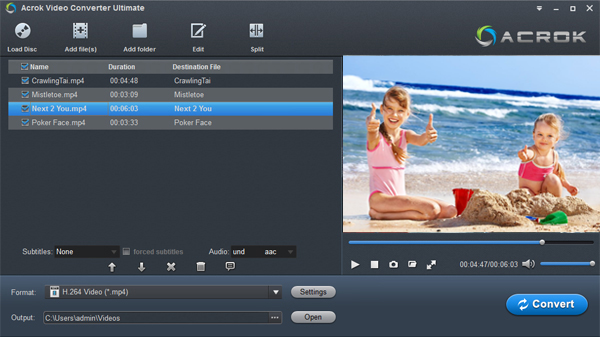
Download and install the MP4 to Vegas Pro converter on your computer. After launching the MP4 to Vegas Pro converter, click the Add Files icon to import MP4 files from your computer. The program supports batch conversion, allowing you to add multiple files at once for conversion. It also offers batch processing and screenshot functions.
If you need to transcode Blu-ray/DVD disc files for editing in Vegas Pro 23/22/21, first insert the disc into your BD drive, then click the Load Disc icon to import the media files.
2
Choose the H.264 as output format
For editing any MP4 files in Vegas Pro smoothly, click the arrow down next to the Format to select "Editing Software > Sony Vegas MOV AVC (*.mov)" format and the resolution you would like. Besides, you can also choose MPEG-2 (*.mpg) if you want to get a relatively smaller output file.
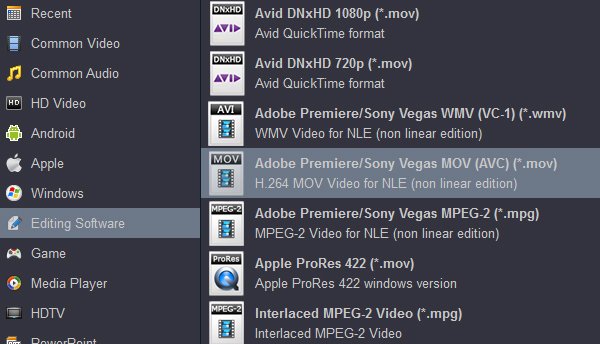
Tip: This option also applies to Premiere Pro, After Effect, and Premiere Elements
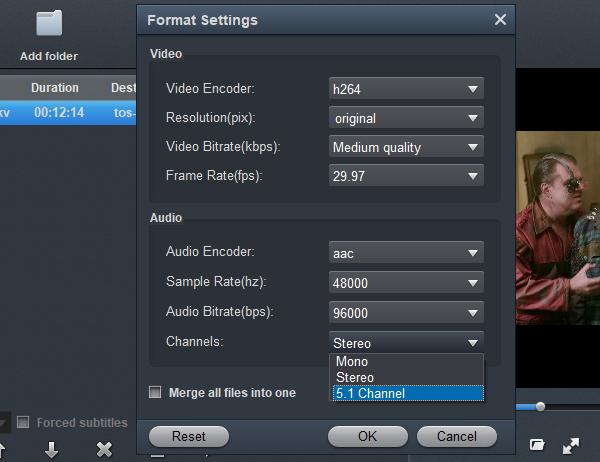
Settings: You can click settings button to adjust output parameters, such as resolution, bitrate, and adjust audio to 5.1 channels Dolby Digital.
Edit Video:
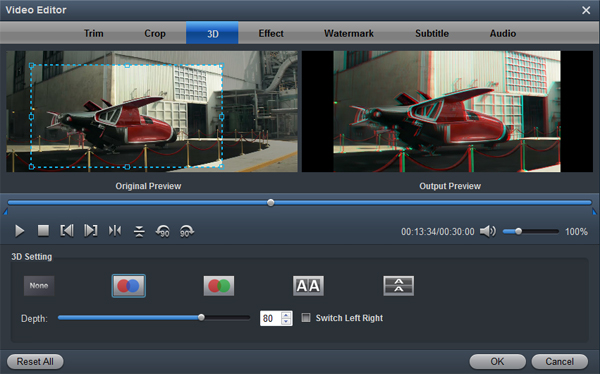
On adding the files, you may choose to edit the MP4 video before conversion. Below the video thumbnail of the video you wish to convert, there are editing tools. By triming your video, you can save conversion time. Click them to edit your video and the Ok button to confirm.
3
Convert MP4 to Vegas Pro supported format
When you finish the settings, click the "Convert" button and begin to convert MP4 to Vegas Pro supported format without losing quality. Once the conversion is 100% completed, click the "Open" button to get the converted file and then import the converted MP4 file to Vegas Pro on Windows.
Free download and try MP4 to Vegas Pro Converter
Why choose Acrok?
When converting video for use in Vegas Pro, choosing a converter designed specifically for video editing is generally more reliable than using general‑purpose free tools like HandBrake or VLC.
Why dedicated software is better
Editing compatibility first - Converters built for editing aim to produce files that NLEs (non-linear editors) like Vegas Pro can recognise and edit smoothly. They help avoid issues such as failed imports, washed‑out colours, or audio‑video sync problems.
Higher output quality - While HandBrake offers good compression, its processed videos can sometimes cause gamma shifts when imported into Vegas Pro, making the image look overexposed or dull. Dedicated software preserves the original quality more accurately.
Batch processing and ease of use - HandBrake is more focused on DVD/BD backup and has a technical interface. Dedicated converters usually offer a user‑friendly GUI, making batch conversion and quick adjustments much simpler.
Summary
Open-source tools like HandBrake and FFmpeg are powerful in terms of encoding quality, but their default settings or small parameter errors can easily lead to incompatibility with Vegas Pro.
Therefore, for a stable and hassle-free editing workflow, choosing a mature third-party converter is often the smarter choice.


 100% Safe & Clean




