

 >
H.265 to Premiere Pro Workflow
>
H.265 to Premiere Pro Workflow
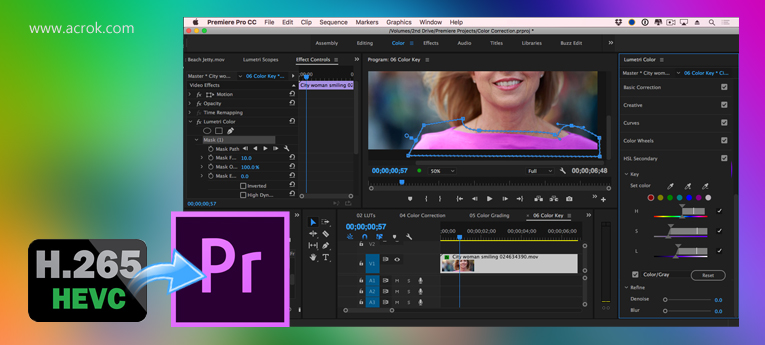
Do you have some H.265/HEVC videos for playback or editing? Do you need to edit H.265 videos in Premiere Pro and get better results? In this article, we would like to share the best H.265 video converter with you. This program can convert H.265 to a natively supported video format for Premiere Pro, so you can edit H.265 videos smoothly in Premiere Pro CC, CS6, CS5, etc.
Nowadays, more and more people choose to record videos in the H.265 codec or convert movies to H.265 format for playback. H.265 video is better than H.264 video in many aspects, which is why it has become increasingly popular in recent years. You can capture H.265 videos with smartphones, cameras, or camcorders, or download movies in H.265 format. As more and more H.265 videos are produced, more questions arise. Many users have encountered issues when importing H.265 videos into Premiere Pro. Here is one such question:
"Hi there, not long ago I captured a few 4K videos with my camcorder. The recorded footage is in H.265 codec. I need to edit these H.265 videos with Premiere Pro CC 2021 on my computer, but when I try to load them into Premiere Pro, I find that it doesn't support my H.265 footage. Should I transcode H.265 videos to a Premiere Pro supported format? Can you share an H.265 to Premiere Pro editing workflow with me? Any suggestions are appreciated. Thank you!"
In recent years, H.265 videos have become so popular. Many users need to import H.265 files into Premiere Pro and edit them natively. However, just like the question shown above, most users cannot edit H.265 videos in Premiere Pro smoothly due to codec compatibility issues, so they want a more effective workflow. If you have recorded some H.265 videos and tried to import them into Premiere Pro for editing, you may have already known that Premiere Pro does not support H.265 videos natively. H.265 is not a good editing codec for Premiere Pro and many other programs. If you try to import H.265 videos into Premiere Pro, you will encounter importing and editing issues. But don't worry! In the content below, we will share the best H.265 to Premiere Pro workflow with you.
Many H.265 users have tried to edit their videos in Premiere Pro, but most of them cannot handle the footage natively. What's the problem? Although many camcorders, smartphones, and cameras can record videos in H.265, this format is still not well supported by many editing programs, such as Premiere Pro. From the information above, you may have known that Premiere Pro cannot support H.265 videos directly. To edit H.265 videos in Premiere Pro natively, you will need to convert them to a natively supported codec and format. On the Premiere Pro official page, you can find the supported format information. In this case, the best workflow is to convert H.265 videos to a natively supported format so that you can edit them in Premiere Pro without any further problems.
To convert H.265 to a format natively supported by Premiere Pro, you will need to use an H.265 video converter. Here, we would like to introduce the best one for you: Acrok Video Converter Ultimate (Windows Version | Mac Version). This is the best H.265 video converter software for transcoding H.265 files to a Premiere Pro supported video/audio format. It comes with optimized presets for various editing programs, such as the DNxHD codec for Avid Media Composer, and WMV/MOV formats for Adobe Premiere Pro CC 2022, 2021, 2020, 2019, etc. This H.265 video converter supports nearly all video formats for importing and conversion, such as H.265 videos recorded by cameras and smartphones, 4K UHD videos, etc. Besides H.265 videos, it can also convert the latest Blu-ray and DVD movies to popular video formats like MKV, MOV, MP4, and AVI. The converted movies will no longer have copy protection, and you can transfer them to portable devices for watching freely.
Free download H.265 to Premiere Pro Converter
 100% Safe & Clean 100% Safe & Clean
Download Acrok Video Converter Ultimate for Mac from the website and install it on your computer. This H.265 video converter also has a Windows version. If you use a Windows PC, you can download the corresponding version to use.
Launch the converter on your computer, and you will see the main interface. Click the "Add Files" button to import the H.265 videos you want to convert. You can also directly drag and drop H.265 videos into the software for conversion. If you want to convert Blu-ray or DVD disc movies, click the "Load Disc" button to import them.
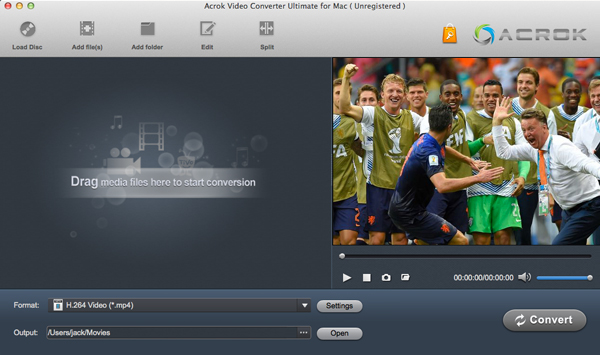 .
.
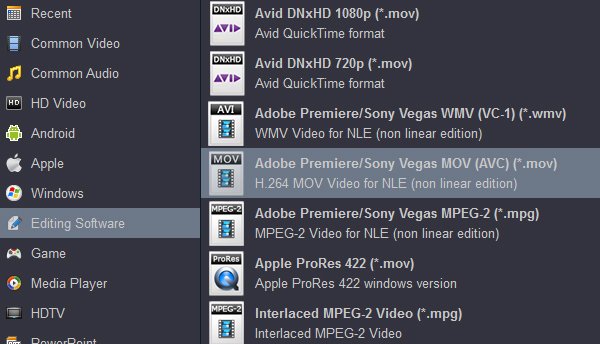
Choose a Premiere Pro natively supported format for output. Click the format column and select "Editing Software -> Adobe Premiere Pro". This is the native editing format for Premiere Pro. There are many other formats available in this H.265 to Premiere Pro Converter, so you can choose an output format according to your needs.
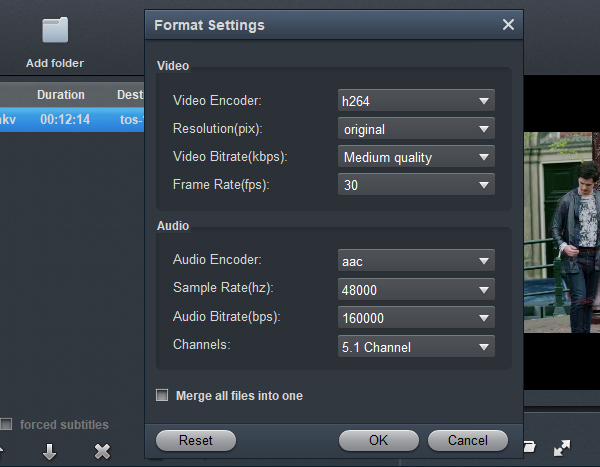
If you want to adjust the output parameters before converting H.265 videos, click the "Settings" button. Then you can adjust the output video's resolution, bitrate, frame rate, codec, etc. according to your needs. If you don't need to adjust them, you can skip this step.
Acrok Video Converter Ultimate for Mac will convert H.265 to a Premiere Pro-supported format immediately, with perfectly guaranteed video and audio synchronization. When the conversion is finished, you can import the converted videos into Premiere Pro and edit them in the natively supported format. You won't need to render again, which will save you a lot of time. Now you have got the best H.265 to Premiere Pro workflow. Just try Acrok software with your H.265 footage—we hope this software can help you!


It's so amazing. I can use this H.265 video converter to convert other formats for other editing software. I can edit all my movies on Premiere Pro CC and After Effects CC now.
Matthew Yustinich
Copyright © 2026 Acrok Studio All Rights Reserved. Terms and Conditions | Privacy | Refund Policy