

 >
Best DVD to iPad Converter
>
Best DVD to iPad Converter

Can you play a DVD directly on an iPad? No. But "without converting" is still workable—as long as you hand the format conversion off to a desktop tool and do it once. iPad, iPad Air, iPad Pro, and iPad mini don't support DVD discs or DVD-Video structures at the hardware or system level. iPadOS doesn't include MPEG-2 program streams (VOB/IFO) in its list of supported codecs, and the device can't read an external optical drive over USB-C to play a disc directly. So if you want to watch DVD films on iPad, the only practical path is to first convert the DVD content into a video file the iPad can decode, then transfer DVD to iPad for playing on the go. This process requires a DVD Ripper for iPad, and the reason "without converting" makes sense is that you don't need to run a converter on the iPad itself—the conversion happens once on your computer.
There are two layers to this. On the format side, the iPad natively supports H.264, HEVC (H.265), MPEG-4, and M-JPEG. DVD uses MPEG-2 program streams, which aren't on that list. On the physical side, the iPad has no way to connect an external DVD drive—as of iPadOS 18, you still can't plug in a USB-C optical drive and read a disc. Even if you drag a VIDEO_TS folder from a copy-protection-free DVD into the Files app on your iPad, the system won't recognize it as a playable movie. So the accurate answer is: you don't need a converter app on the iPad, but you do need to convert the format once on a computer, turning the DVD content into an MP4 or M4V file the iPad can play smoothly. After that, you can watch it offline anytime.
DVDs are typically 480p (NTSC) or 576p (PAL). Blindly upscaling to 4K won't add detail that isn't there—it just bloats the file. A sensible output strategy looks like this:
A few device-specific tweaks: iPad Pro has a higher screen resolution, but the DVD source is the ceiling—720p H.264 or HEVC is a reasonable choice. iPad Air and the base iPad are the same—720p is the upper limit that makes sense. iPad mini has a smaller screen, so 480p is often enough at normal viewing distance; if you plan to AirPlay to a big TV, 720p is safer. The principle is to match the output to the source, not to chase the highest numbers.
For the convert DVD to iPad best playback format step on a computer, there are three common options: the free and open-source HandBrake, MakeMKV (which focuses on lossless extraction), and Acrok Video Converter Ultimate (which comes with device presets and full DVD handling). Their positioning and weaknesses are quite different.
HandBrake is a veteran in free, open-source video transcoding. It supports H.264 and HEVC output, and in theory you can manually set it up to produce an MP4 the iPad can play. But for the DVD-to-iPad workflow, there are real problems. Its device presets are very generic—there are no presets for specific iPad models. iPad, iPad Air, iPad Pro, and iPad mini aren't differentiated in HandBrake's preset list, so you have to figure out resolution and encoding parameters yourself. Its ability to handle commercial DVDs is limited: HandBrake doesn't bypass copy protection on its own. If you feed it a CSS-encrypted commercial DVD, it will throw an error saying the source is copy-protected. You need to install libdvdcss separately to read it, which is a barrier for regular users. On top of that, HandBrake's DVD loading and transcoding speed is on the slower side compared with similar tools, and the interface isn't very intuitive for beginners.
MakeMKV's strength is lossless extraction: it pulls video, audio, and subtitle tracks from DVDs or Blu-rays into MKV files without re-encoding, so there's no quality loss. But that "lossless" quality is exactly why it isn't suitable for direct iPad use. The only output format is MKV—there's no MP4 option—and the iPad's native playback support for MKV is very limited. There are no device presets: MakeMKV doesn't offer output profiles for phones, tablets, or iPads. You get a large MKV file and need a second tool like HandBrake to transcode it before it will play on an iPad. And it doesn't compress, so a DVD ripped to MKV can be several gigabytes—not friendly for an iPad with limited storage. MakeMKV is good as a first step for "extracting source material," but it isn't the end point for DVD-to-iPad.
Acrok Video Converter Ultimate isn't positioned as a general-purpose transcoder—it's a desktop tool that combines DVD/Blu-ray conversion, device presets, and editing features. For the specific DVD-to-iPad job, its advantages show up in a few places. It has built-in presets for the full iPad lineup, including iPad, iPad Air, iPad Pro, and iPad mini. You don't have to calculate encoding and resolution yourself—just pick the matching preset and you get a file that fits the device. It supports DVD discs, ISO files, and DVD folders, and it can handle commercial DVDs, which cuts out the "install libdvdcss first" step that HandBrake requires. Output formats cover MP4, MKV, MOV, and more, with support for both H.264 and H.265/HEVC, so you can choose compatibility first or file size first depending on the device. Acrok also supports hardware acceleration (NVIDIA CUDA / AMD APP), so conversion is faster than CPU-only free tools, and it supports batch conversion, which is handy when you're processing multiple DVDs at once.
Free download and try DVD to iPad Converter
| HandBrake | MakeMKV | Acrok Video Converter Ultimate | |
|---|---|---|---|
| iPad-specific presets | None; generic presets, no iPad model differentiation | None; no device presets at all | Yes; covers iPad, iPad Air, iPad Pro, iPad mini |
| Output formats | MP4 / MKV | MKV only | MP4 / MKV / MOV, etc. |
| Handles commercial DVDs | Needs libdvdcss installed separately, otherwise can't read | Has some decryption capability | Yes; imports DVD discs, ISO, and folders directly |
| File size control | Can compress; smaller output | No compression; large files | Can control size via presets or manual settings |
| Learning curve | Medium-high; complex parameters | Medium, but needs a second transcode to play on iPad | Low; pick an iPad preset and go |
| Batch conversion | Limited | No batch support | Yes |
| Hardware acceleration | Yes, but still slow | No | Supports CUDA / AMD APP acceleration |
| Best for | Users who don't mind tweaking parameters and only deal with unprotected DVDs | Users who want lossless source extraction and will transcode later themselves | Users who want a one-step path to watching DVDs on an iPad |
HandBrake and MakeMKV aren't "bad tools"—they each have clear value in the free, open-source, and lossless-extraction categories. But for the specific job of a DVD to iPad Converter—especially with commercial DVDs, when you want output that matches your iPad device, and you don't want to bounce between multiple tools—Acrok's preset system and DVD handling are a better fit. If you're working with copy-protection-free home video DVDs, HandBrake is perfectly fine. If you want lossless archiving and plan to transcode later, MakeMKV is a reasonable first step. But if what you want is "import DVD → pick iPad preset → get an MP4 that plays directly on iPad, iPad Air, iPad Pro, or iPad mini," Acrok has the shortest path, and sync DVD movies to iPad doesn't require a second transcode or extra decryption libraries.
Insert the DVD into your computer—built-in or external drive both work—then open Acrok Video Converter Ultimate. Click Add Files and load the DVD disc, DVD folder, or ISO file. If the disc has multiple titles, the main movie is usually the longest one; select that before moving on.
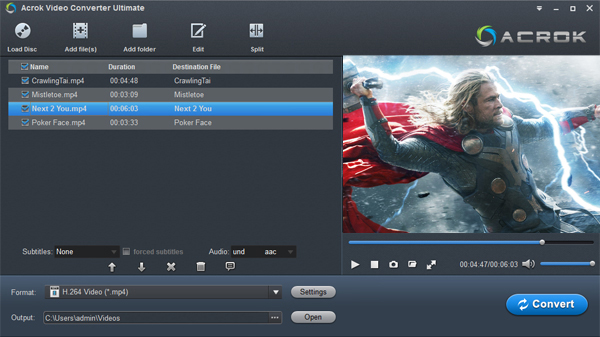
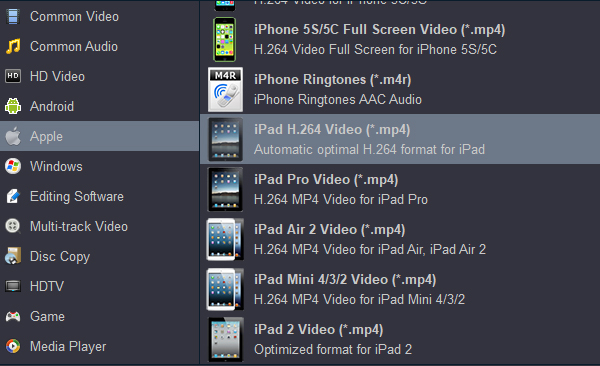
Next, open the Format drop-down and choose your output. For most iPad users, the simplest route is to pick an iPad preset under the Apple device category—iPad, iPad Air, iPad Pro, or iPad mini. These presets already produce files the iPad can play. If you want to control the container yourself, choose MP4 or M4V under Common Video. Both work on iPad; MP4 is the most universally compatible, while M4V is Apple’s own container and also plays natively in the Apple TV app.
Before converting, open Settings and check the video codec. For maximum compatibility, choose H.264; if your iPad is an iPad Air 2 or newer and you want smaller files, HEVC (H.265) is a good option. Set the resolution to 720p or keep the original DVD resolution—there’s no real benefit to upscaling a DVD source. For audio, choose AAC. If you’re unsure, the iPad preset already handles these settings for you.
When everything looks right, click Convert. The output MP4 or M4V file is now ready. Move it to your iPad via AirDrop, iCloud Drive, the Files app’s “Connect to Server” feature, or a USB-C cable. Then open it in the Files app or any local video player that supports MP4/M4V. At that point, transfer DVD to iPad for playing on the go is done—no iTunes or Finder movie sync required.
If you’re converting several discs, add them all to the queue first and use batch conversion. It saves a lot of repeated clicking.
The copy-protection status of a commercial DVD affects whether conversion is feasible. CSS-encrypted commercial DVDs are protected by law in many regions, and bypassing encryption to make copies without authorization may violate local copyright rules. The tools above provide format conversion capability; whether you convert a particular disc, and how you use the resulting file, depends on the specific rules in your jurisdiction and the authorization status of the disc itself. For home video DVDs you own that have no copy protection, or for your own footage, there's no such concern. For commercial DVDs, it's best to keep conversion strictly within the bounds of private viewing and fair use, and to check your local laws.
Bottom line: To watch DVD films on iPad, iPad Air, iPad Pro, or iPad mini, you don't need a "converter that runs on the iPad"—but you do need to convert the format once on a computer. HandBrake is free but lacks iPad presets and has a high barrier for commercial DVDs. MakeMKV extracts losslessly but outputs only MKV, produces large files, and requires a second transcode. For users who want a one-step DVD to iPad Converter workflow, Acrok Video Converter Ultimate's device presets, DVD import capability, and hardware acceleration make transfer DVD to iPad for playing on the go a more direct path. Pick the right tool, hand the conversion step to your computer, and your DVD collection becomes an offline movie library you can watch on your iPad.


Acrok Video Converter Ultimate handles DVD ripping, encoding, and editing in one place. It outputs to most common video and audio formats, and its built-in editor lets you trim, crop, split, merge, and add subtitles—useful if you want to tidy up a DVD before converting it for iPad playback. - Arda veyseli
Copyright © 2026 Acrok Studio All Rights Reserved. Terms and Conditions | Privacy | Refund Policy