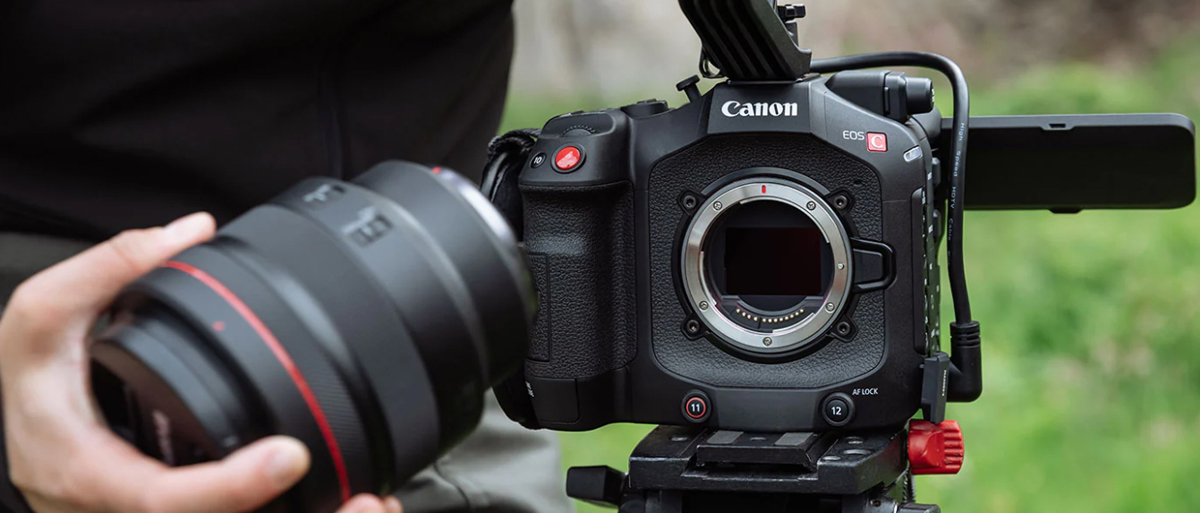
The Canon EOS C80 emerges as a compelling hybrid solution, masterfully bridging the gap between a traditional cinema camera and a versatile mirrorless stills camera. While it may not replace a full-fledged cinema camera for large sets, the C80 is a near-perfect all-in-one tool for content creators, indie filmmakers, and corporate videographers who demand top-tier image quality in a highly portable and user-friendly package. Make your editing process easier using XF-AVC S and XF-HEVC S codecs, featuring an easier naming system and folder structure, as well as metadata preservation, all within the established MP4 format.
You may collected a lot of videos from Canon EOS C80 and looking for a best way to make Canon EOS C80 MP4 footage editable in Vegas Pro. In this article, you will know how to import XF-AVC S and XF-HEVC S codecs to Vegas Pro for further editing.
Although Vegas Pro claims that it can support the importing and editing workflow of the native MP4 files from Nikon cameras, it actually turns out to be a pain for EOS C80 users because you will always find that Vegas Pro seems not to support the 6K MP4 files. In order to open EOS C80 clips in Vegas Pro smoothly without any trouble, you have to convert XF-AVC S and XF-HEVC S to MPEG-2 (MPEG-2 is the most friendly video format of Vegas Pro) so that you can easily get the converted MPG files to all versions of Vegas Pro.
To finish the task, you can adopt Acrok Video Converter Ultimate for help. As a professional yet easy-to-use Canon video converter for Windows 11, 10, 8.1, 7, etc, the program features high efficiency and seamless conversion. With it, you can convert Canon EOS C80 MP4 videos to Vegas Pro compatible MPEG-2 codec, which ensures maximum editing quality and efficiency when working with Vegas Pro 23, 22, 21, etc. Besides Vegas Pro, you can also convert all HD/2K/4K/6K/8K footage files including AVCHD, XAVC, XAVC S, MXF, MOV, MKV, AVI, WMV, etc. to various professinal encoders - H.264, H.265/HEVC, AIC, ProRes, DNxHD, DVCPRO, HDV for Premiere Pro, DaVinci Resolve, iMovie, Final Cut Pro, Avid Media Composer, After Effects and more.
In addition to converting the video recorded by the camera, you can also use this software to convert the downloaded movie or video to any format. By the way, this software also has the function of cracking discs. You can back up your old discs to your computer. You can also convert Blu ray/DVD discs into the best playback format of various devices. Let you enjoy Blu-ray and DVD movies freely on tablet, smartphone, smart tv etc.
Now just download the program and follow the step-by-step guide below to start encoding Canon EOS C80 MP4 for Vegas Pro on Windows.
Free download and try MP4 to Vegas Pro Converter
How to convert Canon EOS C80 MP4 files for editing in Vegas Pro?
1
Import video files
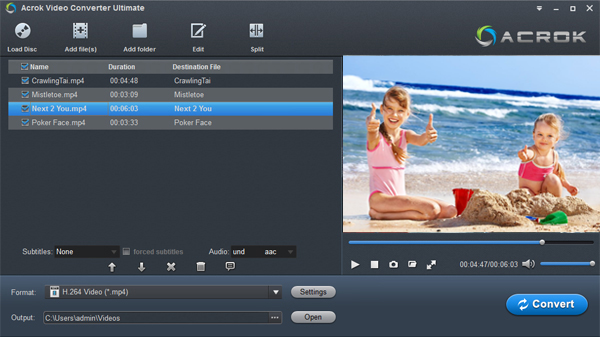
Click the button "Add file" button to add Canon EOS C80 MP4 files (or directly drag and drop your files) to the MP4 to Vegas Pro Converte.
2
Choose the optimized preset for Vegas Pro
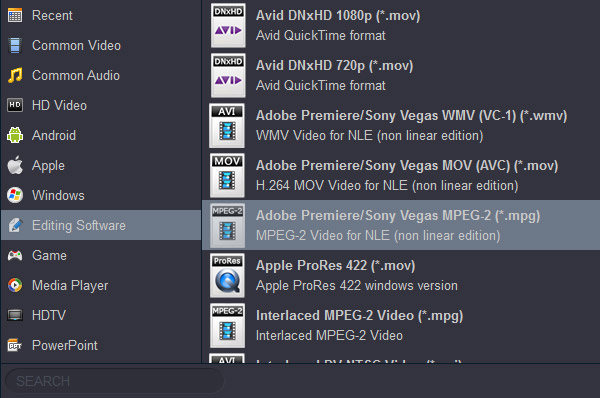
Select MPEG-2(*.mpg) as the output format in the "Editing Software" format list. The program has already optimized the video settings for Vegas Pro. The output videos will keep the original quality of Canon EOS C80 video files. The setting also works for Premiere Pro, After Effects, Premiere Elements, etc. Moreover, the program has some simple edit functions like cropping, splitting, adding effects etc.
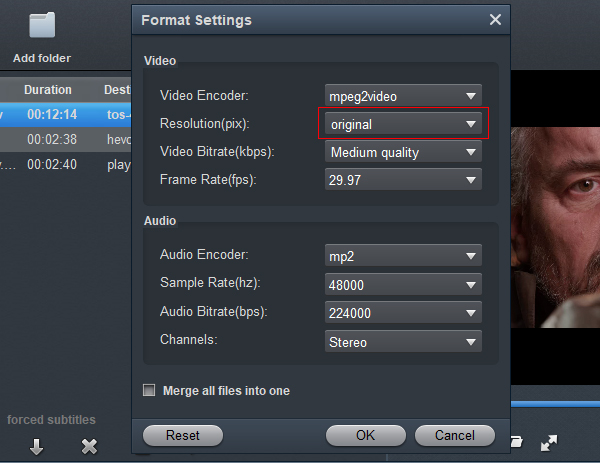
Tip: Adjust video, audio settings
Click the "Settings" button and customize proper video/audio parameters including Video size, bitrate and fame rate and mroe.
3
Start video conversion
Now click the "Convert" button, and then leave the Canon EOS C80 MP4 to Vegas Pro Converter to do the rest automatically for you. The converter works on Windows 11, 10, 8.1, 7, etc.
4
Import the converted video to Vegas Pro
Finally, launch Vegas Pro. In Vegas Pro, go to the File menu, choose Import > Movies, and then navigate to the folder that your output video files are saved. Select the files and click "Import".







