

 > Convert MKV Audio to AC3/AAC/MP3
You download an MKV movie, copy it to a USB drive, plug it into your TV, and press play. The picture appears instantly. The subtitles load. Everything looks perfect—until you realize there is no sound at all. Sometimes the TV shows a message like “audio format not supported”, and other times it simply plays silent video with no explanation. The same file may work on your laptop but fail on your smart TV, tablet, or media player. If you have searched for MKV audio format not supported, you are not alone. This is one of the most common playback problems for people who watch MKV files on TVs and portable devices.
The good news is that the problem is usually not the MKV file itself. In most cases, the video is fine and only the audio codec inside the MKV container is incompatible with your device. The practical solution is to convert MKV audio to AC3 or AAC, two audio formats that are widely supported by TVs, smartphones, tablets, USB playback systems, and media players. This guide explains why the error happens, how it affects different devices, and how to fix it quickly with Acrok Video Converter Ultimate.
MKV is a container format, not an audio or video codec. Think of it as a box that can hold different kinds of video and audio streams. An MKV file may contain H.264 video with DTS audio, or H.265 video with E-AC3 audio, or even FLAC or Opus audio. The video codec inside the MKV is often well supported by modern TVs, but the audio codec may not be.
Many TVs, especially older or mid-range models, support only a limited set of audio codecs. They commonly support AAC and AC3 (Dolby Digital), but they may not support DTS, E-AC3, TrueHD, FLAC, or Opus. When you play an MKV file with one of these unsupported audio codecs, the TV may show the video correctly but produce no sound. In some cases, the TV displays “mkv audio codec not supported” or “audio format not supported”. This is why users often describe the problem as mkv plays video but no sound.
The same issue appears across devices. A Samsung TV may reject DTS audio inside an MKV, while an LG TV may fail with TrueHD. A Sony TV may play the video but show no sound with certain E-AC3 tracks. Android TV boxes and media players have their own codec support lists, and a file that works on one device may fail on another. Even smartphones and tablets can struggle with MKV audio, especially when the audio is DTS or TrueHD. This is why the search phrase mkv audio not supported is so common across different platforms.
You copy an MKV file to a USB drive and connect it to your Samsung TV, LG TV, Sony TV, or Android TV. The TV recognizes the file and starts playback. The video looks sharp, but there is no audio. You try another MKV file, and it works—so the TV is not broken. The difference is the audio codec inside the file. If the TV does not support DTS, E-AC3, or TrueHD, you will see mkv no sound on TV USB even though the video plays perfectly.
On a smartphone or tablet, the problem may appear differently. Some media apps can decode more codecs than the default gallery app. You may find that an MKV file plays with sound in VLC but has no sound in the default player. If you want to cast the file to a TV or share it with someone else, the unsupported audio codec can become a bigger issue. Converting the audio to AAC is often the best choice for smartphones and tablets because AAC is widely supported and keeps file size reasonable.
USB playback is convenient, but it exposes you to the codec limitations of the TV or media player. A file that works on your computer may fail on the TV’s built-in USB player. The message audio format not supported mkv TV is especially common when the MKV contains DTS or TrueHD audio. Converting the audio track to AC3 is a reliable fix for USB playback on many TVs, because AC3 is part of the Dolby Digital standard and is supported by a wide range of home entertainment devices.
Dedicated media players and streaming boxes often support more codecs than TVs, but they are not immune. Some players handle DTS but not TrueHD; others handle AAC but not FLAC. If you use a media player and see mkv audio not supported on media player, the safest solution is to convert the audio to a broadly compatible format such as AC3 or AAC.
The goal is not to destroy the video quality. You do not need to re-encode the video. You only need to convert the audio track inside the MKV to a compatible codec. AC3 is an excellent choice for TV and home theater playback because it is widely supported and provides good sound quality. AAC is an excellent choice for smartphones, tablets, and general compatibility because it is efficient and supported by almost every modern device.
If you want to fix mkv audio not supported permanently, you can convert the MKV file to an MP4 file with AAC audio, or keep the MKV container and convert the audio to AC3. Many users search for how to convert mkv audio to AC3 or convert mkv to mp4 with AAC audio because these two approaches solve the majority of playback problems.
A reliable mkv audio converter for TV should be able to handle large files, preserve video quality, and let you choose the audio codec, bitrate, and channels. This is where Acrok Video Converter Ultimate comes in.
Free Download And Try Acrok MKV Converter
 100% Safe & Clean 100% Safe & Clean
Acrok Video Converter Ultimate is a professional video and audio conversion tool for Windows and Mac. It supports MKV, MP4, MOV, AVI, WMV, and many other formats. More importantly, it allows you to convert MKV audio to AC3, AAC, MP3, and other compatible codecs without re-encoding the video unnecessarily. It is designed for people who want a straightforward solution to mkv audio format not supported on TVs, smartphones, tablets, USB drives, and media players.
The software is useful in several situations:
Unlike many basic converters, Acrok Video Converter Ultimate gives you control over audio settings. You can choose the output audio codec, bitrate, sample rate, and number of channels. This is important because a TV may support AC3 but not a particular high-bitrate variant, or a tablet may prefer AAC at a certain bitrate. The software also supports batch conversion, so you can process multiple MKV files at once.
Download Acrok Video Converter Ultimate for Windows or Mac from the official website. Install it following the on-screen instructions. The interface is clean and easy to navigate, even if you are not a technical expert.
100% Safe & Clean 100% Safe & CleanLaunch the software and click the Add Files button. Select the MKV files that are causing the mkv audio not supported problem. You can also drag and drop files into the program window. If you have several MKV files with unsupported audio, add them all at once for batch conversion.
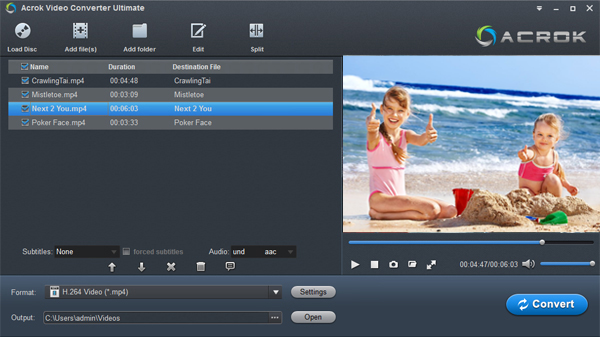
Click the Output Format drop-down menu. If you want to keep the video quality and simply change the audio codec, you can choose MP4 as the output format. MP4 with AAC audio is widely compatible with smartphones, tablets, and many TVs. If you want to keep the MKV container and convert the audio to AC3, choose MKV as the output format, then proceed to the audio settings.
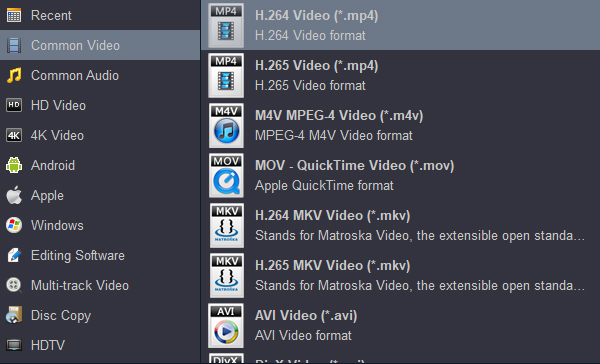
For TV playback, MP4 with AAC or MKV with AC3 are both practical choices. If your TV supports AC3 but not AAC, choose AC3. If your tablet or smartphone struggles with AC3, choose AAC.
Click the Settings button next to the output format. In the settings window, go to the Audio section. Set the Audio Codec to AC3 or AAC, depending on your device. You can also adjust the Bitrate, Sample Rate, and Channels. For general TV playback, AC3 at 192 kbps or 256 kbps with stereo or 5.1 channels works well. For smartphones and tablets, AAC at 128 kbps or 192 kbps is usually sufficient.
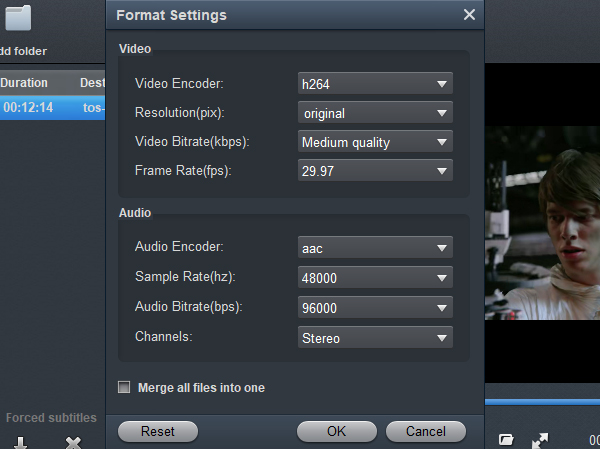
If you are converting a file with multiple audio tracks, make sure the correct track is selected. Some MKV files contain several audio tracks in different languages or codecs. You can choose the track you want to convert.
Click Output bar to choose a destination folder for the converted files. It is a good idea to keep the original MKV files in case you need them later. The converted files will be saved separately.
Click the Convert button to begin. The software will convert the MKV audio to AC3 or AAC while preserving the video. The conversion time depends on the file size and your computer’s performance. When the process is complete, you will have a new file that plays with sound on your TV, smartphone, tablet, USB drive, or media player.
Copy the converted file to your USB drive or transfer it to your device. Play it on the TV or player that previously showed mkv audio format not supported. The video should now play with audio. If the TV still shows no sound, check whether the TV supports the chosen codec. In most cases, AC3 or AAC will solve the problem.
Real-World Test Result
In our test, we used a Hisense 58QD50R and an LC C6 65 Inch TV to play the same MKV file before and after conversion. Before conversion, the video could not play smoothly and had no audio on both TVs. After converting the MKV audio to a compatible codec, the converted file played smoothly with synchronized audio and video on both TVs. This test confirms that the issue was caused by the unsupported audio codec inside the MKV, not by the TV hardware or the USB drive.
There are many free audio converters online, and some of them may seem attractive. However, when you are dealing with large MKV files, unsupported audio codecs, and devices that require specific audio settings, free software often creates more problems than it solves.
Many free converters support only a small number of audio codecs. They may convert to MP3 but not to AC3 or AAC with the settings you need. If you need mkv DTS to AC3 converter functionality, free tools may not support DTS input at all. Some free programs claim to support MKV but fail when the file contains DTS, E-AC3, TrueHD, or FLAC audio.
Some free converters add watermarks to the output video or limit the conversion length. A free tool may convert only the first few minutes of an MKV file, which is useless for a full movie. Others restrict output quality or force you to use a specific format. These limitations make free software unsuitable for serious playback fixes.
Free tools from unknown sources may bundle adware; download from official channels. Free software downloaded from unofficial websites often comes with adware, browser toolbars, or other unwanted programs. In some cases, free converters may bundle malware. Installing unknown software to fix a simple audio problem is not worth the security risk. A professional tool from a reputable developer is safer and more reliable.
When converting MKV audio, audio synchronization is important. A free converter may produce a file where the audio is slightly out of sync with the video. Professional software like Acrok Video Converter Ultimate provides better control over audio settings and maintains synchronization during conversion.
Free tools often lack batch processing, which means you have to convert files one by one. They also lack technical support. If the conversion fails or the output file still shows mkv audio not supported, you have no one to ask for help. A paid tool provides documentation, customer support, and regular updates.
MKV movies are often large files. Free converters may crash, freeze, or produce corrupted output when processing large files. This can waste hours of time. A professional converter is designed to handle large files reliably.
For these reasons, if you want a dependable fix for mkv audio format not supported on your TV, smartphone, tablet, USB drive, or media player, a professional tool is the better choice. Acrok Video Converter Ultimate is not free, but it provides reliable conversion, broad codec support, and the audio settings you need to solve the problem properly.
What audio codec does MKV support?
MKV is a container and can hold many audio codecs, including AAC, AC3, DTS, E-AC3, TrueHD, FLAC, Opus, and MP3. The problem is not what MKV supports, but what your TV or player supports. Most TVs support AAC and AC3, but many do not support DTS, TrueHD, or FLAC.
Why does my MKV play video but no sound on my TV?
This usually means the TV does not support the audio codec inside the MKV. For example, the video may be H.264, which the TV supports, but the audio may be DTS, which the TV does not support. Converting the audio to AC3 or AAC solves the problem.
Can I fix MKV audio not supported on Samsung TV?
Yes. Samsung TVs often support AC3 and AAC but may not support DTS or TrueHD. Convert the MKV audio to AC3 or AAC, then play the converted file on the TV. The same approach works for LG TV, Sony TV, and Android TV models.
Is it better to convert MKV audio to AC3 or AAC?
For TV and home theater playback, AC3 is often the better choice because it is widely supported and provides good surround sound. For smartphones, tablets, and general compatibility, AAC is often better because it is efficient and supported by almost all devices. If you are unsure, convert to MP4 with AAC audio first and test on your device.
Can I convert MKV audio on Windows or Mac?
Yes. Acrok Video Converter Ultimate is available for both Windows and Mac. The steps are the same: add the MKV file, choose the output format, set the audio codec to AC3 or AAC, and start conversion.
Will converting the audio affect video quality?
No. The video stream can be copied without re-encoding, so the picture quality remains the same. Only the audio is converted to a compatible codec. This is one of the advantages of using a professional converter.
The MKV audio format not supported error is frustrating, but it is usually easy to fix. The video is often fine; the problem is the audio codec inside the MKV container. Devices such as TVs, smartphones, tablets, USB playback systems, and media players support different audio codecs, and a file that works on one device may fail on another. By converting the MKV audio to AC3 or AAC, you can make the file playable on a wide range of devices without losing video quality.
Acrok Video Converter Ultimate provides a reliable, straightforward way to convert MKV audio to AC3 or AAC. It supports batch conversion, gives you control over audio settings, and works on both Windows and Mac. While free software may seem tempting, it often comes with codec limitations, watermarks, security risks, and poor handling of large files. For a permanent fix to mkv audio not supported, a professional converter is the safer and more efficient choice.
If you are tired of silent video playback and want to fix mkv audio not supported on your TV, smartphone, tablet, USB drive, or media player, convert the audio to AC3 or AAC today. Your MKV files will finally play the way they should—with both picture and sound.
Free Download And Try Acrok Software
100% Safe & Clean 100% Safe & Clean

I found some similar posts online, but they were too demanding for me—first I had to upgrade the software, then install plug-ins. Acrok’s solution is the simplest and most effective. Now my old discs that had nowhere to go finally have a home. Awesome.
Brandon Jeffery
Copyright © 2026 Acrok Studio All Rights Reserved. Terms and Conditions | Privacy | Refund Policy