

 >
Watch 4K Blu-ray on Hisense TV
>
Watch 4K Blu-ray on Hisense TV
Want to enjoy stunning 4K Blu-ray quality without a disc player? You can watch 4K Blu-ray movies on Hisense TV from USB Drive easily. This guide covers everything from supported formats to step-by-step playback instructions.
Hisense TVs have become a popular choice in American households, offering excellent picture quality, affordable pricing, and smart features. Whether you own a Hisense ULED, Laser TV, or an Android TV model, you probably enjoy watching high-resolution movies. But what if you have a collection of 4K Blu-ray discs and want to back them up to a USB drive for easier playback? Many users run into a frustrating problem: the TV refuses to read or play those files.
Yes, most modern Hisense TVs (Android TV, Google TV, or Vidaa OS) support USB media playback. However, to play 4K movies from USB Hisense successfully, you need the right file format, USB drive specifications, and proper video encoding.
Imagine this: You just bought a new 4K Blu-ray of Dune or Top Gun: Maverick. You want to avoid swapping discs every time, so you use a PC to rip the disc to a USB drive. You carefully copy the main movie file (maybe a large .MKV or .M2TS file) onto a 128GB USB 3.0 stick. Then you walk over to your Hisense TV, plug the USB drive into the port, and open the media player.
Instead of seeing your movie play smoothly, you get an error message:
“Unsupported file format” or “Audio codec not supported” or simply No response when you click the file.
Sometimes the video plays but there’s no sound; other times the TV doesn’t even show the file. This is a common pain point for Hisense TV owners who try to play raw 4K Blu-ray backups directly from USB.
The key is to rip and convert your 4K Blu-ray movie to Hisense TVs supported video formats. You don’t need to be a tech expert - just follow these steps.
General-purpose tools like HandBrake or VLC can work, but they often produce files that still cause gamma shifts (washed-out colors) or audio sync issues on Hisense TVs. A better choice is a converter optimized for TV playback, such as Acrok Video Converter Ultimate or similar software designed for 4K/HDR videos.
Acrok Video Converter Ultimate is an all-in-one video converter that not only converts popular video formats but also decrypts commercial Blu-ray discs and DVD discs. It quickly converts video files from discs into any audio or video format you want, so you can play them freely on your own devices. The operation is very simple.
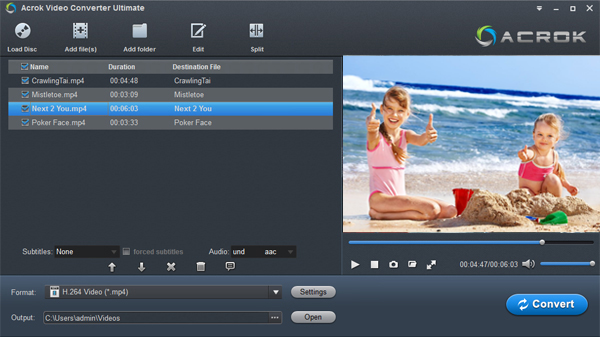
For the best compatibility with Hisense TVs (especially ULED and Android TV models), choose:
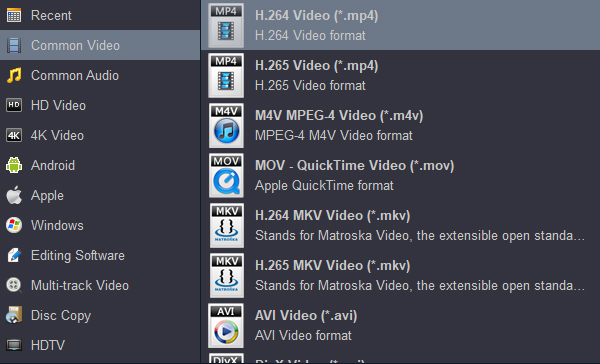
After conversion, copy the output .MP4 or .MKV file to the USB drive. Plug it into your Hisense TV, open the Media app (or USB media player), navigate to the file, and enjoy your 4K Blu-ray movie without any “unsupported” errors.
Hisense TVs support:
For the best Hisense USB media player 4K experience, always use MKV with H.265 video and AAC/AC3 audio.
| File System | File Size Limit | Compatible |
|---|---|---|
| FAT32 | 4GB | No (for 4K) |
| exFAT | No limit | Yes (most models) |
| NTFS | No limit | Yes (best for large 4K) |
I recommend NTFS - it handles 50GB+ 4K Blu-ray rips without issues.
How to Enable 4K HDR Playback on Hisense USB? For 4K HDR playback Hisense USB, make sure:Check your TV’s manual for the official list of supported video and audio codecs. Most Hisense models support:
Use the built-in media player's “Info” button - it may show why a file fails.
Consider a streaming box (e.g., Nvidia Shield, Roku Ultra, Apple TV 4K) that supports direct USB playback of full Blu-ray rips. But if you want to use the TV alone, conversion is the simplest path.
Hisense TVs offer incredible value, but their native USB media player has limits when dealing with raw 4K Blu-ray backups. Instead of getting frustrated with “file not supported” errors, spend a few minutes converting your movie into a TV-friendly format. With the right converter and settings, you can watch your entire 4K Blu-ray collection from a single USB drive - no discs, no clutter, just great movies on your Hisense screen.
Tips:


Thank you for sharing. Your article is concise and clear. I wanted to download a free software to convert my video, and finally I gave up. Inexplicable advertising pop-up makes me very distressed. Your software is easy to use. I'm very satisfied with the converted video.
Ayers, Mark
Copyright © 2026 Acrok Studio All Rights Reserved. Terms and Conditions | Privacy | Refund Policy