

 >
H.265 files to DaVinci Resolve Workflow
>
H.265 files to DaVinci Resolve Workflow

"I am trying to import some H.265 video file into DaVinci Resolve. When I do so I am told by DaVinci Resolve that the file is an un supported file type. I was wondering what I can do to get this video into this editing software. - Tod Shady"
High Efficiency Video Coding (HEVC), also known as H.265, is a new video compression standard, developed by the Joint Collaborative Team on Video Coding (JCT-VC). H.265 was developed with the goal of providing twice the compression efficiency of the previous standard, H.264 / AVC. DaVinci Resolve 19 is the world's first solution that combines professional offline and online editing, color correction, audio post production and now visual effects all in one software tool! If you plan to import and edit H.265 files in DaVinci Resolve 20, 19, 18, 17, 16, 15, etc, just keep reading.
H.265 (HEVC) is an efficient but complex codec. If DaVinci Resolve fails to import or play these files, the cause is usually one of the following key factors:
Windows: Windows 10/11 does not include a native HEVC decoder by default for many common formats (like MP4 from consumer cameras). You often need to install the official "HEVC Video Extensions" from the Microsoft Store (it may be a paid download in some regions, though OEM versions are sometimes free).
macOS: Native support is generally good since macOS High Sierra (10.13), but very new or specific HEVC profiles (like 4:2:2 10-bit) might require the latest macOS updates.
Free vs. Studio: This is the most common reason. The free version of DaVinci Resolve has limited H.265/HEVC decoding support, primarily for common 8-bit 4:2:0 files (like from smartphones). It often does not support:
10-bit or 12-bit color depth.
4:2:2 or 4:4:4 chroma subsampling (common in professional cameras like Panasonic, Sony, and some DJI drones).
High frame rate HEVC at high resolutions.
Studio Version: The paid DaVinci Resolve Studio license includes full, native support for virtually all HEVC profiles, including 10-bit 4:2:2.
Hardware Acceleration: Smooth playback of HEVC requires GPU decoding. If your graphics card is older or lacks dedicated HEVC decoding blocks (NVIDIA's NVENC, Intel's Quick Sync Video, AMD's VCN), Resolve may struggle or fail.
Check Compatibility: For example, full HEVC 10-bit 4:2:2 hardware decode requires relatively recent GPUs (e.g., NVIDIA's 10-series Pascal or newer for some profiles; Intel 7th Gen Core or newer; AMD RDNA2 or newer).
Outdated GPU Drivers: Ensure your graphics drivers are up-to-date for optimal codec support.
Unusual Profile/Level: Some devices record HEVC with less common parameters that Resolve doesn't recognize.
File Extension: While .mp4 or .mov are typical, sometimes a non-standard extension can confuse Resolve.
Corrupted Data: Files interrupted during transfer or recording may have broken headers.
Verify Your Resolve Version: First, check if you're using the Free or Studio version. If you're on Free and need 10-bit HEVC, upgrading to Studio is the most direct solution.
Install System Codecs (Windows):
Go to the Microsoft Store and search for "HEVC Video Extensions" (by Microsoft). Install it.
Alternatively, install manufacturer software (like VLC Media Player), which can sometimes install necessary system codecs.
Update Everything:
Update DaVinci Resolve to the latest version.
Update your GPU drivers from NVIDIA, AMD, or Intel's official website.
Transcode to an Edit-Friendly Codec: This is the most reliable workflow for the Free version or for weaker systems.
Use Optimized Media/Proxy:
In Resolve, you can right-click on problematic files in the Media Pool and select "Generate Optimized Media." Resolve will create ProRes/DNxHR proxies for editing. This requires the Studio version for full functionality with HEVC sources.
Check File Integrity: Try playing the file in a robust media player like VLC. If it doesn't play there either, the file is likely corrupted.
Quick Diagnostic Flow:
Does it play in VLC/QuickTime? If No → File/system codec issue.
Are you using Resolve Free or Studio? If Free and the file is 10-bit → Likely the core issue.
Is your GPU modern and drivers updated? If No → Performance/decoding issue.
Bottom Line: For professional H.265 workflows (especially 10-bit 4:2:2), DaVinci Resolve Studio is almost essential. For casual 8-bit H.265 from phones, ensuring system codecs are installed on Windows and using the latest Resolve Free version should suffice.
DaVinci Resolve supports a wide range of file formats although, 4K and 1080P H.265 footage can't be supported well based on our testing and other users' feedback. To edit H.265/HEVC video in DaVinci Resolve, you need to convert 4K H.265 footage to DaVinci Resolve edit-friendly format such as DNxHD or ProRes first. To finish the task, you can use Acrok Video Converter Ultimate for Mac, the best video converter for H.265 files. By running it, there's no need to set the codec yourself: the program has optimized presets for BlackMagic editing program. You can convert any video file to DaVinci Resolve 19 compatible format with loss-less quality.
It is capable of converting Lumix GH5s, DJI Mavic 2 Pro, Samsung NX1, FUJIFILM X-T5, Canon XF705, iPhone 16 Pro Max, GoPro Hero 12, etc videos to DNxHD, MPEG-2, Apple ProRes, AIC, H.264, etc for smoothly importing and editing in various non-linear editing systems (NLE), including DaVinci Resolve, Avid Media Composer, Premiere Pro, Vegas Pro, Final Cut Pro, iMovie and more. If you are Windows user, please try Acrok Video Converter Ultimate. Below is how. Just take a look at the brief guide below.
Free download the H.265 to DaVinci Resolve Converter:
 100% Safe & Clean 100% Safe & Clean
First, run this H.265 Video Converter. Then, find your local H.265 files and select the ones you want to edit in DaVinci Resolve. Next, directly drag these files from the computer to this app's pane. Alternatviely, click the "Add files" button in this app to guide you to find the local H.265 files you want to import to this app.
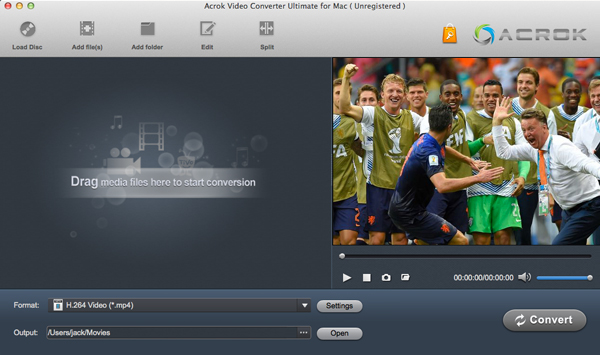
Select a compatible format for DaVinci Resolve 20 or other versions. The Profile tray locates in the buttom of the window. Go to the "Editing Software" category and select "Avid DNxHD 1080P (*.mov)" as the output format. The preset is specially designed for DaVinci Resolve and Avid Media Composer.
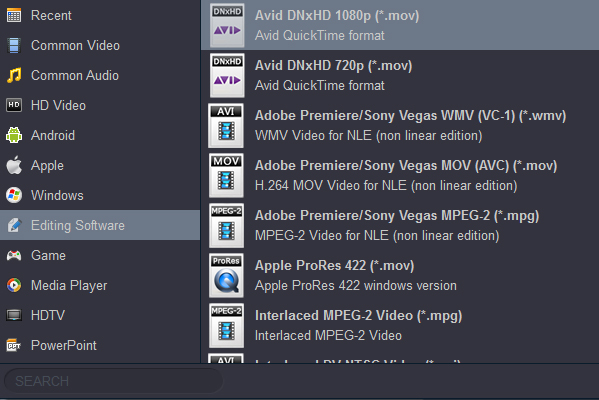
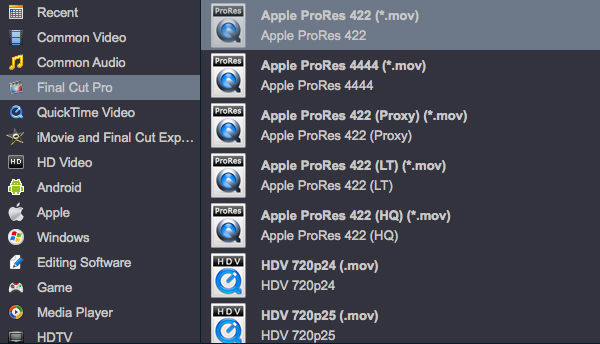
Meanwhile the quality of the H.265 video will kept. If you like, you can choose "Apple ProRes 422 (*.mov)" under "Final Cut Pro" category. For keeping original resolution, you need to click "Settings" then select "Original" in "Resolution" column.
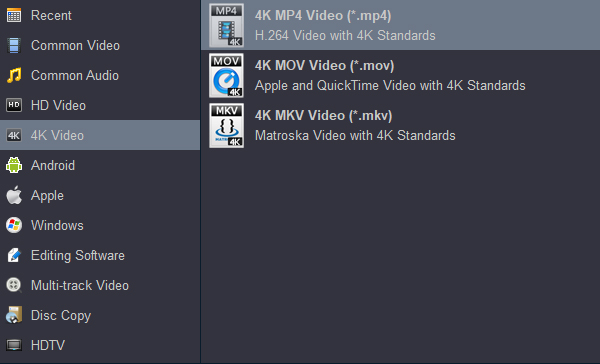
If you want get 4K MP4 video files, you can choose 4K MP4 as output foformat directly. This option is also a good choice to convert downloaded video or rental Blu-ray discs for playing on Smart TVs, Tablets and Smartphones.
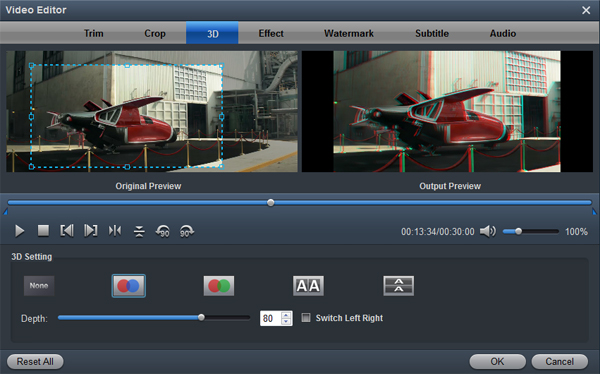
Tip: If you need to edit H.265/HEVC files, Acrok program provides some simple editing functions, such as trim, crop, add effects, add watermark, etc.
You should be ready to start conversion at this point. Just click on the "Convert" button that can be found on the menu. Wait for a while and the video converter will do the trick. You will soon have your H.265/HEVC video into a format that's recognizable and editable by DaVinci Resolve 20, 19, 18, 17, 16, 15 - the .mov format.


Why didn't I think of that earlier? If you produce a software system that has terrible quality, you lose because no one will want to buy it. Your software is great.
D R PEARCE
Copyright © 2026 Acrok Studio All Rights Reserved. Terms and Conditions | Privacy | Refund Policy