

 >
AVI to Android Converter
>
AVI to Android Converter
You download an old movie or a home video from years ago, try to open it on your Android phone, and bam——nothing happens. Or worse, you get that super annoying “Can't play this video” error.
Been there, done that. AVI files are everywhere. Maybe you've got a collection from way back when, or someone emailed you an AVI file, and now you're stuck. You know the video is perfectly fine, but your shiny new Android tablet just refuses to play it.
So what gives? And more importantly, how do you actually fix it?
Let's break it down.
Here's the short version: AVI is old. Like, really old. Microsoft created the AVI format back in 1992——yes, the same year Bill Clinton was elected president. It worked great on Windows machines for decades, but phones, tablets, and modern media players have mostly moved on to more efficient, more compatible formats like MP4.
But the age alone isn't the real problem. The issue runs deeper.
See, every video file has two parts: the container and the codec. Think of the container like a cardboard box, and the codec is the actual language inside. AVI is just the box. Inside that box, the video could be compressed using any number of different codecs——maybe H.264, maybe MPEG-4, maybe something even weirder.
Here's where things get messy. Most Android devices come with hardware decoders built into their chips. These are super efficient and save battery life, but they only support a limited set of codecs. If your AVI file contains a video codec that your phone's chip doesn't recognize, you'll get that “unsupported format” error faster than you can say “I should've bought an iPhone.”
Even the software players that can decode these files through sheer CPU muscle (called soft decoding) often struggle with frame drops, choppy playback, and heavy battery drain. Watching a 30-minute video while your phone's processor is screaming at 100% isn't exactly a good time.
The other complication? AVI containers were designed before streaming, before cloud storage, and before you ever thought about watching a movie on the subway. The format doesn't handle video streaming well at all. In fact, seeking through an AVI file is noticeably slower than MP4——sometimes up to three times slower to skip forward or backward.
So the bottom line is this: AVI isn't dead, but it's basically retired. Your Android phone and tablet would much rather work with MP4 files——specifically, MP4 files that use H.264 video and AAC audio. That combo works on literally every device you own. Period.
The fix isn't complicated. You just need to take that stubborn AVI file and repackage it into something your phone actually understands. That's where video converters come in.
After testing a bunch of different options, I've narrowed down the best choices into three categories: a powerful desktop tool, a free open-source workhorse, and a quick online converter for those one-off jobs.
Let me walk you through each one.
If you convert videos regularly——like, more than once a month——you need something reliable and feature-packed. Acrok Video Converter Ultimate is that tool.
 100% Safe & Clean 100% Safe & Clean
This software is seriously impressive. It supports virtually every video format you can think of, including AVI, MP4, MKV, MOV, WMV, and even high-resolution stuff like 8K, 6K, and 4K video. You can load pretty much any file and spit out a clean, playable video formatted exactly for your Android phone or tablet.
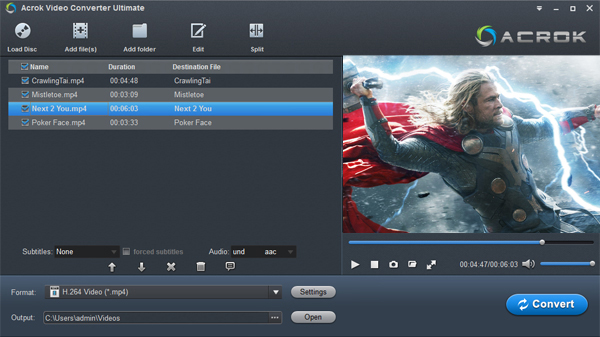
One of the things I love about Acrok is the GPU acceleration. Instead of relying completely on your computer's processor, it taps into the graphics card to speed things up considerably, without nuking the video quality. I've converted two-hour movies in just a few minutes on a decent laptop.
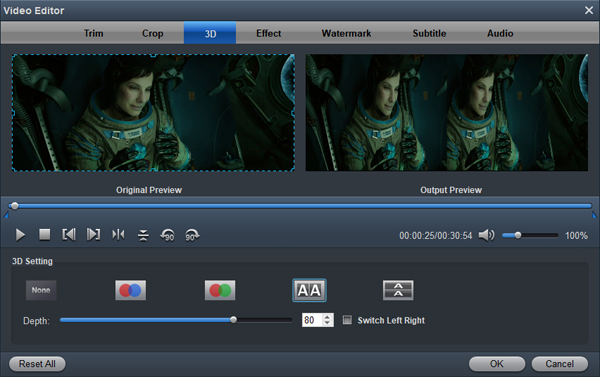
Beyond just converting, Acrok has a bunch of nice extras. You can trim clips, crop the frame, adjust the aspect ratio, tweak brightness/saturation/contrast, add subtitles or watermarks, and even boost the audio volume if your original file is too quiet. For parents who want to convert home videos for their kids' tablets, those editing options come in handy more often than you'd think.
The interface isn't the prettiest thing you've ever seen. Some users mention that advanced settings can be a bit buried, and the learning curve is a little steep if you want to tweak every single parameter. But for everyday conversion—drag, pick Android preset, click convert—it works just fine.
Another nice touch: Acrok also plays Blu-ray and DVD discs, and can rip them to digital files if you've got a physical collection gathering dust.
Price: Starts at around $40–$50 for a standard license. Not free, but if you convert videos regularly, it pays for itself fast.
Platforms: Windows and Mac.
Verdict: If you want the best all-around converter with speed, quality, and features, Acrok Video Converter Ultimate is absolutely my top recommendation. It handles AVI to Android conversions perfectly.
Sometimes you just need to convert one file, and you don't want to install anything on your computer. No problem. GroupDocs Online Video Converter is a free web-based tool that works right in your browser.
You don't need to sign up, download software, or even create an account. Just upload your AVI file, select the output format (MP4 is the obvious choice here), and hit convert. A few seconds or minutes later (depending on the file size), you'll have a download link for your shiny new MP4 file.
It works on any operating system because it's entirely web-based. Windows, Mac, Linux, even Chrome OS——just open your browser. You can also access it from your phone, though uploading a large file on mobile data might not be the smartest idea.
But there's a catch. Online converters have two big downsides.
First, file size limits. Most free online tools cap you at 100MB or 200MB. If you're trying to convert a full-length movie, you're going to run into trouble.
Second, privacy. You're uploading your video to a third-party server. For family vacation clips, that's probably fine. For anything remotely sensitive—personal documents, private recordings—I'd think twice before using an online converter.
GroupDocs states that files remain private and secure, and they provide download links that expire after a while. Still, the basic rule of the internet applies: if you're not comfortable putting it on a public server, don't upload it.
Price: Free.
Platforms: Any device with a web browser.
Verdict: Great for small files, one-off conversions, and situations where you can't install software. Not for heavy users or privacy-sensitive content.
You can't talk about video conversion without mentioning HandBrake. This is one of the most trusted names in the game, and it's been around forever for good reason. It's completely free, open-source, and incredibly powerful.
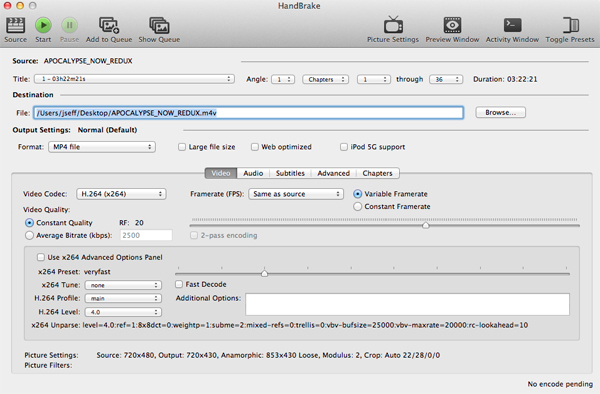
If Acrok is the polished commercial tool, HandBrake is the DIY workbench. You get near-total control over every single setting: video codec, audio codec, bitrate, resolution, framerate, and even the CRF (Constant Rate Factor) number that determines quality versus file size. It supports AVI input and outputs clean MP4 or MKV files that are optimized for modern devices.
HandBrake also uses GPU acceleration on many systems, so conversion times aren't terrible despite the software being free. Advanced users love it for batch processing, subtitle embedding, and the ability to queue up multiple files.
But——and this is a big but——HandBrake is not beginner-friendly. The interface looks like it was designed by engineers for engineers. If you just want to drag an AVI file and get a working MP4 for your Android phone, you'll spend the first ten minutes Googling what “CRF” means and why there are six different MP4 presets to choose from.
That said, once you learn it, it's incredibly powerful. There's a preset section on the right that includes profiles for Android, Apple, Chromecast, and other devices, which helps a lot. Pick the right preset, and you're mostly good to go.
The other nice thing? HandBrake's video quality is excellent. It uses the same underlying technology (FFmpeg, x264, x265) that many paid tools use, so the output looks just as good as anything else on the market.
Price: Free. Completely. No watermarks, no limits.
Platforms: Windows, Mac, Linux.
Verdict: Perfect for tech-savvy users who want total control and don't want to spend money. Overwhelming for beginners.
| Feature | Acrok Video Converter Ultimate | GroupDocs (Online) | HandBrake |
|---|---|---|---|
| Price | Paid ($40–$50+) | Free | Free |
| AVI to MP4 | ✅ Yes | ✅ Yes | ✅ Yes |
| GPU Acceleration | ✅ Yes | ❌ No (server-side) | ✅ Yes |
| Batch Conversion | ✅ Yes | ❌ No (single file) | ✅ Yes |
| Editing Tools | ✅ Advanced (trim, crop, watermark, subtitles, audio adjust) | ❌ None | ⚠️ Basic (trim, filters, subtitles) |
| File Size Limit | ❌ None | ⚠️ ~100–200MB | ❌ None |
| Privacy | ✅ Local only | ⚠️ Upload to server | ✅ Local only |
| Ease of Use | ✅ Easy preset selection | ✅ Very easy | ⚠️ Steep learning curve |
| Internet Required | ❌ No | ✅ Yes | ❌ No |
| Best For | Regular converters, families, quality/speed balance | One-off small files, quick fixes | Tech enthusiasts, budget users, full control |
Here's my honest breakdown.
If you're a casual user who needs to convert maybe one or two small AVI files per month — just use GroupDocs. It's free, it's fast, and you don't have to install anything. But make sure your file is under the size limit and you're not uploading anything sensitive.
If you're a tinkerer who doesn't mind spending half an hour learning the software — HandBrake is incredible value for zero dollars. Once you figure out the presets, it's surprisingly capable.
If you want the best overall experience — especially if you convert videos more than a few times a year, have large files, care about speed and quality, or want to convert home videos for your kids' tablets — Acrok Video Converter Ultimate is my definitive pick.
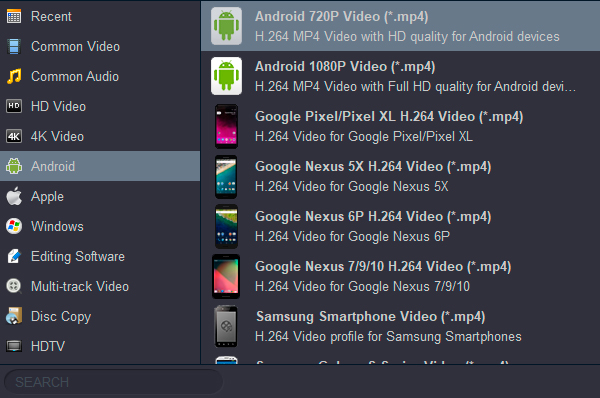
Here's why I keep coming back to Acrok. You open the program, drag your AVI file into the window, pick the “Android” preset from the output list, and click convert. That's it. You don't need to understand codecs, containers, profiles, or bitrates. The software handles all that nonsense in the background while you go make coffee.
Plus, GPU acceleration means a two-hour movie converts in a fraction of the time it would take HandBrake on a standard laptop. And the built-in editor means you can trim the intro and outro off your kid's school play recording without launching a second tool.
Sure, it costs money. But the time and frustration you'll save——especially if you find yourself converting files repeatedly——is worth way more than fifty bucks.
Look, AVI files aren't going away anytime soon. There's still tons of older content floating around in that format. But your Android phone and tablet have made it pretty clear: they're just not interested in playing ball unless you convert things first.
The good news is that the solution is dead simple. Convert AVI to MP4 using a reliable tool, and your playback problems disappear. No more hunting for weird video players on the Play Store. No more choppy playback because your CPU is struggling. Just a clean, compatible video that works exactly the way you expect it to.
If you've got a collection of home videos sitting on an external drive right now, pop one of those AVI files into any of these tools and give it a shot. You'll kick yourself for not doing it sooner.
Stay safe out there, and happy converting.
Tip: Should I download a media player for Android?
Though Android devices don't support AVI playback natively, you can still play AVI on Android without converting the files. There are many media players for Android on the market, and most of them are free. Popular Android video players include BSPlayer FREE, Dice Player, and MX Video Player. With a smart player installed on your Android device, you can play AVI movies without conversion.
Note that although there are many video players for Android, many of them can't play HD 720p or 1080p AVI videos in high quality on your device. What's more, some apps will slow down your device. So it's still recommended that you convert the videos on your computer and then transfer the converted videos to your Android device for playback on the go.


I never write reviews, this is my second one in my life. Can't not share what a great and easy to use software this is. We saved all our movies to MP4 format and access them from our live external hard drive from all our Android devices.
David Herdies
Copyright © 2026 Acrok Studio All Rights Reserved. Terms and Conditions | Privacy | Refund Policy