

 > Convert BIn to MP4

If you have ever double-clicked a .bin file expecting a movie to start, you know the disappointment. Nothing plays. The file might be large, it might have come from a DVD backup or an old download folder, and yet no video player seems to know what to do with it. So you search for a BIN to MP4 Converter, hoping there is a one-click fix.
Here is the honest version: the fix exists, but it is not quite the “drag and drop, press convert, done” story that many tool pages suggest. BIN files are a strange category of file, and understanding what yours actually contains is the difference between a smooth conversion and an hour of frustration. This guide walks through the practical route: what a BIN file is, when conversion makes sense, and how to convert BIN files to MP4 format on both Windows and Mac without guessing your way through the process.
A BIN file is a binary file—a raw data container that stores information as a sequence of 0s and 1s. Unlike a text file, you cannot open it in Notepad and read anything meaningful. On its own, the .bin extension tells you almost nothing about what is inside.
In practice, BIN files show up in a few common situations. The most relevant for video work is as a disc image: a bit-for-bit copy of a CD, DVD, or Blu-ray, usually paired with a .cue file that acts as an index table telling software where the tracks begin and end. BIN files can also be cached data downloaded by media players, or resource packages inside older game installations. None of these are standard video formats, which is why VLC, QuickTime, or Windows Media Player will not simply “play” a BIN file the way they play an MP4.
This leads to an important clarification. There is no such thing as a universal “.bin video format,” and no converter can reliably turn an arbitrary BIN file into a playable MP4 if that BIN file does not actually contain a standard video stream. If your BIN file is a disc image of a DVD or Blu-ray, conversion is absolutely possible. If it is a raw data dump from an old device or a game resource pack, no video converter will magically produce a movie from it. The first step is always to figure out which kind you are dealing with.
Assuming your BIN file does contain video—most often inside a DVD or Blu-ray disc image—MP4 is the format most people should aim for. It is the closest thing the digital video world has to a universal language. Windows and Mac computers play it natively, Android and iPhone devices handle it without extra software, smart TVs recognize it, and streaming boxes treat it as a first-class citizen.
That compatibility matters more than raw quality for most everyday use. You might transcode BIN to MP4 video because you want to move a DVD backup onto a tablet for a trip, or because you want the file to open in an editor without mounting a virtual disc every time. MP4 keeps the file size manageable while preserving enough quality for viewing on a laptop or TV. If you need to edit the footage professionally, a different target format such as MOV or ProRes might make more sense, but for playback and sharing, MP4 is the practical default.
The reason BIN-to-MP4 conversion is trickier than converting, say, an AVI file is that you are often not converting a single video file—you are opening a disc image, selecting the right title, audio track, and subtitle track, and then encoding that content into a new container. Many general-purpose converters either do not accept BIN files at all, or they accept them only if the BIN happens to be a simple video stream that has been misnamed.
 100% Safe & Clean 100% Safe & Clean
Acrok Video Converter Ultimate is built around the workflow that BIN files actually require. It is a desktop application for Windows and Mac that handles disc images, disc folders, and standard video files in the same interface, and it includes MP4 output with device-oriented presets. More importantly, it is designed to work with the mounted-disc route that BIN files often need: if the software can open the BIN directly, great; if not, you mount the BIN as a virtual disc and point Acrok at the mounted DVD or Blu-ray folder. That flexibility is the difference between a tool that technically supports BIN files and a tool that actually gets the job done.
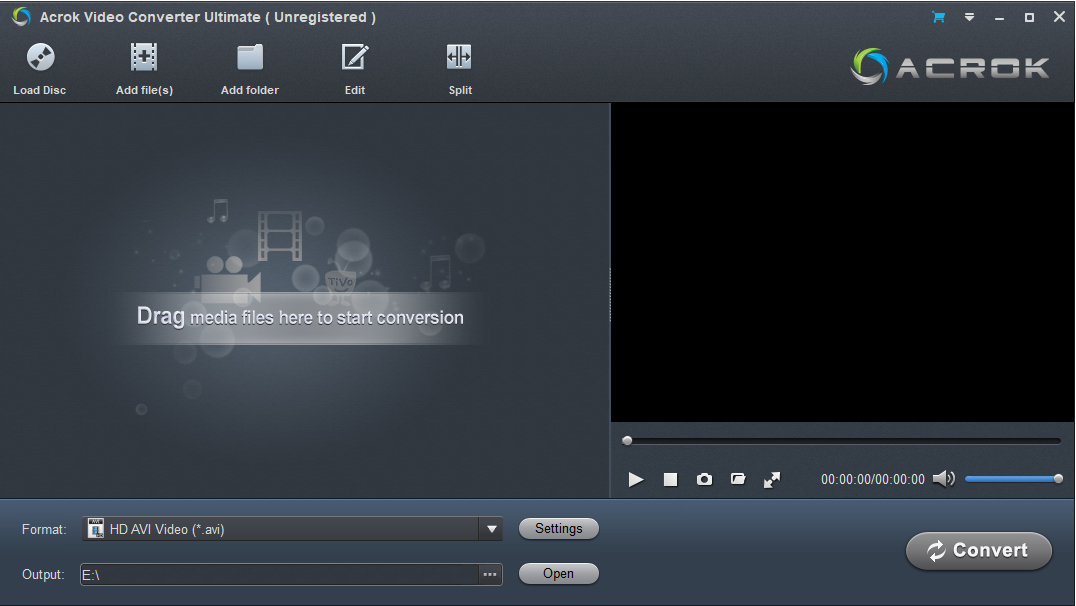
The Windows workflow has a small amount of preparation, but it is not complicated. Before opening Acrok, check whether your BIN file came with a .cue file. If it did, you can use a free virtual drive tool such as WinCDEmu to mount the BIN/CUE pair as a virtual disc. This creates a drive letter in Windows that behaves like a physical DVD or Blu-ray drive. If Acrok lists the BIN file directly when you click Add File, you can skip the mounting step entirely—some Acrok versions can load certain disc images without an external mount.
Once the source is available, the conversion itself is straightforward. Launch Acrok Video Converter Ultimate, load the BIN file or the mounted disc folder, and open the Output Format dropdown. Go to Video → MP4. For broad compatibility, choose an H.264 MP4 preset; if your devices support it and you want smaller files, H.265/HEVC MP4 is an option. Before clicking Convert, take a moment to select the correct title, audio track, and subtitle track. A DVD or Blu-ray image often contains multiple audio languages and subtitle streams, and you do not want to discover after conversion that the MP4 is playing the wrong language. Choose an output folder, start the conversion, and check the resulting MP4 in VLC or another player before deleting the original BIN file.
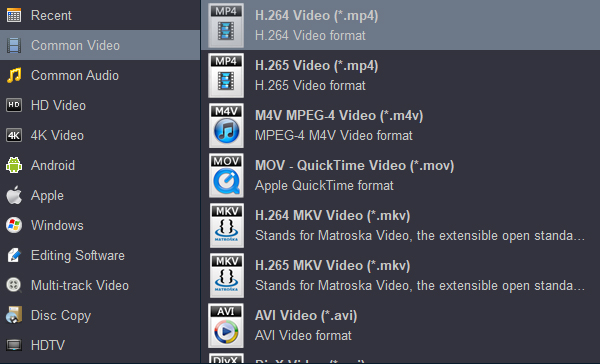
The Mac route is conceptually the same, with a platform-specific mounting step. macOS does not mount BIN/CUE images natively in Finder, so you need a disc-image mounting utility if Acrok cannot open the BIN directly. Once the image is mounted, add the mounted disc or folder to Acrok Video Converter Ultimate for Mac, select MP4 under the output format list, choose the title and tracks you want, and start the conversion. The finished MP4 will play in QuickTime, VLC, or any other Mac video player.
The Mac version of Acrok carries the same core capabilities as the Windows version: batch conversion, hardware-accelerated encoding, basic editing tools (trim, crop, effects, watermarks, subtitles), and a built-in player for previewing the source before you commit to a full conversion. If you regularly work with disc images on a Mac, having a tool that understands both the disc structure and the MP4 output in one interface saves a significant amount of time compared with chaining a mounting utility, a ripper, and a separate encoder together.
To give this guide some concrete grounding, I ran a test on a low-spec Windows machine using a 1.8 GB BIN file containing roughly 20 minutes of video. The BIN came with a matching CUE file, so I mounted it with a virtual drive tool before opening Acrok. Mounting took about one minute on this hardware—not instant, but not a bottleneck either.
When I loaded the mounted disc into Acrok Video Converter Ultimate, the software recognized the main movie title and displayed it correctly in the file list. I selected that title, chose an H.264 MP4 preset, and started the conversion. The 20-minute clip took around 10 minutes to convert. That is not fast by modern standards, but it is consistent with a low-end CPU that cannot take advantage of hardware acceleration. On a machine with GPU encoding support, the same job would finish considerably quicker.
The resulting MP4 played smoothly on recent Android and iOS phones using their built-in video players. Audio and video stayed in sync throughout, and there was no stuttering or lip-sync drift. For a low-spec conversion of a disc image, that is exactly the outcome you want: a file that opens without fuss and plays the way it should.
You will find pages advertising a free BIN to MP4 converter online, and some of them will accept a BIN file and return an MP4. For a very short clip, that might be enough. For a full movie from a DVD or Blu-ray image, the limitations add up quickly. Free online tools typically impose upload size caps, queue times, or watermarks, and many of them are not equipped to interpret the track structure inside a disc image. A BIN file from a commercial DVD is often several gigabytes, which is well beyond the practical upload limit of most free services.
There is also a privacy dimension. Uploading a personal disc backup to an unknown server is a different calculation from converting it locally on your own machine. A desktop converter keeps the file on your computer from start to finish, and it does not care how long the movie is.
It is worth being realistic about what “conversion” means in this context. If your BIN file is a DVD or Blu-ray disc image, the MP4 you get will look like the source disc—same resolution, same compression artifacts, same audio quality. You are repackaging the video, not restoring detail that was never there. If the source is a standard-definition DVD, the MP4 will be standard definition. If it is a Blu-ray image, the MP4 can be high definition, provided you choose an appropriate resolution and bitrate during output.
The other expectation to set is legal. Convert BIN files that you own or have the right to convert. Do not use conversion software to bypass DRM or copy protection on discs you do not own. This is not a technical limitation of the software; it is a boundary that any responsible guide should state clearly.
A BIN to MP4 Converter is not a magic wand that turns any .bin file into a movie. It is a tool for a specific job: taking the video content inside a disc image and repackaging it into a format that plays everywhere. If that is your situation, the workflow is clear. Identify whether your BIN is a disc image, mount it if necessary, load it into a desktop converter that understands disc structures, choose MP4 as the output, select the right tracks, and convert.
Acrok Video Converter Ultimate fits that workflow on both Windows and Mac, with the added benefit of batch processing, editing tools, and device presets when you need them. For anyone who wants to convert BIN files to MP4 format without uploading a multi-gigabyte file to a random website, it is the most direct route from a stubborn .bin file to a movie you can actually press play on.


Acrok Ultimate Converter delivers impressively fast batch conversions with broad format support, making it a reliable powerhouse for both casual and professional video processing needs."
Erik Lee
Copyright © 2026 Acrok Studio All Rights Reserved. Terms and Conditions | Privacy | Refund Policy