

 > After Effects CC HEVC/H.265
As H.265 HEVC videos gain popularity, a few users have acquired them by recording or downloading, and most need to edit those clips to improve them. After Effects CC, one of the most popular video editors, is chosen by many professional and amateur users. Many of them need to import HEVC into After Effects CC for editing, but most have encountered importing and editing issues because HEVC videos are not handled natively, just like the question shown below.
"What's the best HEVC-to-After-Effects-CC workflow? I bought a camera about two weeks ago to capture high-quality videos. I've recorded some H.265 HEVC videos over the past few days, and now I need to import these clips into After Effects CC for editing before sharing them with others. When I try to import them, I find that After Effects CC can't support my HEVC files natively, and the footage doesn't edit smoothly. Is there something wrong with my workflow? Could you share how to edit HEVC files with After Effects CC natively? Any suggestions are appreciated. Thanks!"
If you are trying to import HEVC files into After Effects CC for editing, you have likely encountered importing and editing issues. You will find that After Effects CC does not support HEVC files directly. What's the reason? It's because After Effects CC supports a limited range of video formats. From the After Effects CC product page, you can learn which formats are natively supported. HEVC is not among them. Only with a supported format can you edit your footage smoothly. Therefore, the best HEVC-to-After-Effects-CC editing workflow is to convert HEVC to a compatible format first, and then you can edit your HEVC videos with After Effects CC without any issues.
Acrok Video Converter Ultimate (Windows | Mac) is a highly recommended HEVC video converter for converting HEVC files to a format supported by After Effects CC. This is one of the best H.265 video converters on the market. It can convert any HEVC files recorded by cameras, camcorders, or smartphones. All types of HEVC videos are supported, including 4K UHD HEVC and 1080p HEVC. Besides HEVC, it can also convert other video formats such as MKV, MP4, MOV, AVI, and MXF. Nearly all video formats are supported for importing and converting. You can also use it to rip the latest Blu-ray and DVD movies to unprotected, standard video formats for free viewing. Now you can get this HEVC video converter via the link and follow the steps below to convert HEVC to a format supported by After Effects CC.
Download Acrok Video Converter Ultimate from the link and install this HEVC-to-After-Effects-CC converter on your computer. This H.265 video converter has both Mac and Windows versions, so it can convert HEVC videos on either platform. Choose the right version according to your operating system.
 100% Safe & Clean 100% Safe & Clean
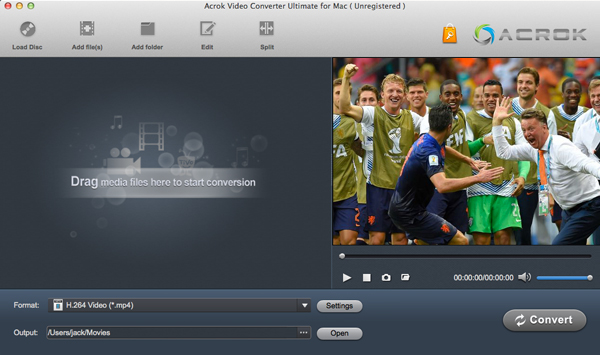
Launch the converter to see the main interface. Click the "Add Files" button on the top left to import HEVC videos. If your files are in a folder, click "Add Folder" to load them into the software. This powerful all‑in‑one converter can handle all kinds of HEVC content, including 4K UHD, 1080p full HD, standard HD, as well as Blu-ray and DVD movies.
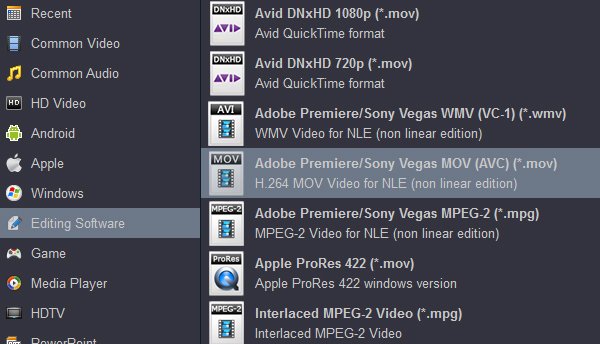
Select a format that After Effects CC supports natively. For editing HEVC files with After Effects CC, we recommend choosing "Editing Software -> Adobe Premiere" – this preset works best with both After Effects and Premiere. If you prefer other formats, you can pick any of the many optimized presets available in this converter.
Tip: Settings
Before converting, you may click the "Settings" button on the main interface to adjust output parameters such as resolution, bitrate, frame rate, codec, and more according to your needs. If you are satisfied with the defaults, you can skip this step.
Click the "Convert" button to begin converting HEVC to an After‑Effects‑CC‑supported format. Acrok Video Converter Ultimate will perform the conversion at high speed while maintaining top quality, with perfect audio‑video synchronization. Once the process is finished, you can import the converted footage into After Effects CC for native editing without any further problems.


It's hard to find such a powerful and comprehensive video conversion software. I can edit and share my videos with anyone easily. Thanks.
David Harris
Copyright © 2026 Acrok Studio All Rights Reserved. Terms and Conditions | Privacy | Refund Policy