

 > Sony FX5 DaVinci Resolve

Question
Our company bought a newly released Sony FX5. I shot some wildlife footage with the Sony FX5, but I can’t import the recorded video files directly into DaVinci Resolve. When I first tried importing them on my computer using the free version of the software, it gave an error, saying that the file could not be recognized. I switched to another computer, which has the paid version of the software, version 19, but it still didn’t work. Do I need to upgrade to the latest version, or do I need to install a plugin to solve this problem?
The Sony FX5 has quickly become a game-changer in the cinema camera market. As the first camera in its class to record 16-bit scene-linear X-OCN internally, it delivers remarkable image quality and post-production flexibility. But for editors who rely on DaVinci Resolve, getting those X-OCN files onto the timeline isn't always straightforward. This guide walks you through what works, what doesn't, and how to ensure a smooth editing experience.
Blackmagic Design released DaVinci Resolve 21.0.4 in August 2026, and the headline feature is native support for Sony FX5 X-OCN clips. The update covers all three X-OCN flavors the camera writes internally—LT, C1, and C2—which means you can now import videos from Sony FX5 to DaVinci Resolve without an intermediate transcoding step.
The Studio (paid) version of DaVinci Resolve 21.0.4 fully supports importing, playing back, and editing Sony FX5 X-OCN footage. According to Blackmagic's official release notes, the software can decode these files natively. However, there's an important distinction between the free and paid versions that every FX5 user needs to understand.
Here's where many editors run into trouble. If you're using the free version of DaVinci Resolve, you may encounter a frustrating issue: you can import the video files from your Sony FX5, but you cannot preview or edit them. Users have reported that X-OCN clips show only audio with no video—as if the video track doesn't exist.
This isn't a bug; it's a deliberate limitation. As Blackmagic Design support has confirmed, the free version of Resolve might not decode X-OCN files. While the free edition does receive the same update and can import the clips, the decoding capability for certain professional formats—including Sony's X-OCN—is reserved for the paid Studio version.
So if you're trying to edit Sony FX5 videos in DaVinci Resolve and nothing appears on your timeline beyond an audio waveform, the first question to ask is: Am I using the free version or the Studio version?
Upgrading to DaVinci Resolve Studio doesn't guarantee a flawless experience either. Blackmagic's official documentation clearly states that the Studio version supports Sony FX5 X-OCN import, playback, and smooth editing. However, the level of support depends heavily on your computer's hardware configuration.
X-OCN is a demanding 16-bit RAW-like codec. Processing it in real time requires significant CPU and GPU power. Even users running the latest version of DaVinci Resolve Studio have reported difficulties with smooth color grading and playback. If your system doesn't meet the recommended specifications—particularly for 4K or higher resolution workflows—you may experience dropped frames, laggy playback, and sluggish performance when applying color grades or effects.
This is a hardware bottleneck, not a software flaw. But it's a real obstacle for editors working on laptops or older workstations.
Given these challenges—the free version's decoding restriction and the paid version's hardware demands—there's a practical workaround that works for everyone: convert Sony FX5 videos for DaVinci Resolve by transcoding them to a format the software handles natively and efficiently.
By converting your X-OCN footage to a more edit-friendly codec, you can:
For this task, Acrok Video Converter Ultimate is an excellent choice. This powerful conversion tool supports a wide range of video formats and is specifically designed to prepare footage for professional NLEs including DaVinci Resolve, Premiere Pro, Final Cut Pro, Avid Media Composer, and Vegas Pro.
In addition, this software can help you back up your old discs at home to your computer or an external hard drive. If you want to watch Blu-ray/DVD movies without a dedicated player, you can use Acrok Video Converter Ultimate to convert them into MP4, the most widely used video format. Then you can play movies from any disc on your TV using a USB flash drive, or import the converted videos directly to your tablet to enjoy them anytime.
 100% Safe & Clean 100% Safe & Clean
Step 1: Install and launch the Sony FX5 Video Converter on your Windows or Mac computer.
Step 2: Add your Sony FX5 X-OCN clips by clicking "Add File" or simply dragging and dropping them into the program. You can play the imported footage through the preview window on the right.
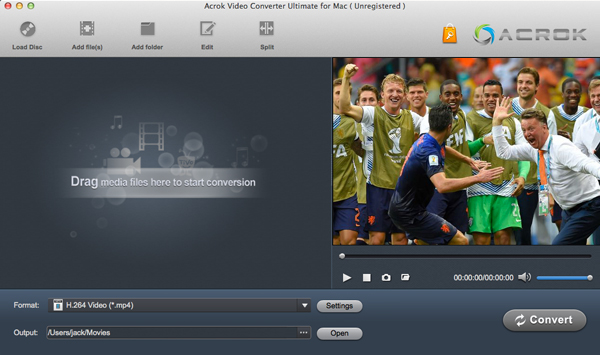
Step 3: Choose a DaVinci Resolve-compatible output format. In the "Format" tray, navigate to the "Editing Software" category. From there, select a format that DaVinci Resolve supports natively, such as:
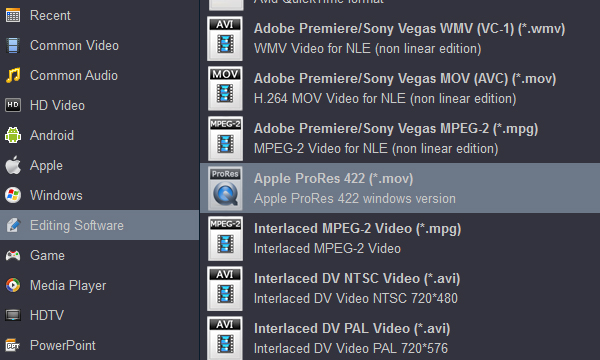
Which Output Format Should You Choose?
| Format | Best For | Pros |
|---|---|---|
| Apple ProRes 422 | Mac users, high-quality editing | Excellent quality, widely supported, smooth performance |
| DNxHD/DNxHR | Cross-platform workflows | Professional standard, great for collaboration |
| H.264 | Smaller file sizes | Compact, but less ideal for heavy color grading |
For most editors, Apple ProRes 422 (on Mac) or DNxHD (on Windows) strike the best balance between quality and performance. These are professional post-production codecs that DaVinci Resolve handles natively and efficiently.
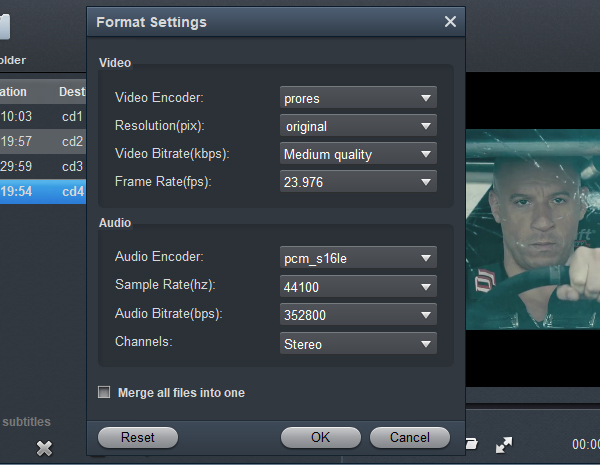
Tip: Click the Settings button to set output parameters (e.g., Video Encoder, Frame Rate, Sample Rate) in the window that opens. To check the original video parameters, return to the main interface, select your task, and click the "Show selected task properties" icon.
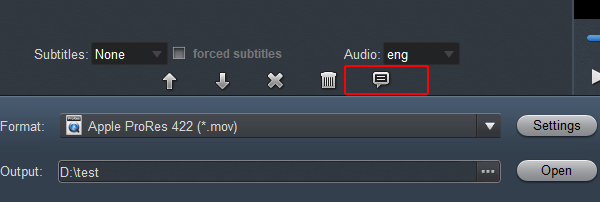
You can do simple edits on the imported videos before conversion, such as trimming, cropping, adding effects, and so on.
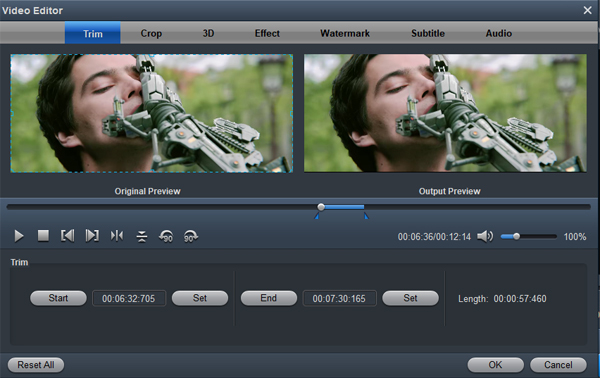
Step 4: Click the "Convert" button to start the transcoding process. Acrok handles 4K, UHD, 2K, and 1080P footage efficiently, preserving quality while creating files that DaVinci Resolve can handle with ease.
Once the conversion is complete, you can import the newly transcoded files into DaVinci Resolve—whether you're using the free version or the Studio version—and edit Sony FX5 videos in DaVinci Resolve without any of the preview, playback, or performance issues you encountered with the original X-OCN files.
The Sony FX5 is a remarkable camera, and DaVinci Resolve 21.0.4 brings welcome native support for its X-OCN files. But the reality is that not every editor has the Studio version, and not every workstation can handle 16-bit RAW-like footage in real time.
By using Acrok Video Converter Ultimate to convert Sony FX5 videos for DaVinci Resolve, you can overcome both the free version's limitations and your hardware's performance constraints. It's a simple, reliable solution that lets you focus on what matters most: telling great stories with stunning footage from your Sony FX5.


A good tool to extract audio tracks from my CDs and the output audio quality is far more than I have expected. It makes video converting easier since I select Android 1080P Video as the output format and the videos are just perfect to fit my Sharp Android TV.
Bauer, Ryan
Copyright © 2026 Acrok Studio All Rights Reserved. Terms and Conditions | Privacy | Refund Policy