

 > Sony FX5 Video Converter

The Sony FX5 is a full-frame cinema camera from the Cinema Line series that supports in-camera recording of 16-bit X-OCN RAW, XAVC HS (H.265/HEVC), and XAVC S (H.264), among other high-quality video formats. However, these professional formats often cause headaches in post-production. Many users find that when they import FX5 footage into Premiere Pro or DaVinci Resolve, the files either won't import at all, or playback is choppy and rendering is painfully slow. This article will help you understand the root causes and provide a practical, step-by-step solution.
Older Premiere Pro versions cannot import FX5 footage
Early versions of Premiere Pro lack native support for Sony's X-OCN format. X-OCN is Sony's proprietary compressed RAW format – think of it as a high-efficiency RAW that retains much of the flexibility and image quality of RAW while keeping file sizes more manageable. But if your Premiere version is not recent enough, it simply cannot decode this format, resulting in import errors or blank clips.
Newer versions import, but hardware struggles
Adobe introduced native X-OCN support in Premiere Pro 24.2 and later. XAVC HS (H.265/HEVC) can also be imported normally. But here's the catch – H.265/HEVC is a highly compressed format that demands significant hardware power to decode.
Premiere Pro has specific system requirements: an Intel 6th-generation or newer CPU, at least 8 GB of RAM (16 GB recommended for HD media), and a dedicated GPU that supports hardware acceleration. If your machine falls short, editing H.265 footage will result in choppy playback, dropped frames during preview, and extremely long render times. For high-bitrate 4K or even 5K footage from the FX5, lower-spec computers simply cannot handle the workload smoothly.
DaVinci Resolve 21.0.4 natively supports FX5 X-OCN
Blackmagic Design officially added native support for Sony FX5 X-OCN in DaVinci Resolve 21.0.4. If you are using the paid Studio version and have updated to 21.0.4 or later, you can import FX5 X-OCN footage directly for editing and colour grading.
But the free version (DaVinci Resolve) does not support it
The key issue is that the free version of DaVinci Resolve imposes limitations on high-spec video formats. The free version supports almost all 8-bit formats up to Ultra HD 3840×2160. However, FX5's X-OCN is a 16-bit RAW format, and XAVC HS often records in 10-bit 4:2:2 – the free version cannot decode 10-bit or higher video, while the Studio version can.
Many users have reported on the Blackmagic forums that after importing FX5 X-OCN footage, they see only an audio track with no video. Official support responses confirm that the most likely explanation is that you need the paid Studio version to work with these media files.
Since the problems come down to “incompatible formats” and “underpowered hardware,” the most straightforward fix is to convert the RAW and H.265/HEVC files from the FX5 into formats that your editing software supports natively and that are hardware-friendly.
For both Premiere Pro and DaVinci Resolve, the safest and most reliable choice is:
H.264 is the most mature and widely supported codec in both editing applications. It requires far less processing power than H.265/HEVC, so even moderately spec’d computers can edit and preview smoothly.
To batch-convert your FX5 X-OCN or H.265 footage to H.264 MP4, you need a professional and efficient video converter. We recommend Acrok Video Converter Ultimate.
Why choose it?
 100% Safe & Clean 100% Safe & Clean
Step 1: Download and Install
Go to the official Acrok website, download Acrok Video Converter Ultimate, and install it on your Windows PC or Mac.
Step 2: Add Your FX5 Video Files
Launch the program and click “Add File” to import the X-OCN, XAVC HS, or XAVC S files from your Sony FX5. You can also drag and drop them directly into the interface.
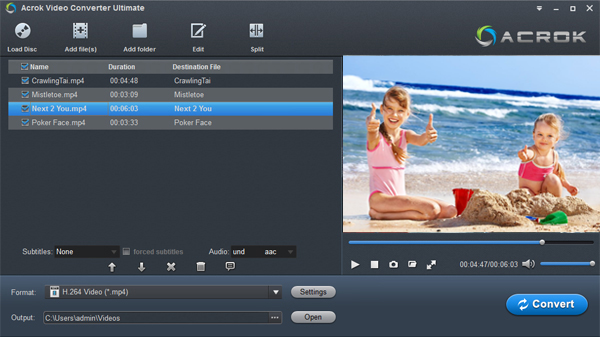
Step 3: Choose the Output Format
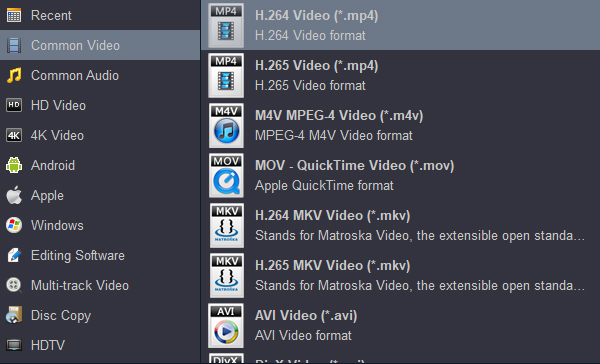
Open the output format drop-down menu, select “MP4” under the “Common Video” category, and then choose “H.264” as the video codec. If you're unsure about specific parameters, you can also search for “Premiere” or “Editing” in the device presets and select a common editing profile.
Tip:
It is a well-known fact that Adobe’s video editing tools have natively supported MPEG video encoding since their early days. So if you are using an older machine, consider transcoding your FX5 video to MPEG. The resulting files will be in the .mpg format and can be imported into any Adobe editor – Premiere (CS5, CS6, CC), After Effects, Premiere Elements, etc.
Based on the official parameters published by DaVinci Resolve, DNxHD is the codec most strongly recommended for editing. Thus, for those wishing to edit Sony FX5 video in the free edition of DaVinci Resolve, converting the footage to this codec via Acrok software is a viable option.
Note:
Apple ProRes is a professional editing codec, and many users wish to convert Sony FX5 video to it. However, since most users who cannot handle Sony FX5 footage in Premiere Pro or DaVinci Resolve are constrained by insufficient hardware for an upgrade, I do not recommend this approach. Even after conversion, an older machine will still face playback and editing performance issues.
Step 4: Adjust Parameters (Optional)
Click the “Settings” (gear) icon to manually adjust resolution, bitrate, frame rate, and other settings. For 4K FX5 footage, it's best to keep the original resolution and set the bitrate between 20–50 Mbps to balance quality and file size.
Step 5: Start Conversion
Click the “Convert” button at the bottom right. The software will begin processing your files. With hardware acceleration enabled, conversion is noticeably faster. Once completed, all output files will be saved to your chosen destination folder.
Step 6: Import into Your Editing Software
Open Premiere Pro or DaVinci Resolve and import the converted H.264 MP4 files. You'll find that they load quickly, play back smoothly, and render without the lag you experienced before.
The Sony FX5 is a powerful cinema camera, but its professional recording formats do add an extra hurdle to post-production workflows. Older Premiere versions won't recognise X-OCN; newer versions can import but struggle with H.265 on modest hardware. Resolve Studio supports it, but the free version doesn't – all these issues ultimately boil down to format mismatch.
Instead of upgrading your computer or purchasing an expensive Studio licence, try converting your footage to H.264 MP4 using Acrok Video Converter Ultimate. It's the most cost-effective and simplest solution, allowing you to edit smoothly on your existing equipment. After you've finished your edit, you can always go back to the original high-quality files for the final master if you need the absolute best quality.


So glad a found Acrok Video Converter Ultimate! Just having the trial, i was able to complete my video work. I highly recommend this item and plan on purchasing the full version tonight.
Bill Trousdale
Copyright © 2026 Acrok Studio All Rights Reserved. Terms and Conditions | Privacy | Refund Policy