

 >
Play Blu-ray/DVD on iPhone Ultra
>
Play Blu-ray/DVD on iPhone Ultra
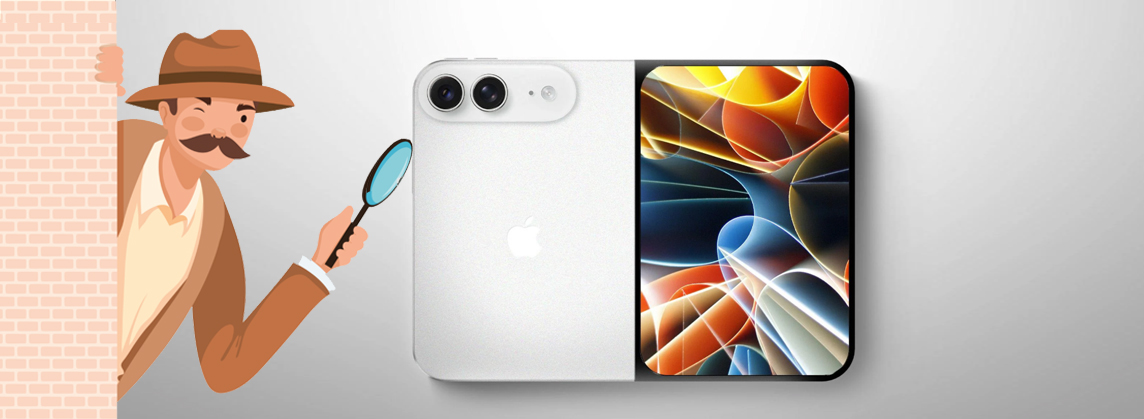
Apple’s latest flagship, the iPhone Ultra, boasts a stunning high-resolution display that makes it the perfect device for watching movies on the go. However, if you have a large collection of physical Blu-ray or DVD discs, you’ll quickly find that you cannot simply drag and drop their files onto your phone. The native video formats (such as VOB for DVDs or M2TS for Blu-rays) are incompatible with iOS. To enjoy your discs on this cutting-edge device, you need a dedicated conversion solution. This guide will walk you through the entire process step by step.
Blu-ray discs are protected by complex copy protection (like AACS), while DVDs use region coding. Standard media players cannot read these encrypted files. Furthermore, the iPhone Ultra requires specific video and audio codecs (such as HEVC/H.265) to maximize its display capabilities without consuming excessive storage space. To handle this task efficiently, we strongly recommend using Acrok Video Converter Ultiate. This powerful tool is widely regarded as the best Blu-ray Ripper and the best DVD Ripper on the market, thanks to its ability to bypass copy protections while preserving the original high-fidelity audio and video quality.
Before diving into the conversion, make sure you have the following ready:
Once everything is set, you can proceed. Whether your goal is to copy Blu-ray to iPhone Ultra or to transfer DVD to iPhone Ultra, the operational workflow remains virtually identical, ensuring a hassle-free experience for all your physical media.
Launch Acrok Video Converter Ultiate on your Windows or Mac computer. Insert your Blu-ray or DVD into the drive, then click the "Load Disc" icon on the software interface. The program will automatically analyze the disc structure and display the main title (usually the longest one, which is your feature film). You can also select your preferred subtitle and audio track (e.g., DTS or AC-3) at this stage.
 100% Safe & Clean 100% Safe & Clean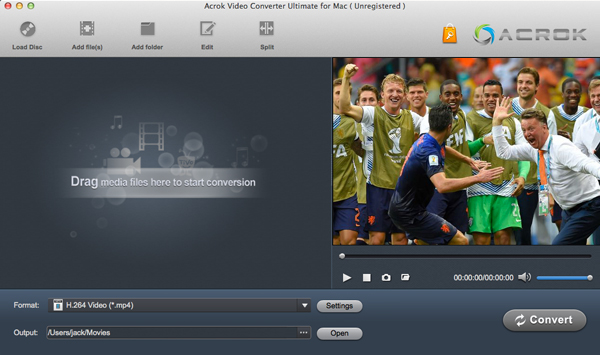
To ensure seamless compatibility, you must choose the correct profile. In the output format list, navigate to the "Apple" or "Mobile" category and precisely select the preset designated for the latest device—the iPhone Ultra video format. This preset automatically sets the optimal parameters, including resolution (typically up to 4K), frame rate, and video bitrate, ensuring your movie looks breathtaking on the Ultra’s advanced screen.
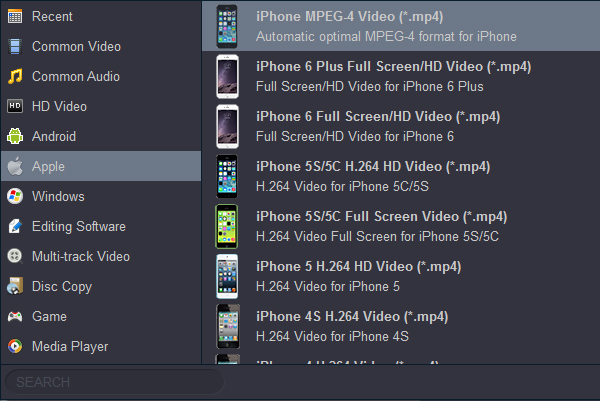
While the preset works perfectly for most users, you can click the "Settings" button to fine-tune the output. For instance, you can alter the video encoder to H.265 to reduce file size, or adjust the audio channels for a more immersive experience. Acting as a comprehensive iPhone Ultra Video Converter, Acrok gives you full control over the encoding parameters while maintaining super-fast conversion speeds and lossless quality.
After confirming all your settings, click the large "Convert" button. The software will begin ripping and transcoding the disc content. Thanks to hardware acceleration technology, this process is remarkably quick. Once the progress bar reaches 100%, click the "Open" folder icon to locate the newly converted digital video file on your local hard drive.
Now comes the final step: moving the file to your device. Connect your iPhone Ultra to your computer via USB and open iTunes (or Finder on macOS Catalina and later). Drag the converted video file into your device’s "Movies" section and click "Sync." Alternatively, you can use third-party file managers for a faster drag-and-drop approach. This is exactly how you sync movies from PC to iPhone Ultra smoothly and efficiently.
After the synchronization is complete, open the Apple TV or Videos app on your iPhone Ultra. You will see the converted movie ready in your library. Tap to play, and you can finally play downloaded movies on iPhone Ultra without any internet buffering or format errors. Whether you are commuting, traveling, or relaxing at home, your favorite classics and blockbusters are now always with you in crystal-clear quality.
Converting physical discs to a digital format may sound complicated, but with the right tool, it is surprisingly straightforward. By using Acrok Video Converter Ultiate, you can efficiently preserve your disc collection and optimize it specifically for the latest Apple hardware. Follow the steps above to transform your Blu-ray and DVD libraries into a portable digital cinema that fits right in your pocket. Download the trial version today and experience the difference for yourself!


It's hard to find such a powerful and comprehensive video conversion software. I can edit and share my videos with anyone easily. Thanks.
David Harris
I've got nearly 100 discs, and a few are too scratched to play. Your software has been an absolute lifesaver! I can back up all my video files and convert them to any format I need. Brilliant!
Sean Trotman
Copyright © 2026 Acrok Studio All Rights Reserved. Terms and Conditions | Privacy | Refund Policy