

 >
>
Q: Why I can't play MKV and AVI movies on my iPhone 16e? I can play these moveis on my PC via Media Player without any problem. Should I convert these files to another format for iPhone 16e? - Timy
A: For playing your downlaoded movies on iPhone 16e smoothly, you'd better convert your movies to MOV, MP4 or M4V via Third-party software. These 3 formats are the best playback formats supported by Apple devices.
The iPhone 16e, Apple's latest addition to its smartphone lineup, continues to uphold the brand's reputation for delivering a seamless multimedia experience. One of the key aspects of this experience is its support for a wide range of audio and video playback formats. This article delves into the supported formats, compares them with previous iPhone models, and highlights the implications for users.
The iPhone 16e supports a variety of audio formats, ensuring compatibility with most media files. These include:
This extensive support ensures that users can enjoy their music libraries, podcasts, and audiobooks without compatibility issues.
While specific details about video format support on the iPhone 16e are not explicitly mentioned in the search results, Apple's iPhones traditionally support popular formats such as:
Would you like to watch colected Blu-ray/DVD or downloaded movies on your iPhone 16e and not worry about video format compatibility? Now you can! The movie converter by Acrok will enable you to forget about technical details and transfer any video to your iPhone 16e in no time! Using iPhone 16e Format Converter from Acrok, you can easily convert movie/video files of any format (AVI, MKV, MP4, WMV, DVD, Blu-ray, etc.) to the iPhone 16e format and play them with no problem. Just download the Windows or Mac version of the program.
 100% Safe & Clean 100% Safe & Clean
Given the iPhone 16e's focus on multimedia capabilities, it is reasonable to assume that it maintains or even expands upon these standards.
The iPhone 16e's playback capabilities are consistent with Apple's legacy of robust multimedia support. For instance, the iPhone 14 and earlier models also supported AAC, MP3, and Apple Lossless formats. However, the iPhone 16e benefits from the A18 chip's enhanced processing power, which may improve the efficiency of decoding high-bitrate audio and video files. Additionally, the integration of iOS 18 could bring optimizations for newer codecs or formats.
The iPhone 16e's support for a wide range of formats ensures that users can seamlessly transition from older devices without losing access to their media libraries. The inclusion of high-efficiency formats like HE-AAC and HEVC also aligns with the growing trend of streaming high-quality content, making the iPhone 16e a future-proof choice for multimedia enthusiasts.
In conclusion, the iPhone 16e continues Apple's tradition of offering comprehensive playback support, ensuring a rich and versatile multimedia experience for its users. Whether you're an audiophile, a podcast lover, or a video enthusiast, the iPhone 16e has you covered.
The iPhone 16e, like its predecessors, supports a wide range of audio and video formats, but there may still be instances where your media files are in an unsupported format. Fortunately, converting these files to a compatible format is a straightforward process. This article provides a step-by-step guide on how to convert common formats / DVD / Bluy-ray to ones that the iPhone 16e can play seamlessly.
Before converting, determine the format of your media file. On a computer, you can check the file extension (e.g., .mkv, .flac, .avi) or use media player software like VLC to view the file details. On an iPhone, apps like Documents by Readdle can help identify file formats.
There are numerous software and online tools available for converting media files. Some popular options include:
>> Desktop Software:
Acrok Video Converter Ultimate (Windows Version | Mac Version): Ideal for converting video, ripping DVD and Blu-ray files to iPhone 16e supported video formats like MP4 (H.264 or HEVC).
iTunes/Finder: While primarily a media manager, iTunes can convert some audio files to AAC format.
Adobe Media Encoder: A professional tool for advanced video conversion.
>> Online Converters:
CloudConvert: Supports a wide range of audio and video formats.
Online Audio Converter: Specifically designed for audio files.
>> Mobile Apps:
Video Converter for iPhone: Available on the App Store, this app allows you to convert videos directly on your iPhone 16e.
Media Converter: Another app that supports both audio and video conversion.
Once you've chosen a tool, follow these general steps:
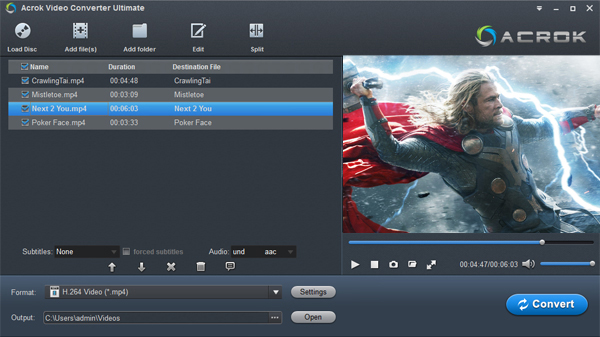
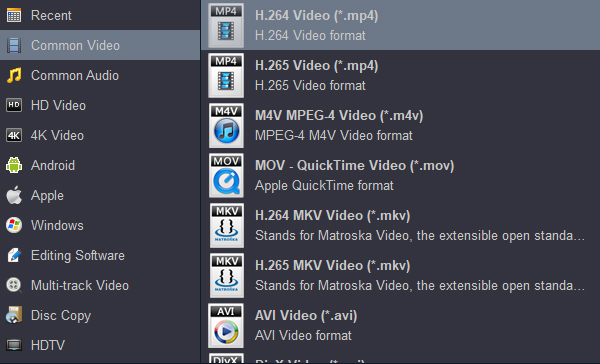
After conversion, transfer the file to your iPhone 16e using one of the following methods:
Once the file is on your iPhone 16e, open it using the default media player or a third-party app like VLC for iOS to ensure it plays correctly.
Tips for Efficient Conversion
Converting unsupported formats to iPhone 16e compatible formats is a simple process that unlocks the full potential of your device's multimedia capabilities. By following the steps outlined above, you can enjoy your favorite audio and video content without compatibility issues. Whether you're using desktop software - Acrok Video Converter Ultimate, online tools, or mobile apps, the right converter can make all the difference.


I bought Acrok Video Converter Ultimate with a 20% discount code. It's really worth it. It is a great tool to edit and convert any movies and Blu-ray to be enjoyed with portable devices.
simmons, mike
Copyright © 2026 Acrok Studio All Rights Reserved. Terms and Conditions | Privacy | Refund Policy