

 >
LG TV Video Format
>
LG TV Video Format
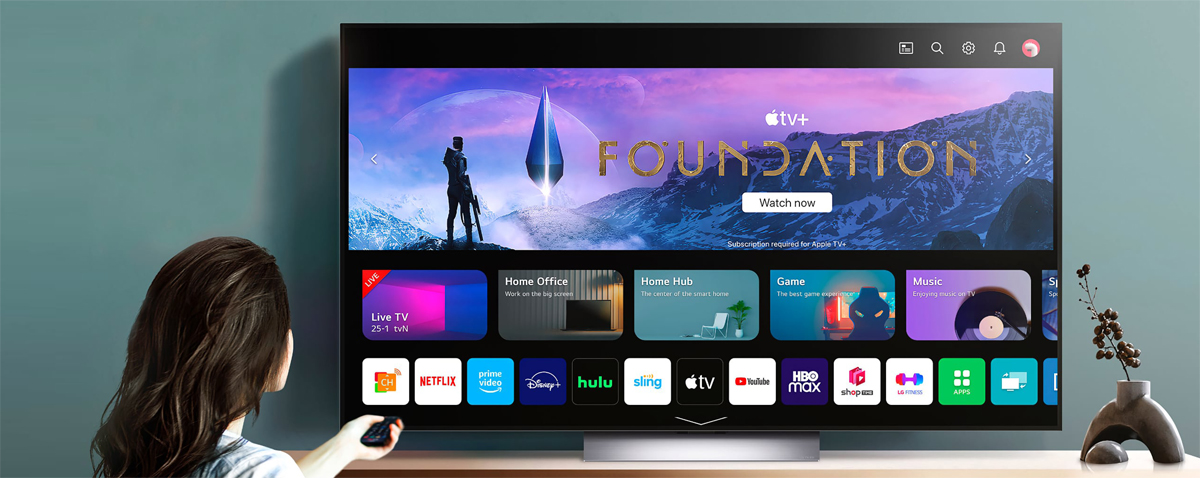
If you own an LG smart TV running webOS, you may occasionally run into playback issues when trying to watch video files from a USB drive or external hard disk. Understanding LG WebOS TV video formats can save you a lot of frustration and help you enjoy your media collection smoothly.
The short answer is: quite a lot. LG’s webOS platform supports most popular container formats, including MKV, MP4, AVI, MOV, and TS. However, the actual playback depends not only on the container but also on the video and audio codecs used inside.
For a more detailed answer to the question “what video formats does LG WebOS TV support”, you can refer to the official user manual or the on-screen help. In general, the most reliable and widely recommended format is MP4 with H.264 video and AAC audio. This combination offers the best video format for LG smart TV playback in terms of compatibility and performance.
When examining WebOS video codec support, you will find that H.264 (AVC) and H.265 (HEVC) are both well supported on recent LG TV models. H.265 is especially useful for 4K content because it delivers high quality at smaller file sizes. For audio, AC3 (Dolby Digital), AAC, and MP3 are typically recognized without issues.
If you are wondering how to play MKV on LG WebOS TV, the good news is that most MKV files work perfectly, as long as they contain compatible video and audio streams. However, some MKV files with DTS audio or certain subtitle formats may require transcoding.
Many users connect a USB drive to their LG TV to watch downloaded movies or recorded shows. A complete LG TV USB video file format list would be too long for this article, but here are the most common working formats:
If your file does not play, it may be due to an unsupported codec or a corrupted file. The same applies when you see the message LG TV not playing video from USB.
When a video won’t play on your LG WebOS TV, you will typically see one of two error messages: “unrecognized file” or “video not supported”.
In either case, the most reliable solution is to convert the file into a fully compatible format. Instead of guessing which codec works, you can use a dedicated video converter tool.
Acrok Video Converter Ultimate is a powerful yet easy-to-use program designed exactly for this purpose. It allows you to convert any video file – MKV, AVI, MOV, or even less common formats – into LG WebOS supported video formats such as MP4 with H.264/H.265 and AAC audio. After conversion, the file will play smoothly on your LG smart TV without any glitches.
Beyond ordinary video files, Acrok Video Converter Ultimate can also handle physical discs. If you have old Blu-ray or DVD disc collections that you would like to watch on your TV via USB, this software can rip and convert those discs into digital video files that are perfectly compatible with your LG WebOS TV. This means you can preserve your disc-based movies and enjoy them anytime without a disc player.
Follow these simple steps to convert your unplayable video (or Blu-ray/DVD) to a TV-friendly format:
Download and install Acrok Video Converter Ultimate from the official website. Launch the program.
 100% Safe & Clean 100% Safe & Clean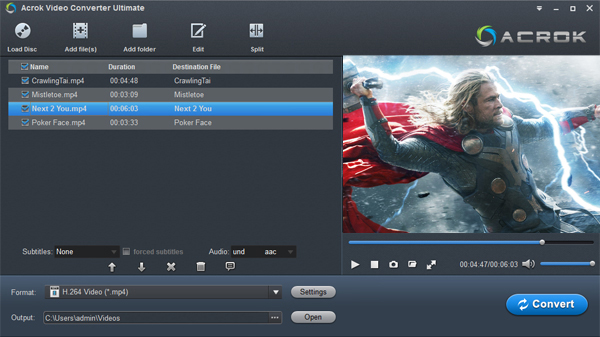
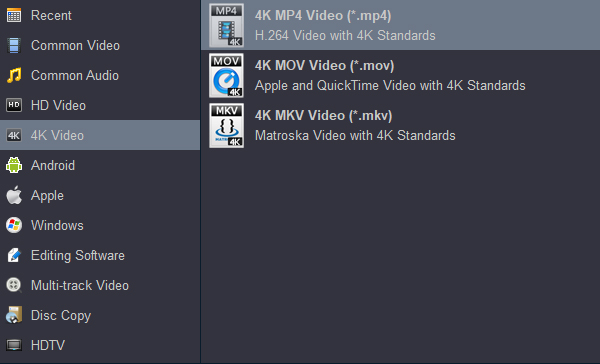
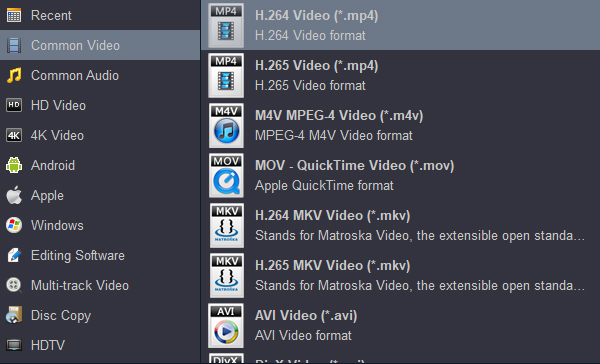
Click the “Settings” button next to the format to change video resolution, bitrate, frame rate, or audio channels. The default presets work fine for most users.
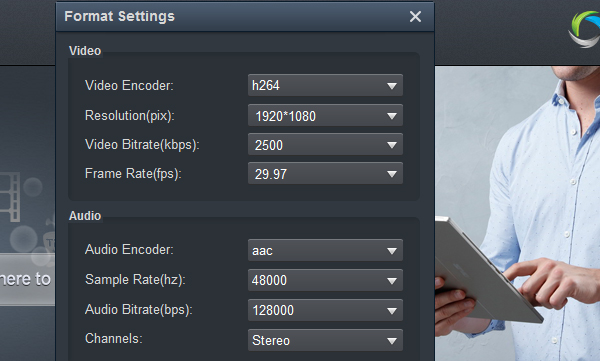
Specify where you want the converted file to be saved (e.g., a USB drive or your computer desktop).
Click the “Convert” button. The software uses hardware acceleration to finish the job quickly – usually much faster than real-time.
Once conversion is complete, copy the output file to a USB drive. Plug the USB drive into your LG WebOS TV, open the Media Player app, and enjoy smooth, error-free playback.
In short, when you encounter an unplayable video (“unrecognized file” or “video not supported”) or want to convert your Blu-ray/DVD library for TV playback, Acrok Video Converter Ultimate offers a straightforward, high-quality solution with just a few clicks.
To avoid playback issues, keep in mind that LG smart TV video compatibility is generally excellent for mainstream formats, but less common codecs (like DivX older versions or RealVideo) may not work. For the smoothest experience, remux or convert your videos to MP4 with H.264 video and AAC audio.
Modern LG TVs also support external subtitles (SRT, ASS, SMI) as long as the subtitle file has the same name as the video file and resides in the same folder.
Knowing the LG TV supported video formats helps you spend less time troubleshooting and more time watching. While the built-in media player on webOS is quite capable, it has its limits. When in doubt, stick to MP4/H.264, and you will rarely have problems. For those difficult or disc-based videos, a tool like Acrok Video Converter Ultimate ensures you can always convert to a TV-friendly format and enjoy your media without barriers.
Free download Hisense TV Converter
100% Safe & Clean 100% Safe & Clean

I'm a movie fan and I like playing classic old movies on my TV. Your software helped me convert MKV, AVI even Blu-ray movies to my LG Smart TV supported format. Thanks.
Martinez, Fidel
Copyright © 2026 Acrok Studio All Rights Reserved. Terms and Conditions | Privacy | Refund Policy