

 >
Watch Blu-ray/DVD movies on iPhone 15 Plus
>
Watch Blu-ray/DVD movies on iPhone 15 Plus
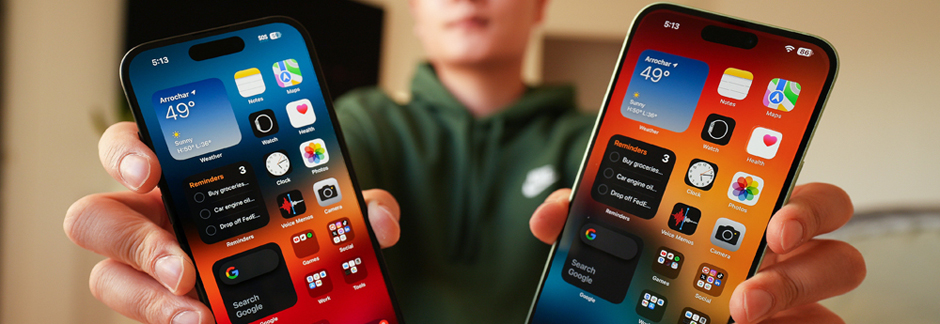
"I have some Blu-ray discs and I want to transfer the movies to my iPhone 15 Plus to watch in my spare time. I backed up a Blu-ray movies to my Asus AllinOne PC via Blu-ray backup software. But the file is more than 20GB, so I can't transfer the whole video to my iPhone 15 Plus to play. How to solve this problem?"
"Hello, everyone. I need a DVD ripping program to convert Blu-ray movies into files that play on my iPhone 15 Plus. What's the best and most user-friendly program for this? Please suggest a solution if you know. Thanks."
Obviously, your intention is to watch your purchased Blu-ray/DVD discs on your iPhone 15 Plus. But do you know that even if you have successfully transferred the Blu-ray or DVD movies to your iPhone 15 Plus, your phone can't read the relevant files. Because the Apple iPhone 15 Plus doesn't support Blu-ray or DVD file playback at all. These files will take up too much of your device's storage.
To solve these problems, you need to rip, convert and compress your Blu-ray/DVD movies for your iPhone 15, iPhone 15 Pro Max and iPhone 15 Plus. Here, Acrok Video Converter Ultimate is highly recommended. With this Blu-ray ripping software, you can convert Blu-ray to iPhone 15 Plus-supported formats easily, and it will also help you compress the file at the same time. Besides Blu-ray and DVD discs, this software can convert your downloaded MKV, AVI, WMV movies for iPhone 15 Plus and other hot popular devices.
Free download iPhone 15 Plus Blu-ray Ripper (Windows | Mac)
 100% Safe & Clean 100% Safe & Clean
What video format can play on iPhone 15 Plus? According to Apple's official website, H.264 MP4 is the best playback video format for iPhone 15 Plus. So we can rip and convert Blu-ray/DVD to H.264 MP4 video via Blu-ray to iPhone 15 Plus Converter.
Install and run Blu-ray to iPhone Converter on your computer. Click From "Load Disc" menu on the top toolbar and select "Add Folder" option to import your Blu-ray or DVD movies to the software.
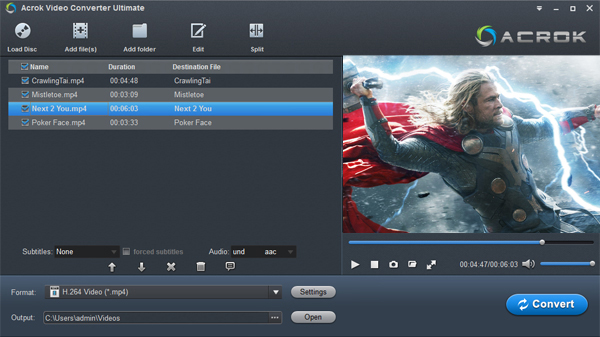
Tip: If you want to load Blu-ray movies from a Blu-ray disc, you need to insert your Blu-ray disc into BD-Rom first. Then choose "Load From Disc".
For converting MKV, AVI, MOV or MP4 movies to iPhone 15 Plus supported video format, please click "Add file" to load your downloaded movies.
You can select desired subtitles and audio track to be preserved in the converted files. If you don't choose, this Blu-ray to iPhone 15 Plus Converter will convert Blu-ray into default audio without subtitle.
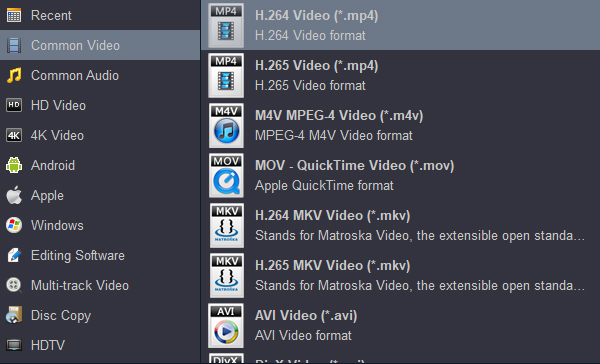
Click "Format" and from its drop-down selections, you can define the output file format from "Common Video > H.264 Video (*.mp4)".
After all the settings is done, you can start Blu-ray/DVD to iPhone 15 Plus playable format. When the conversion is complete, you can find out the converted files. Now that you've ripped and converted your Blu-ray/DVD movie to iPhone 15 Plus-compatible files, connect your iPhone 15 Plus with your computer, launch iTunes software and add the newly ripped videos into the Movie library, then sync them with your iPhone 15 Plus. We hope this helps.


Acrok's Video Converter Ultimate for Mac works, and I cannot stress enough how pleased that makes me. I first tried a lot of the free options... and got exactly what I paid for.
Bradley Houska
Copyright © 2026 Acrok Studio All Rights Reserved. Terms and Conditions | Privacy | Refund Policy