

 >
Xiaomi Mi Box S MKV
>
Xiaomi Mi Box S MKV
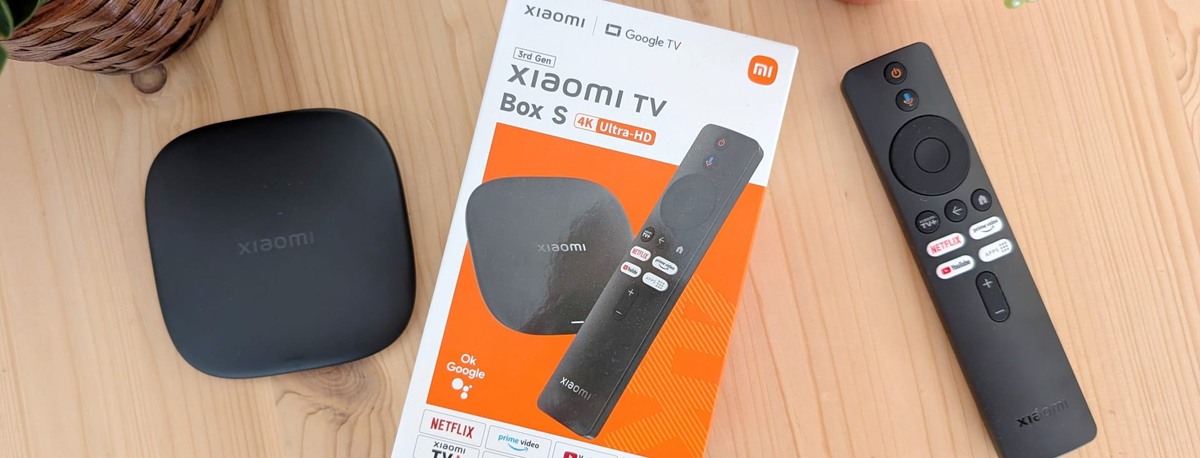
The Xiaomi Mi Box S is an excellent budget streaming device – for around $60, you get 4K HDR video, Google Assistant voice control, and built-in Chromecast. It even includes a standard USB port for external drives or game controllers. However, many users run into issues when trying to play MKV files – even though the box officially claims to support MKV, playback often fails with errors or black screens.
The root cause is that MKV is just a container format – the actual video and audio codecs inside can vary widely. The Mi Box S only supports MKV files that use VP9, H.264, and MPEG-1/2/4 encoding. If your MKV uses other codecs (e.g., H.265/HEVC or some rare formats), the box cannot decode them.
You have two ways to solve this: replace your player, or convert the video to a format that the Mi Box S can handle. The former is expensive; the latter is simple and effective. Below we compare three mainstream video conversion solutions.
Acrok Video Converter Ultimate is a full-featured video converter for both Windows and Mac. It not only converts MKV to the optimal format for the Mi Box S, but also supports virtually all mainstream video formats – MOV, MPEG, MP4, M4V, WMV, and many more.
Key advantages:
The interface is intuitive, so even non-tech users can get started easily. For those who convert videos frequently and demand high output quality, Acrok Video Converter Ultimate (Windows Version | Mac Version) is the most recommended professional solution.
Free download best video converter for Xiaomi Mi Box S
 100% Safe & Clean 100% Safe & Clean
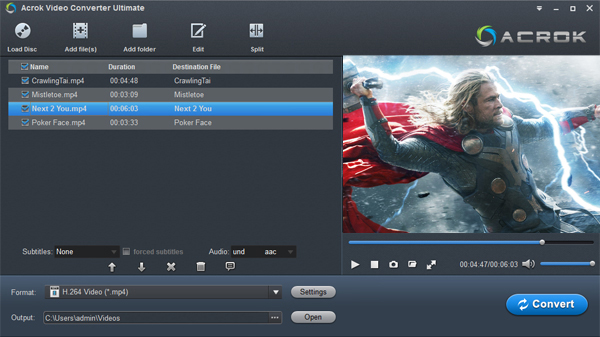
The steps to change MKV to Xiaomi Mi Box S playback format in both the Windows and Mac operating systems are almost the same. Here the detailed steps to perform the conversion in Windows are described as an example. You just need to make sure you download the right version.
Click "Add file" button to load your MKV files video file into MKV to Xiaomi Mi Box S Converter. If you want to batch convert MKV video to Android, you can load all your files and check all the titles.
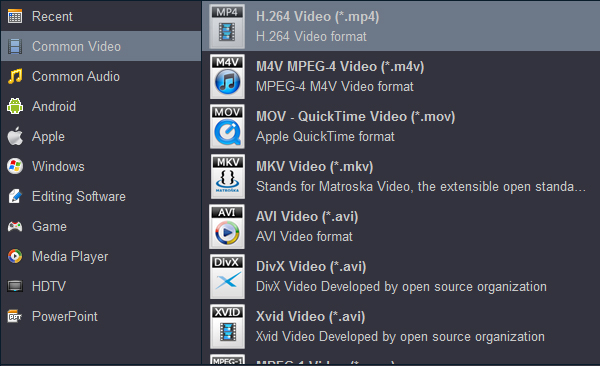
Click on the Format bar and you can choose "H.264 Video (*.mp4)" from "Common Video" for Xiaomi Mi Box S.
Click "Settings" to open "Profile Settings" window, where you can adjust output video bitrate, resolution, frame rate and audio codec, bit rate, sample rate and channels to make them fit with your Smart TV best profile parameters.
Finally, click the bottom "Convert" button on the main interface to start converting MKV to H.264 MP4. After converting, you only need to transfer the converted MKV video to your USB flash drive and insert it into Xiaomi Mi Box S's USB interface then you could play your movies on your TV freely.
If you only need to convert a file occasionally and don't want to install any software, a free online video converter is a great option. Recent solutions use browser-based local processing – files never leave your device, protecting privacy and improving speed.
Recommended tool: MiOffice AI Online Video Converter
MiOffice offers a completely free online converter that runs directly in your browser – no installation required. Highlights include:
Similar tools include VidShift, which also uses WebAssembly and WebCodecs for local conversion and even works offline.
Limitations: Online tools are constrained by browser memory – they struggle with large files (usually above 1 GB). Output formats and encoding options are limited, and conversion speed depends on your device's performance.
HandBrake is the most well-known open-source video converter, and has been a free-software staple for years. It supports Windows, macOS, and Linux.
Major 2026 Update – HandBrake 1.11.0
Released in March 2026, version 1.11.0 is a milestone update:
Main drawbacks: The interface is relatively complex with a steep learning curve; lacks AI-enhanced features; editing capabilities are limited (no watermarking, merging, etc.); and it cannot handle copy-protected Blu-ray or DVD discs.
| Aspect | Acrok Video Converter Ultimate | Free Online Converter (e.g., MiOffice) | HandBrake (Open Source) |
|---|---|---|---|
| Price | Paid (trial available) | Completely free | Completely free |
| Installation | Download and install (Win/Mac) | No install – browser only | Download and install (Win/Mac/Linux) |
| File size limit | None | Limited by browser memory | None |
| Privacy & security | Local processing | Local (no server upload) | Local processing |
| Output formats | 1,000+ formats | Mainstream (MP4/MOV/AVI/MKV, etc.) | Only MP4/MKV/WebM |
| Professional codec support | ProRes, DNxHD, H.265, etc. | Basic (H.264, etc.) | ProRes, DNxHR (since v1.11) |
| Video editing features | Crop/merge/watermark/subtitles, etc. | Basic conversion only | Basic filters/crop |
| Batch processing | ✅ Supported | ❌ Usually not | ✅ Supported |
| Blu-ray / DVD support | ✅ Supports encrypted discs | ❌ Not supported | ❌ Does not support encrypted discs |
| Hardware acceleration | ✅ GPU accelerated | Depends on device performance | ✅ Supported |
| Best for | Professional users, batch processing, high-quality output | Occasional small files, no-install needs | Tech enthusiasts, open-source fans, archiving/compression |
Each solution has its strengths – choose based on your specific needs:
Whichever way you go, the core idea is the same: convert your incompatible MKV file to a format supported by the Mi Box S (we recommend MP4 container + H.264 encoding) – then you'll enjoy smooth playback on your TV.


Acrok software will always be my very favorite. Acrok products do what there suppose to do, not like roxio and nero expensive and worthless heavily bloated resource hogs, that do nothing but complain about the customer spending more money.
Barton Anderson
Copyright © 2026 Acrok Studio All Rights Reserved. Terms and Conditions | Privacy | Refund Policy