

 >
>

If you are an apple fan, you will not miss the latest release mobile phone - iPhone 16. I think you are lucky guy, but please don't wild with joy. iPhone 16 is the inadequacy of the can't support all the video and audio playback. This guide will show you how to play all the media files on iPhone 16 freely and easily.
iPhone 16 Supported Audio Formats
AAC-LC, HE-AAC, HE-AAC v2, Protected AAC, MP3, Linear PCM, Apple Lossless, FLAC, AC-3, Dolby Digital Plus, Dolby Atmos, and Audible (formats 2, 3, 4, Audible Enhanced Audio, AAX, and AAX+)
iPhone 16 Supported Video Formats
HEVC, H.264, MPEG-4 Part 2, and Motion JPEG (M4V, MP4, and MOV)
It is necessary to convert some media file if you want to play and watch these files on iPhone 16. If you downloaded or collected some movies, you may plan to transfer these files to iPhone 13 for playing on the go. But you will find you iPhone 16 can’t play the MKV, AVI, WMV, RMVB movies at all. How to solve this problem? Let iPhone 16 Format Converter give you a hand.
Acrok Video Converter Ultimate is the best format converter for iPhone, iPad, Apple TV, Android tablet/smartphone, etc. With this powerful format conversion software, you can rip and convert Blu-ray/DVD to iPhone 16 supported formats easily, convert Blu-ray, DVD, VOB, MKV, AVI, WMV, RMVB movies to iPhone 16 best playback formats on Mac or Windows. By the way, this iPhone 16 Video Converter is a good 2D to 3D converter too. Now follow below steps to convert video or audio for iPhone 16. You will can play all the video and music on iPhone 16, iPhone 16 Pro, iPhone 16 Pro Max.
Free down load iPhone 16 Format Converter (Windows Version | Mac Version)
 100% Safe & Clean 100% Safe & Clean
Note: Here we take Acrok Video Converter Ultimate for Windows (Including Windows 11) as an example to show you how to convert from video/audio for iPhone 16 (Plus, Pro). The way to get your work done on Mac is the same. Please just make sure you've downloaded the right version.
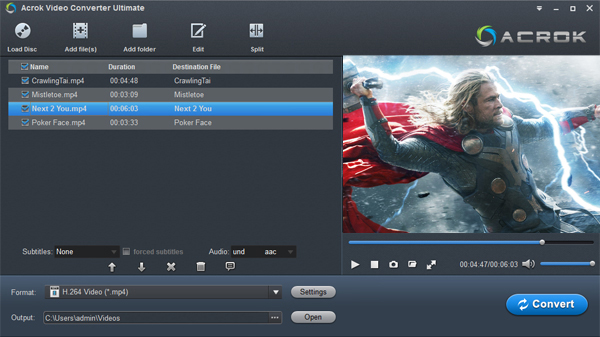
Install and run Acrok Video Converter Ultimate as the iPhone 16 Video Converter on your computer. You can add video by directly drag and drop them into the program’s main window or import them via the “Add file”. As you can see, all added programs will be listed on the left item bar.
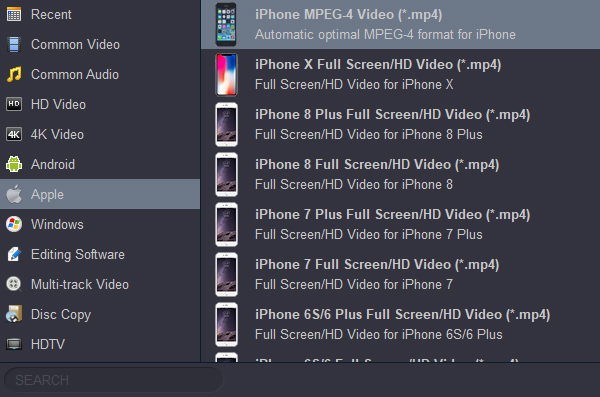
To convert video for playing on iPhone 16, you can choose MP4 as output format here. You can get this profile under “Apple” category.
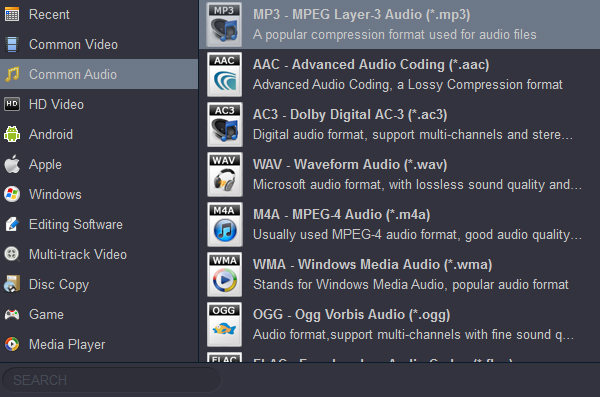
For converting some audio/music to iPhone 16 supported format, MP3 is your best choice.
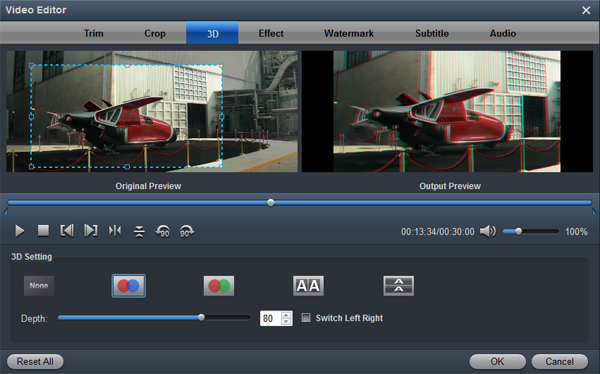
Tips: Video edit function such as trimming, clipping, adding effect, etc. is available and optional in Video Converter, so that you can make personalized video clips.
OK, now we come to the last step: click the blue “Convert” button to begin converting video or audio for your new iPhone 16, iPhone 16 Pro and iPhone 16 Plus. There will be a progress bar showing you how much of the conversion is completed. After the conversion, click” Open” button to find the new files and then you can enjoy them on iPhone 16 anywhere you like.


I use Acrok Video Converter Ultimate to convert some videos into MKV and WMV, so that I can watch them on my iPhone 13 Pro Max. It is so cool!
Jo-Anne Watts
Copyright © 2026 Acrok Studio All Rights Reserved. Terms and Conditions | Privacy | Refund Policy