

 >
Convert MKV to MOV
>
Convert MKV to MOV
There was a time when you could play any video on any device without a second thought. Today, compatibility issues are the norm. You might have a perfectly good MKV file that refuses to open in QuickTime Player or won't upload to a video editing platform that expects MOV. In such cases, format conversion becomes the simplest and most effective solution. One of the most common scenarios is converting MKV to QuickTime MOV, especially if you work in a Mac-centric environment or rely on Apple's ecosystem for editing, sharing, or archiving.
In this guide, I'll give you everything you need to know to convert MKV to MOV smoothly, from understanding the differences between the two formats to choosing the right conversion tool. I'll also help you make a fast, smart decision that preserves video quality while keeping file sizes manageable.
To find the best MKV to MOV converters, I personally tested each tool using real video files of different sizes, resolutions, and bitrates. I measured conversion speed, output quality, final file size, and overall stability. I also explored features like batch conversion, basic editing options, and ease of use to see how beginner-friendly each tool is. Finally, I considered system load (CPU/RAM usage) and any limitations such as watermarks, file size caps, or trial restrictions to ensure my recommendations are practical for everyday use.
Before converting, it helps to understand what makes these two formats different and when each one is useful.
MOV is a multimedia container format developed by Apple. It's designed to work seamlessly with QuickTime Player, macOS, and iOS devices. MOV files can store video, audio, text, and even effects, making them popular among video editors and Mac users. While MOV supports high quality, it can produce larger file sizes compared to some other formats.
There are several reasons why you might want to convert MKV to QuickTime MOV:
In short, while MKV is great for storing high-quality video with multiple audio/subtitle tracks, MOV is the go-to format when you're working inside the Apple ecosystem.
To make your decision easier, I've gathered the best tools I've tested that work as a reliable MKV to MOV converter – whether you prefer powerful desktop software or quick online options.
Acrok Video Converter Ultimate is a versatile video converter that I personally rely on when I need both speed and flexibility. It goes beyond simple conversion, acting as a complete media toolkit that makes it easy to convert MKV to MOV while also editing or enhancing your videos.
Free download the best MKV to MOV Converter
 100% Safe & Clean 100% Safe & Clean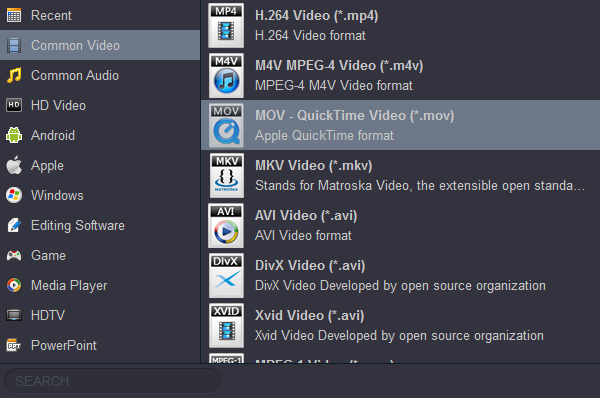
Features
Pros
Cons
Pricing Plan
Steps to Convert MKV to MOV
Leawo Prof. Media is a multifunctional video tool for users who want extra control and additional features when converting MKV to MOV.
Features
Pros
Cons
Pricing Plan
WinXvideoAI focuses on AI-powered quality enhancement, making it a great choice when you want to convert MKV to MOV while improving video clarity.
Features
Pros
Cons
Pricing Plan
Pavtube Media Magician offers extensive customization options for users who want fine control over their MKV to MOV conversions.
Features
Pros
Cons
Pricing Plan
Xilisoft Video Converter Ultimate is known for its clean, intuitive interface. It processes files quickly and is a dependable choice for converting MKV to MOV with almost no effort.
Features
Pros
Cons
Pricing Plan
ReelsMakerAI is a straightforward online tool that allows you to convert MKV to MOV without installing any software. It's ideal for quick, one-off conversions.
Features
Pros
Cons
Pricing Plan
| Converter | Best For | OS | Speed | Batch | File Limits | Output Quality | Advanced Features | Easy to Use | Pricing |
|---|---|---|---|---|---|---|---|---|---|
| Acrok Video Converter Ultimate | All-round conversion | Win, Mac | Fast | ✅ | None | High | Very Good (editing+enhance) | ★★★★★ | Paid (trial) |
| Leawo Prof. Media | All-in-one toolkit | Win, Mac | Fast | ✅ | None | High | Excellent (download, record) | ★★★★ | Paid (trial) |
| WinXvideoAI | AI quality enhancement | Win, Mac | Moderate | ✅ | None | Very Good | Good (AI upscaling) | ★★★★ | Paid (trial) |
| Pavtube Media Magician | Flexible settings | Win, Mac | Fast | ✅ | None | Very Good | Good (custom output) | ★★★★ | Paid (trial) |
| Xilisoft Video Converter Ultimate | Fast & friendly | Win, Mac | Very Fast | ✅ | None | Good | Moderate | ★★★★★ | Paid (trial) |
| ReelsMakerAI | Quick online task | Web | Moderate | ❌ | Yes (small) | Basic | Minimal | ★★★ | Paid & Free |
Quick recommendation:
Choose Acrok Video Converter Ultimate for the best balance of quality, features, and ease of use.
Pick WinXvideoAI if speed and simplicity are your top priorities.
Select ReelsMakerAI when you just need a fast, no-install online conversion.
Converting MKV to MOV doesn't have to be difficult. Here are some practical suggestions to improve quality and efficiency.
Are MOV files compatible with all media players?
No. MOV is natively supported by QuickTime Player, iTunes, and most Apple software. On Windows or Linux, you may need VLC or another universal player to play MOV files.
How do I fix a MOV file that won't play after conversion?
This is usually due to an incomplete conversion or a codec mismatch. You can try adjusting the codec parameters or re-do the conversion using a different converter.
Can I convert MKV to MOV for free online?
Yes, tools like ReelsMakerAI offer free online conversion, but they often have file size limits and lack advanced features. For larger files or batch conversions, a desktop converter is more reliable.
Will converting MKV to MOV reduce quality?
Not necessarily. If you use a high-quality converter and keep the bitrate and resolution unchanged, the quality loss can be negligible. Some converters even offer lossless modes.
Converting MKV to QuickTime MOV doesn't have to be complicated. With the right software, you can maintain excellent video quality, keep file sizes reasonable, and ensure full compatibility with Apple devices and software. Desktop converters like Acrok Video Converter Ultimate, Leawo Prof. Media, and WinXvideoAI offer fast, feature-rich, and reliable conversions, while free online tools like ReelsMakerAI work well for small, occasional tasks. By following good practices, you'll save time and avoid common pitfalls. Whether you choose a free or paid solution, the key is to pick a tool that fits your workflow – then sit back and enjoy the process.


Acrok ultimate software is a powerfull program to get all your video's in a few steps converted. I bought this so I convert my Home videos to H.264 MP4 and save them to the Seagate 500GB Wireless Mobile Storage (Red) then play them on my Android tablet. Very easy.
Chris Redpath
Copyright © 2026 Acrok Studio All Rights Reserved. Terms and Conditions | Privacy | Refund Policy