

 >
Convert MTS to ProRes
>
Convert MTS to ProRes

If you work with video from consumer or prosumer camcorders, you have likely encountered the MTS file format. MTS (also known as AVCHD) is efficient for recording but notoriously difficult to edit directly on common NLEs like Final Cut Pro, Premiere Pro, or DaVinci Resolve. The solution is to convert MTS to ProRes 422/4444 codec, which turns your footage into a high-quality, editing-friendly format. This guide will walk you through why, when, and how to perform this conversion, covering the best tools and step-by-step instructions.
MTS files use long-GOP compression (H.264) to save space on your SD card. While great for recording, this compression forces your editing software to decode multiple frames for each cut, leading to stuttering playback and slow rendering. ProRes 422 encoding solves this by using intra-frame compression, where every frame is stored independently. The result is silky-smooth scrubbing, faster exports, and better color grading responsiveness.
For most editing workflows, ProRes 422 offers the perfect balance of quality and file size. However, if you need maximum color fidelity – for example, when working with green screen, visual effects, or high-end grading – you should choose ProRes 4444. This variant includes an alpha channel and virtually lossless 12-bit color, making it ideal for professional post-production.
Before we dive into the conversion steps, let’s briefly compare the two codecs.
AVCHD to ProRes is the most common upgrade path for indie filmmakers and video journalists. Once you transcode MTS to ProRes, you’ll wonder why you ever edited native AVCHD.
To perform a successful MTS video conversion, you need reliable software. Below are the best tools, ranging from free command-line to paid GUI applications. All of them can act as an MTS to ProRes converter on both Windows and macOS (though ProRes encoding is native on Mac, Windows requires specific codecs or software that bundles them).
Among all the tools for converting MTS to ProRes, Acrok Video Converter Ultimate for Mac stands out as the top choice for editors, thanks to its comprehensive features, excellent conversion quality, and exceptional ease of use. It supports batch conversion, allowing you to load multiple AVCHD/MTS files at once for centralized processing, greatly improving your workflow efficiency.
Free download best MTS to ProRes Converter
 100% Safe & Clean 100% Safe & Clean
Acrok includes built-in full support for Apple ProRes 422 and ProRes 4444 codecs. Simply select "Apple ProRes 422 (*.mov)" or "Apple ProRes 4444 (*.mov)" from the output format list, and with one click you can convert MTS to a native editing format for Final Cut Pro. It can encode/re-encode any video to Apple ProRes 422/4444 with virtually no quality loss.
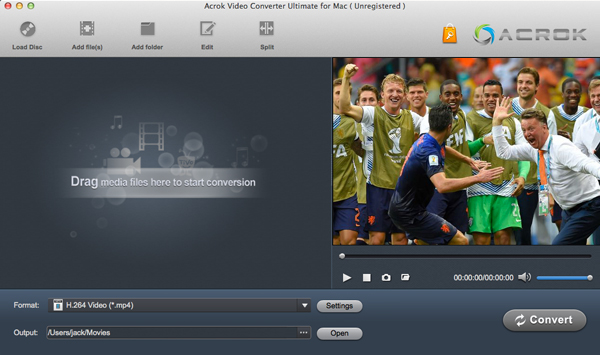
Acrok also integrates a rich set of video editing features: you can trim, crop, adjust brightness/contrast/saturation, add watermarks, or even convert 2D video to 3D effect before converting your MTS footage. It includes a built-in media player so you can preview the original material prior to conversion. Acrok leverages NVIDIA and AMD APP technologies for very fast conversion speeds, and it also takes full advantage of hardware acceleration on Apple Silicon Macs.
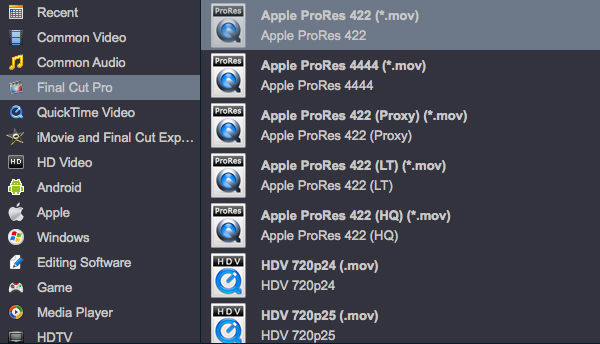
With its dedicated optimization for MTS-to-ProRes conversion, built-in editing tools, hardware acceleration, and minimal quality loss, Acrok Video Converter Ultimate for Mac is unquestionably the best solution among all the options introduced in this article. Visit the official Acrok website to download a free trial. For converting MTS to Apple ProRes codec on Windows, Acrok Video Converter Ultimate Windows version can give you a hand. With this Windows ProRes Converter, you can tracncode MTS to Apple ProRes 422 with 3 simple steps.
If you prefer an alternative, here are other reliable tools:
FFmpeg is the most powerful MTS to ProRes converter available, though it requires command-line knowledge. It supports both ProRes 422 and 4444 and works on Windows, macOS, and Linux.
HandBrake does not support ProRes encoding natively. However, you can use an unofficial build (e.g., HandBrake with FFmpeg backend) or simply use HandBrake to rewrap, but for ProRes, stick to FFmpeg or other tools.
EditReady is a favorite among Mac editors. It converts MTS to ProRes quickly, with metadata preservation and LUT support.
If you already have Adobe Creative Cloud, Media Encoder can convert MTS to ProRes 422 or 4444 effortlessly. It also allows batch processing.
Shutter Encoder is a fantastic GUI front-end for FFmpeg. It includes a dedicated “ProRes” function and is arguably a great MTS to ProRes software for users who dislike the command line.
We will cover three methods: using FFmpeg (free, precise), Shutter Encoder (free, GUI), and Adobe Media Encoder (paid, user-friendly). All steps assume you want ProRes for editing in Final Cut Pro, Premiere, or Resolve.
Download FFmpeg from the official website and add it to your system PATH (or place it in your working folder).
Open Terminal (macOS/Linux) or Command Prompt (Windows).
Basic command for ProRes 422 (assuming input is clip.mts):
ffmpeg -i clip.mts -c:v prores -profile:v 3 -c:a pcm_s16le output.mov
Explanation:
-c:v prores – use ProRes encoder.
-profile:v 3 – ProRes 422 (profile 3). Use -profile:v 4 for ProRes 4444.
-c:a pcm_s16le – uncompressed PCM audio (compatible with ProRes MOV).
For ProRes 4444 (with alpha if source supports):
ffmpeg -i clip.mts -c:v prores -profile:v 4 -pix_fmt yuva444p10le -c:a pcm_s16le output.mov
Batch convert all MTS files in a folder:
for f in *.mts; do ffmpeg -i "$f" -c:v prores -profile:v 3 -c:a pcm_s16le "${f%.mts}_ProRes.mov"; done
This transcode MTS to ProRes method preserves the original resolution and frame rate. FFmpeg is a great MTS to ProRes converter once you get used to the syntax.
Shutter Encoder is a great best MTS to ProRes software alternative for non-technical users.
Click the preset dropdown next to each file, then select QuickTime > ProRes 422 or ProRes 4444.
Media Encoder also allows you to apply LUTs, crop, and scale during conversion – great for production pipelines.
Does ProRes 422 encoding reduce quality compared to the original MTS?
No – when done correctly, ProRes 422 is a visually lossless codec. You will not see any generation loss. In fact, because ProRes uses intra-frame compression, you may notice better color accuracy during grading.
Can I convert MTS to ProRes on Windows?
Yes. While ProRes encoding originated on Mac, tools like FFmpeg, Shutter Encoder, Adobe Media Encoder, and Acrok Video Converter Ultimate for Mac (the Mac version) all support MTS to ProRes on their respective platforms. For Windows, consider Acrok’s Windows version or FFmpeg.
What is the fastest MTS to ProRes converter?
For pure speed, hardware-accelerated options are rare. However, Acrok Video Converter Ultimate for Mac leverages NVIDIA and AMD APP technologies and Apple Silicon acceleration, making it one of the fastest. EditReady (macOS) and Shutter Encoder are also efficient.
Can I batch convert multiple MTS files?
Absolutely. All recommended tools support batch MTS video conversion. In FFmpeg, use a loop; in Shutter Encoder, just drag all files; in Media Encoder, add to queue; and Acrok natively supports batch processing.
Converting your camcorder footage from MTS to ProRes 422 or 4444 is a game-changer for post-production. You eliminate stuttering previews, reduce render times, and unlock the full potential of your NLE’s color tools. Whether you choose the free power of FFmpeg, the user-friendly Shutter Encoder, or a paid solution like Adobe Media Encoder, the process is straightforward.
That said, if you are looking for the absolute best combination of speed, quality, and ease of use on a Mac, Acrok Video Converter Ultimate for Mac stands head and shoulders above the rest. Its dedicated ProRes encoding engine, hardware acceleration, built-in editing tools, and batch processing make it the ideal MTS to ProRes converter for professionals and hobbyists alike.
Now that you know how to convert MTS to ProRes 422/4444 codec, take a sample file and try the method that suits you best. Your editing timeline will thank you.


I like the product. I tried other products, but when I found it, I knew this video converter is perfect for me. With Acrok Video Converter Ultimate for Mac, I can convert any format for playing and sharing.The trim function is useful.
Narayanan Gopala
Copyright © 2026 Acrok Studio All Rights Reserved. Terms and Conditions | Privacy | Refund Policy