

 >
Play MKV on Sony Blu-ray Player
>
Play MKV on Sony Blu-ray Player
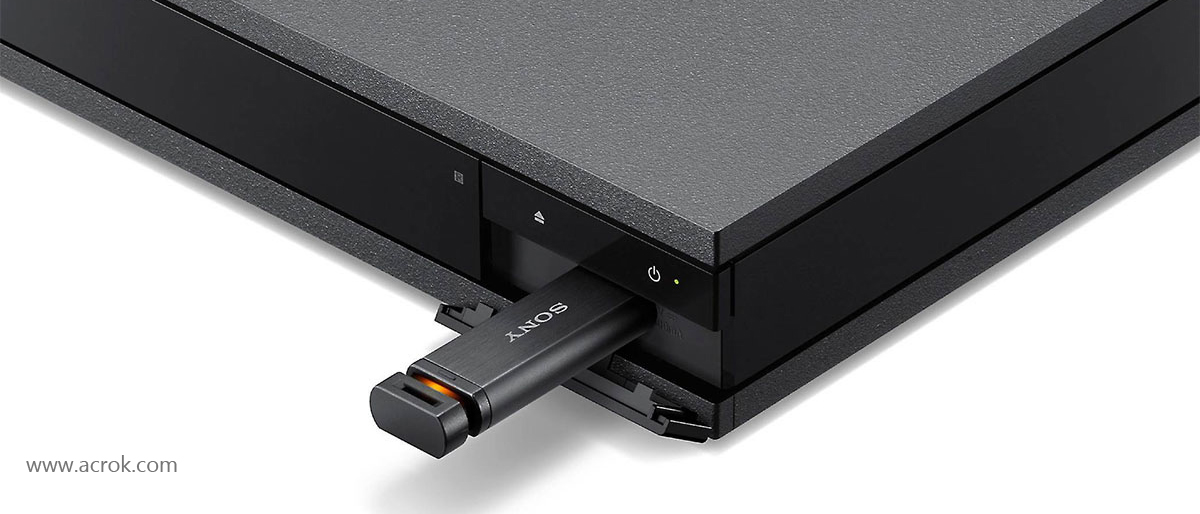
Your Sony Blu-ray player can't play MKV videos from USB? Do't worry! The tutorial shows you how to play MKV videos on Sony Blu-ray player without any problems.
You've just downloaded your favorite movie in MKV format, grabbed a USB drive, and plugged it into your Sony Blu-ray player—only to see an error message or, worse, a black screen. Sound familiar? You're not alone. Many Sony Blu-ray player owners face the same frustration: MKV files that play perfectly on a computer suddenly refuse to work on their home theater device.
Don't worry! This comprehensive guide will explain why Sony Blu-ray players struggle with MKV files and, more importantly, how to solve the problem once and for all. By the end of this article, you'll be able to play any MKV video smoothly on your Sony Blu-ray player without stuttering, audio sync issues, or playback failures.
First, let's clear up a common misconception. The MKV (Matroska Video) format is just a container—think of it as a digital box that holds video, audio, and subtitle tracks. The real compatibility depends on what's inside that box. Sony Blu-ray players (including popular models like the UBP-X1100ES, UBP-X800M2, UBP-X800, UBP-X700, BDP-S6700, BDP-S3700, BDP-S1700, and BDP-S1500) do support MKV playback, but only under specific conditions.
Here are the main factors that determine whether an MKV file will play or not:
| Factor | Supported by Sony | Not Supported |
|---|---|---|
| Video Codec | H.264 (AVC), H.265 (HEVC) up to certain levels | VP9, AV1, MPEG-2 in some cases |
| Resolution | Up to 3840x2160 (4K) depending on model | Resolution above player's limit |
| Frame Rate | 24p, 25p, 30p, 50p, 60p | Variable or extremely high frame rates |
| Audio Codec | AAC, MP3, Dolby Digital (AC-3) | DTS (some models), FLAC, Opus |
| Profile Level | H.264 Baseline/Main/High Profile up to 4.1 | H.264 High Profile Level 5.0 or above |
So when you encounter an MKV file that stutters, has no sound, or simply refuses to load, it's usually because the video codec, resolution, frame rate, or audio codec falls outside what Sony's firmware supports.
Instead of endlessly searching for firmware updates or trying different USB drives, the most reliable solution is to convert the MKV file into a format that your Sony Blu-ray player natively loves. After testing multiple methods, the best approach is to transcode the video into H.264 High Profile MP4 with AAC audio. This combination is universally compatible with virtually all Sony Blu-ray players released in the last decade.
But manual conversion using free tools like HandBrake can be time-consuming and technically challenging—especially when you need to adjust resolution, frame rate, bitrate, and audio settings correctly. That's where a dedicated converter comes in.
Acrok Video Converter Ultimate is a professional video conversion tool designed specifically to solve compatibility problems like this. It takes the guesswork out of the process by offering pre-optimized presets for Sony Blu-ray players. Here's why it's the ideal solution:
Free download MKV to Sony Blu-ray Player Converter
 100% Safe & Clean 100% Safe & Clean
For Mac users: Download Acrok Video Converter Ultimate for Mac. It works on macOS Catalina and later, allowing you to convert 4K/1080p MKV files on your Mac.
Supported Sony devices (partial list):
UBP-X1100ES, UBP-X800M2, UBP-X800, UBP-X700, BDP-S6700, BDP-S3700, BDP-S1700, UBP-X1000ES, BDP-S1500, and many others.
Follow these three simple steps, and you'll be watching your MKV movies on your Sony player in no time.
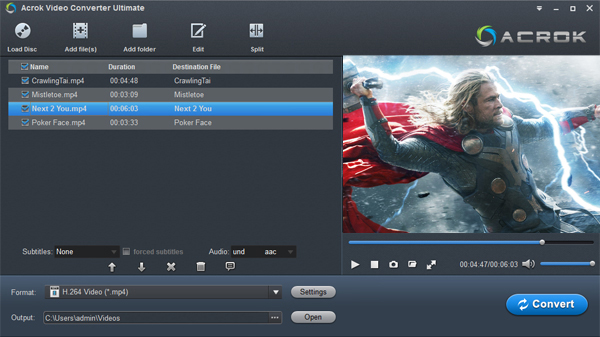
Launch Acrok Video Converter Ultimate. You can either:
The program supports batch conversion, so feel free to add an entire folder of MKV videos.
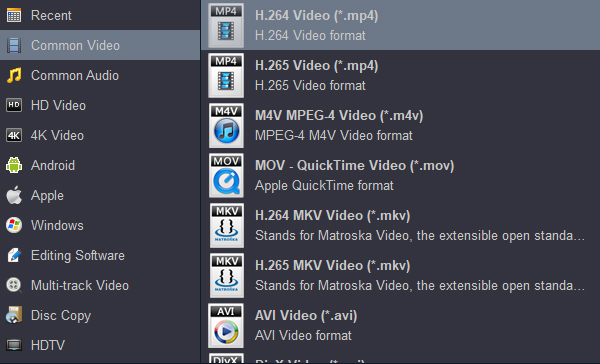
Click on the "Format" bar to open the output format list. Navigate to the Sony brand section, or simply select H.264 High Profile Video (*.mp4) – this is the most recommended format for all Sony Blu-ray players.
Optional fine-tuning: Click the "Settings" button next to the format. Here you can adjust:
Once you've made your adjustments, you can save them as a custom preset for future conversions.
Click the big "Convert" button at the bottom right. Acrok will begin transcoding your MKV file into a Sony-friendly video. Depending on your computer's hardware and the length of the video, this usually takes just a few minutes.
When the conversion completes, click the "Open" button on the main interface. A folder will pop up showing your newly converted video files.
Now that you have a compatible file, here's how to play it:
Note: If you prefer streaming over a network, keep in mind that network speed can affect playback. Even a perfectly converted file may stutter if your Wi-Fi or Ethernet connection is slow. For the best experience, always use a USB drive or a wired network connection.
Still having issues after conversion? Try these:
Sony makes excellent Blu-ray players with great picture quality, but MKV support has always been a weak spot. Instead of frustratingly ejecting USB drives or re-encoding videos with complex free software, Acrok Video Converter Ultimate offers a one-click solution that works every time.
By converting your MKV files to H.264 High Profile MP4 with AAC audio, you ensure seamless playback on virtually any Sony Blu-ray player model. The process takes only minutes, and the quality remains excellent. So next time you see "File not supported" on your screen, remember: It's solved.


Managed to make my own movies in just a few hours, really easy to use, no faffing around waiting for it to work. It just worked and has carried on working since! Just what I needed.
Derek Pilkington
It's hard to find such a good software. This Blu-ray ripping software can meet all my needs. I will share this Blu-ray Ripper with my friends. Joel Snyder
Copyright © 2026 Acrok Studio All Rights Reserved. Terms and Conditions | Privacy | Refund Policy