

 >
Convert ProRes to MP4
>
Convert ProRes to MP4
This tutorial shows you how to convert ProRes video to MP4 both online and offline for free. Thanks to the free online converters and the Acrok team, the process of converting ProRes to MP4 has become a pleasure. Read on for details.
Apple ProRes is a professional-grade video codec developed by Apple, first introduced in 2007. Unlike consumer video formats that prioritize small file sizes above all else, ProRes is designed to strike an optimal balance between maintaining high visual quality and enabling smooth editing performance.
ProRes achieves this by using intraframe compression, meaning every single frame is stored as a complete image. This makes your computer’s processor work far less during video editing, resulting in buttery-smooth timeline scrubbing, instant playback, and responsive color grading-even with 4K or 8K footage.
ProRes video originates from Apple's official technology ecosystem and hardware that supports the codec (professional cameras + mid-to-high-end iPhones). It is known for high image quality and excellent color fidelity, but produces large file sizes.
Over the years, Apple has released several ProRes variants to suit different professional needs:
| Codec | Bit Depth | Color Sampling | Best For |
|---|---|---|---|
| ProRes Proxy | 8-bit / 10-bit | 4:2:2 | Offline editing, low-bandwidth workflows |
| ProRes LT | 8-bit / 10-bit | 4:2:2 | Standard editing with moderate quality |
| ProRes 422 | 8-bit / 10-bit | 4:2:2 | Everyday professional editing |
| ProRes 422 HQ | 8-bit / 10-bit | 4:2:2 | High-quality editing and mastering |
| ProRes 4444 | 10-bit / 12-bit | 4:4:4 | VFX work, chroma keying, alpha channel |
| ProRes 4444 XQ | 10-bit / 12-bit | 4:4:4 | Ultra-high-end production |
Each version serves a different purpose, but all share one characteristic: they produce significantly larger files than standard delivery formats like H.264 MP4.
If Apple ProRes is so excellent for editing, why would you ever want to convert it? The answer lies in what happens after you finish editing.
While ProRes excels in post-production, it is not designed for everyday playback, sharing, or distribution. Here’s why converting to MP4 makes sense:
ProRes files, typically stored in MOV containers, often encounter playback errors on Windows computers, Android devices, smart TVs, and game consoles. MP4, on the other hand, plays on virtually every device in existence-from a budget smartphone to a premium smart TV.
ProRes files can be 10 to 50 times larger than equivalent H.264 MP4 files. A one-minute ProRes 422 clip can easily consume multiple gigabytes of storage. After conversion to MP4, that same video becomes email-friendly, web-ready, and far easier to store and back up.
Smaller files upload faster to platforms like YouTube, Vimeo, and social media. They also download faster, stream more smoothly, and consume less mobile data.
To play a ProRes file correctly, viewers may need to install obscure codecs or specialized media players. MP4 files play immediately in any standard media player or web browser.
The smart workflow is simple: Edit in ProRes → Convert to MP4 → Share everywhere.
When you convert ProRes video to MP4, you typically have two encoding options: H.264 (AVC) and H.265 (HEVC). Understanding the difference helps you make the right choice for your project.
H.264 MP4 is the most universally compatible video format. Virtually every device, web browser, media player, and platform supports H.264 playback. The tradeoff is that H.264 MP4 files are larger than their H.265 counterparts at the same quality level.
H.265 MP4 (also called HEVC) delivers roughly the same visual quality as H.264 but at approximately half the file size. Some sources indicate that H.265 MP4 files can be around 25% lighter than H.264 MP4 for identical quality. However, older devices may not support H.265 playback, and encoding takes more processing power.
Our recommendation: If you’re converting ProRes video to MP4 for sharing with a broad audience, stick with H.264 MP4 for maximum compatibility. If you’re converting for personal archiving or for devices you know support H.265, choose H.265 MP4 to save storage space.
After extensive testing, here are three reliable tools that help you convert ProRes video to MP4 efficiently. We’ll compare their strengths, weaknesses, and ideal use cases.
| Feature | Convertr.org | CutFast | Acrok Video Converter Ultimate |
|---|---|---|---|
| Conversion Type | Online (browser-based) | Online (browser-based) | Offline (desktop software) |
| Price | Free | Free | Paid (one-time license) |
| File Size Limit | 1GB maximum | ~50MB per file | No limit |
| ProRes Support | All variants (422, HQ, LT, Proxy, 4444) | Limited | All variants |
| Output Quality | High (CRF 23) | Standard | Lossless / near-lossless |
| Internet Required | Yes | Yes | No |
| Batch Conversion | No | 2 files max | Yes |
| Additional Features | None | AI editing tools | Video editor, DVD/Blu-ray ripper, device presets |
Convertr.org is a straightforward online tool that specializes in converting ProRes video to MP4 directly in your browser. No account creation, no software installation, and no hidden fees-it’s genuinely free.
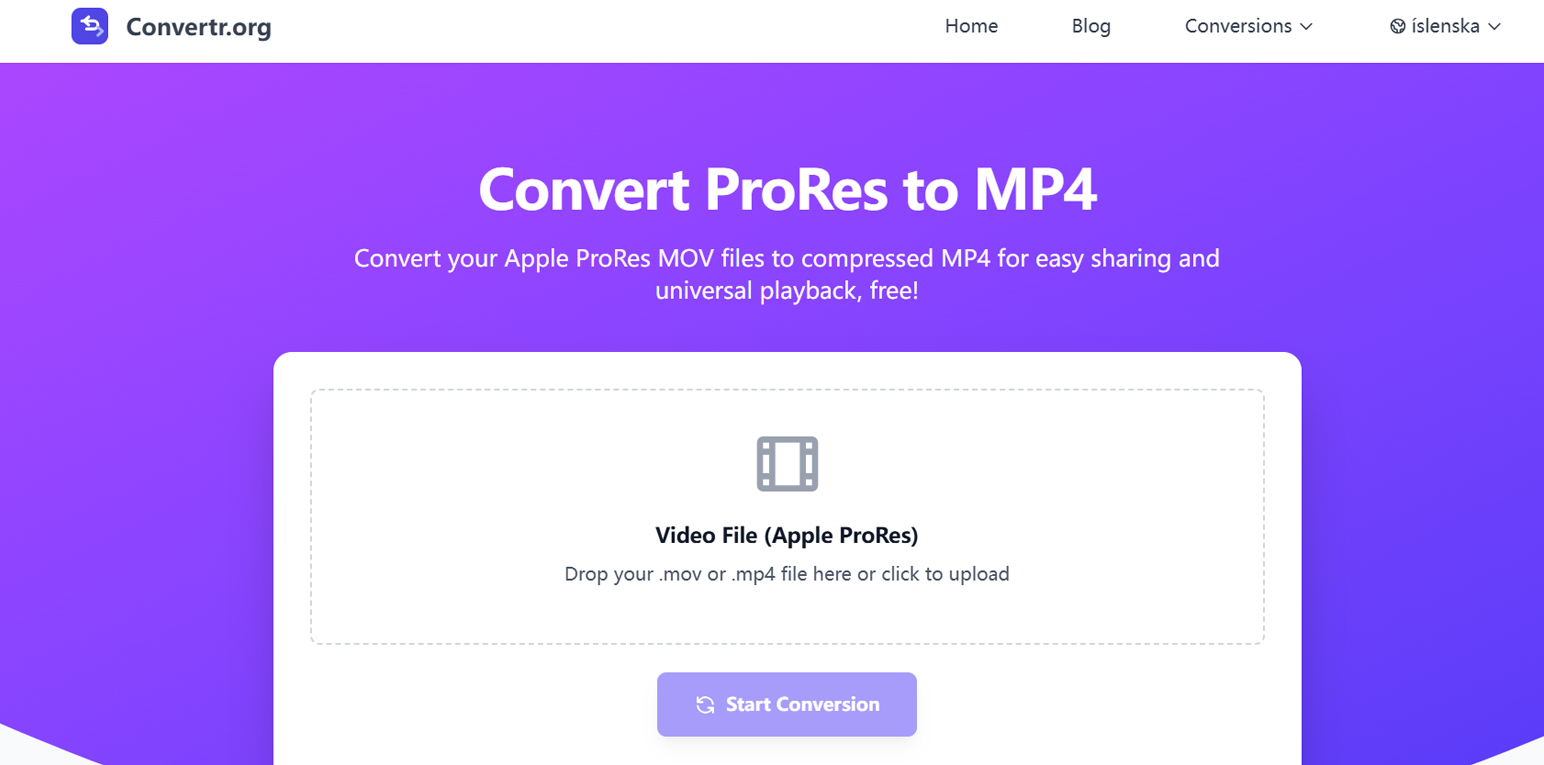
Convertr.org offers a dedicated ProRes to H.264 MP4 converter that accepts ProRes files in MOV or MP4 containers. The platform uses high-quality encoding settings (CRF 23) to maintain excellent visual quality while dramatically reducing file size.
The conversion process is refreshingly simple: drag and drop your ProRes file, select MP4 as your output format, and click “Convert.” Your file is automatically deleted after conversion for privacy.
The tool supports all ProRes variants, including ProRes 422, ProRes 422 HQ, ProRes 422 LT, ProRes 422 Proxy, and ProRes 4444. It works on any device with a web browser-iPhone, Android, iPad, Windows PC, or Mac.
The maximum file size is 1GB. For reference, a one-minute 4K ProRes 422 file can easily exceed 2GB, so longer or high-resolution ProRes videos may not be convertible. Additionally, as with all online converters, you need a stable internet connection, and upload/download speeds will affect total processing time.
Convertr.org is ideal when you need to quickly convert ProRes video to MP4 for small to medium files-clips under 1GB, social media snippets, or test exports. It’s also perfect for users who don’t want to install any software on their computers.
CutFast takes a different approach from traditional converters. It’s an AI-powered video processing tool that combines conversion capabilities with intelligent editing features. While not exclusively a ProRes converter, CutFast can handle ProRes inputs and output MP4 files.
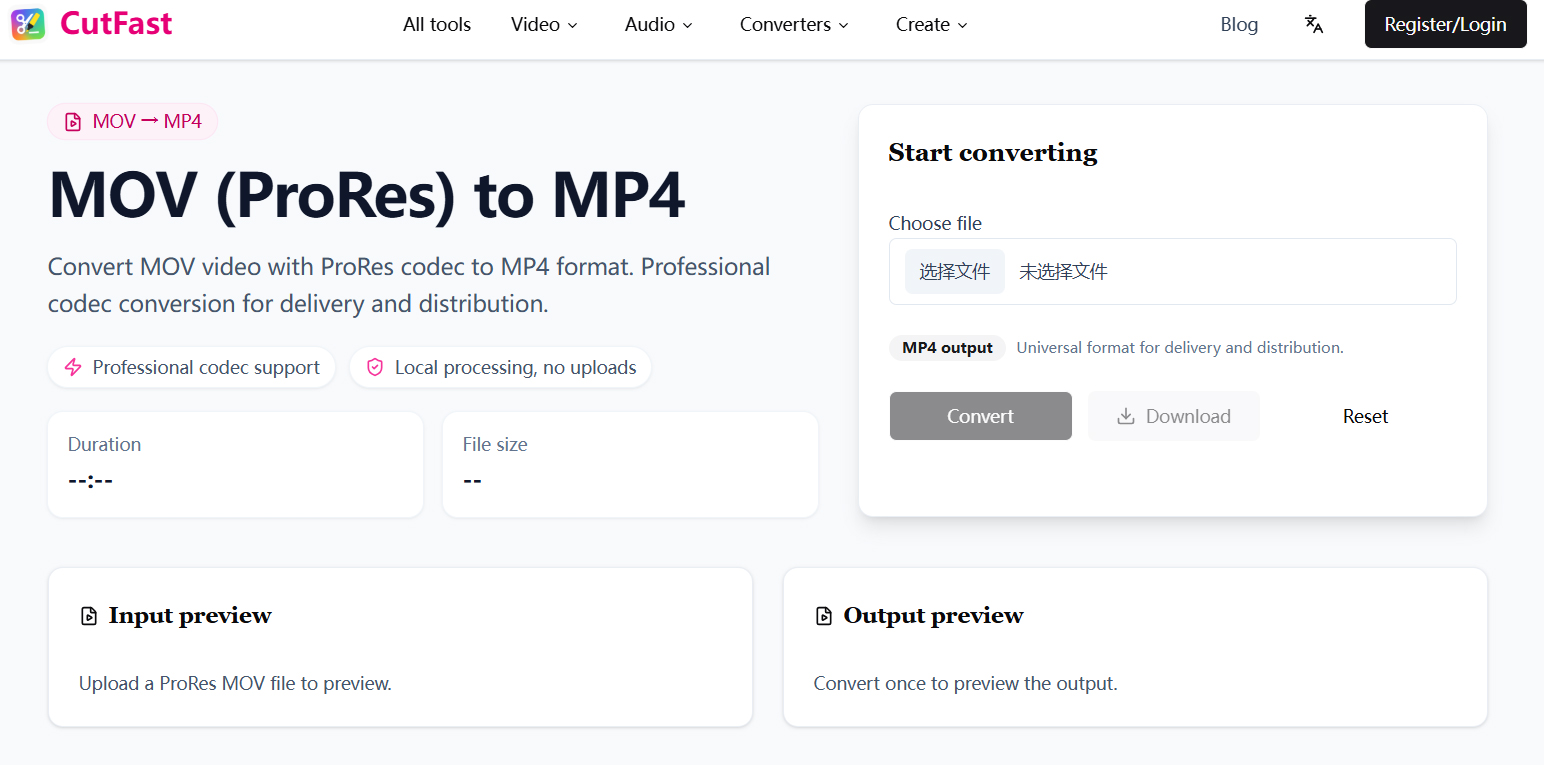
CutFast’s standout feature is its AI-driven workflow. The tool automatically identifies highlight moments, removes filler words and silent segments, and generates smart subtitles. For creators who edit talking-head videos, vlogs, or educational content, this can dramatically reduce editing time.
The platform operates directly in your browser, requiring no software installation. For short ProRes clips, it offers a convenient way to convert ProRes video to MP4 while simultaneously cleaning up the content.
CutFast is primarily an AI editing tool rather than a dedicated converter. Its conversion capabilities are secondary to its editing features. Free users face a 50MB file size limit and can only process two files at a time.
CutFast is best for content creators who need more than just conversion. If you want to convert ProRes video to MP4 and also trim, remove silences, add captions, or extract highlights, CutFast’s AI tools can save you hours of manual work.
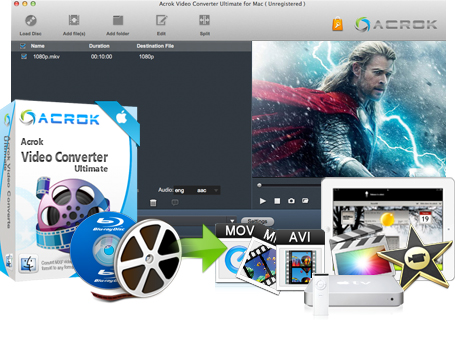
Acrok Video Converter Ultimate stands apart as the most powerful and flexible solution among the three. Unlike online tools, Acrok is a desktop application for Windows and Mac that you install once and use forever-no internet required after installation.
 100% Safe & Clean 100% Safe & Clean
No File Size Limit: This is arguably Acrok’s most significant advantage over online converters. Whether you’re converting a 10GB ProRes 422 file or a 200GB ProRes 4444 master, Acrok handles it without complaint. Online tools like Convertr.org and CutFast impose strict file size caps-Acrok has none.
Lossless / Near-Lossless Conversion: Acrok is engineered to preserve maximum quality during conversion. The software uses advanced encoding algorithms that maintain the integrity of your original ProRes footage, converting it to MP4 (H.264 or H.265) without perceptible quality degradation. For professional editors who can’t compromise on image quality, this is essential.
Offline Operation: Because Acrok runs on your local machine, you don’t need an internet connection to convert ProRes video to MP4. This means faster processing (no upload/download bottlenecks), complete privacy (your files never leave your computer), and the ability to work from anywhere-even on a plane or in a remote location.
Broad Format Support: Acrok supports all ProRes variants as input and can output to virtually any video format, including H.264 MP4 and H.265 MP4. It can also load 8K/6K/4K/Full HD videos and convert them without quality loss.
Additional Professional Features:
Acrok Video Converter Ultimate is a paid product. The lifetime license costs approximately $55.30. However, for professionals who regularly convert ProRes video to MP4 or work with large files, the one-time investment quickly pays for itself compared to the limitations of free online tools.
Acrok is the recommended choice for:
| Your Needs | Best Choice |
|---|---|
| Quick conversion of small ProRes clips (<1GB) | Convertr.org |
| AI-powered editing + conversion | CutFast |
| Large files (>1GB) | Acrok Video Converter Ultimate |
| Lossless quality preservation | Acrok Video Converter Ultimate |
| Offline conversion (no internet) | Acrok Video Converter Ultimate |
| Batch processing multiple files | Acrok Video Converter Ultimate |
| Free online solution | Convertr.org |
| Professional workflow with additional editing | Acrok Video Converter Ultimate |
Here we will introduce the usage methods of the three applications mentioned above.
Open convertr.org in your web browser
Drag and drop your ProRes file (MOV or MP4 container) into the upload area, or click to browse your device
Select MP4 as your output format
Click “Convert” and wait for the server to process your file
Download the converted MP4 file when complete
The entire process is free, requires no signup, and your files are automatically deleted after conversion for privacy.
Download and install Acrok Video Converter Ultimate on your Windows or Mac computer
100% Safe & Clean 100% Safe & CleanLaunch the software and click “Add Files” to import your ProRes video(s)
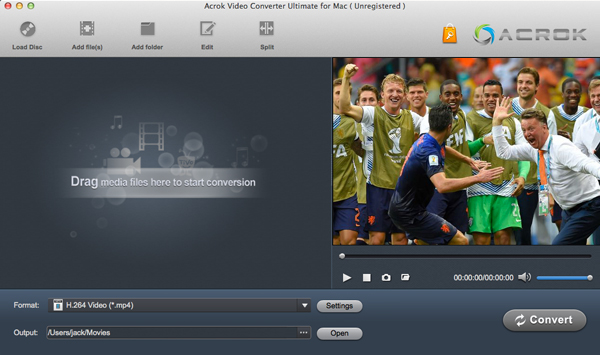
Choose MP4 as the output format—select H.264 for maximum compatibility or H.265 for smaller files
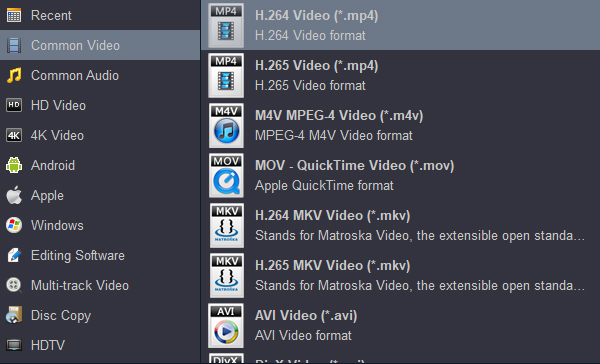
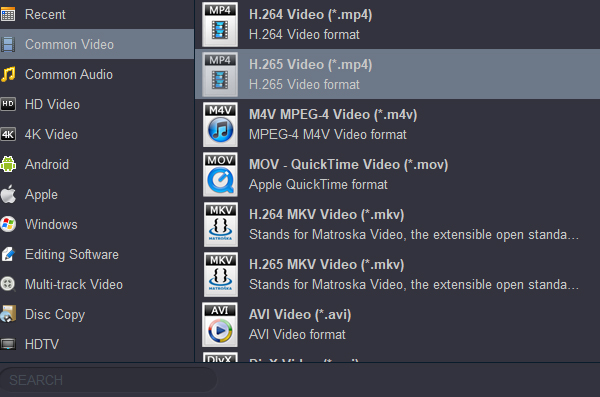
Adjust settings (optional): resolution, bitrate, frame rate, codec parameters
Click “Convert” to start the conversion
Locate the output MP4 file in your specified destination folder
Acrok processes everything locally, so there are no file size limitations and no privacy concerns.
Always retain your original ProRes master files for future editing, archiving, or re-exporting. The converted MP4 should be considered a delivery copy-not a replacement for your high-quality source footage.
H.264 MP4: Best for sharing with general audiences, uploading to web platforms, and ensuring maximum device compatibility
H.265 MP4: Best for personal archives, modern devices, and situations where storage space is at a premium
If your converted MP4 is still larger than desired, you can reduce bitrate or resolution before converting. Acrok Video Converter Ultimate allows granular control over these parameters.
When converting many ProRes clips to MP4, use a tool like Acrok that supports batch processing. This saves enormous time compared to converting files one by one.
Will I lose quality when I convert ProRes video to MP4?
All conversion to lossy formats like H.264 or H.265 MP4 involves some generation loss. However, using high-quality settings (as Convertr.org does with CRF 23, and Acrok with its advanced engine), the difference is minimal and often imperceptible in normal viewing. Acrok takes this further with near-lossless conversion capabilities.
Can I convert ProRes to MP4 on my phone?
Yes! Convertr.org works on any device with a web browser, including iPhones and Android phones. However, large ProRes files may be challenging to upload over mobile data, and the conversion speed is very slow.
What’s the difference between converting ProRes to H.264 MP4 vs H.265 MP4?
H.264 MP4 offers maximum compatibility across all devices and platforms. H.265 MP4 delivers smaller file sizes (roughly half of H.264 at equal quality) but may not play on older devices. Choose based on your audience and storage needs.
Are free online converters safe?
Convertr.org is reputable and deletes uploaded files automatically after conversion. However, for sensitive or confidential footage, a desktop solution like Acrok Video Converter Ultimate is safer since files never leave your computer.
If you occasionally need to convert ProRes video to MP4 online free for small files, Convertr.org is an excellent choice-fast, simple, and genuinely free.
If you want AI-powered editing alongside your conversion, CutFast offers unique value for content creators.
But for professional video editors, filmmakers, and anyone who works regularly with ProRes footage, Acrok Video Converter Ultimate (For Windows | For Mac) is the clear winner. Its offline operation, absence of file size limits, near-lossless quality, and comprehensive feature set make it the most reliable and capable Apple ProRes to MP4 converter available. While it requires a one-time purchase, the productivity gains and quality assurance are well worth the investment for serious video work.
Our recommendation: Try Convertr.org for quick, free online conversions of small ProRes files. If you find yourself converting ProRes video to MP4 regularly or working with large projects, invest in Acrok Video Converter Ultimate-it will pay for itself in time saved and quality preserved.


I like the product. I tried other products, but when I found it, I knew this video converter is perfect for me. With Acrok Video Converter Ultimate for Mac, I can convert any format for playing and sharing.The trim function is useful.
Narayanan Gopala
Copyright © 2026 Acrok Studio All Rights Reserved. Terms and Conditions | Privacy | Refund Policy