

 >
iPhone 18 Pro Max Supported Video Formats
>
iPhone 18 Pro Max Supported Video Formats
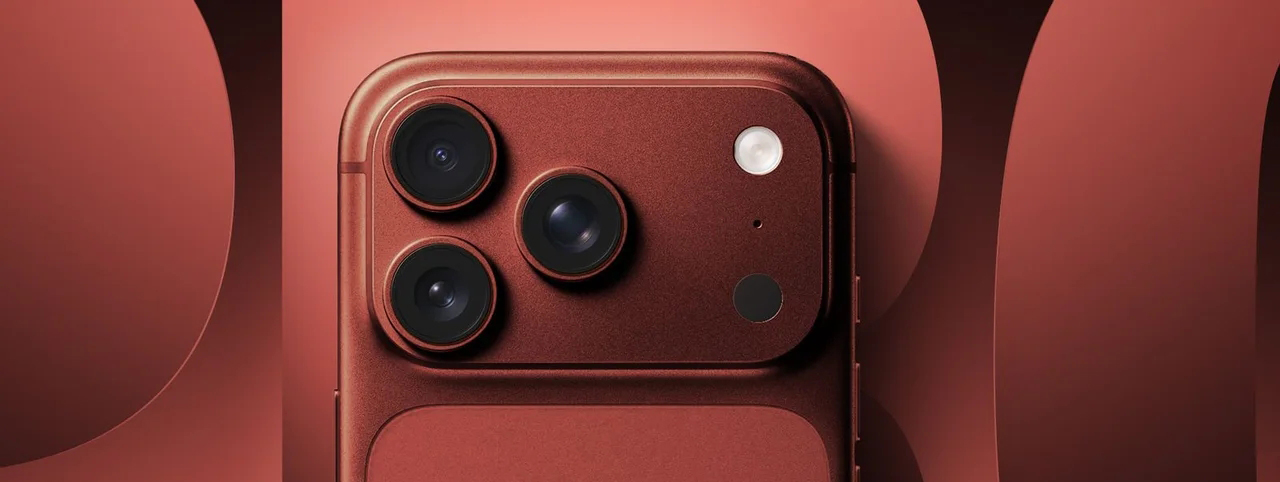
A complete guide to recording, playing, and converting video on Apple’s flagship iPhone.
If you are an Apple fan, you probably want to get the most out of the latest flagship — the iPhone 18 Pro Max. It offers powerful cameras, professional-grade video recording, and excellent media playback. However, like every iPhone, it does not natively support every video and audio format in the world.
This guide explains the video and audio formats supported by the iPhone 18 Pro Max, the best formats to use for different purposes, and how to convert unsupported media so you can play almost anything on your iPhone.
Note: Format support may vary slightly depending on iOS version, region, and app. Always check Apple’s official specifications for your exact model.
Based on Apple’s modern iPhone Pro lineup, the iPhone 18 Pro Max supports a wide range of common media formats. The most important ones are listed below.
HEVC / H.265; H.264; MPEG-4 Part 2; Motion JPEG; ProRes and ProRes RAW (on Pro models, for professional workflows)
Common supported containers include: MP4, M4V, MOV
AAC-LC, HE-AAC; HE-AAC v2; Protected AAC; MP3; Linear PCM; Apple Lossless; FLAC, AC-3; Dolby Digital Plus; Dolby Atmos; Audible formats 2, 3, 4, Audible Enhanced Audio, AAX, and AAX+
In short, the iPhone 18 Pro Max can handle most mainstream video and audio files. But it still cannot play some popular formats natively, such as MKV, AVI, WMV, RMVB, and VOB.
There is no single “best” format for every situation. The ideal choice depends on whether you want to watch, edit, share, or archive your videos.
HEVC is the best all-around format for watching videos on iPhone 18 Pro Max. It offers excellent image quality at a smaller file size than H.264, and it supports 4K, HDR, and Dolby Vision.
Best for: Saving storage space, 4K HDR movies, Apple ecosystem playback.
H.264 is older than HEVC, but it is still the most widely supported video codec in the world. If you need a file that plays almost anywhere, H.264 in an MP4 container is a safe choice.
Best for: Sharing videos with friends, uploading to websites, using older devices.
On Pro models like the iPhone 18 Pro Max, ProRes is the preferred format for high-quality editing. ProRes files are much larger, but they preserve more detail and are easier to edit smoothly.
Best for: Final Cut Pro, Adobe Premiere Pro, DaVinci Resolve, professional projects.
If you want cinematic HDR video, HEVC with Dolby Vision is an excellent choice. It delivers rich colors and high contrast while keeping file sizes manageable.
Best for: HDR movies, Apple TV content, Dolby Vision playback.
For general listening, AAC is the best balance of quality and size. For audiophiles, Apple Lossless and FLAC offer higher quality. Dolby Atmos is ideal for spatial audio experiences.
Best for: Music, podcasts, movies, and spatial audio.
Even though the iPhone 18 Pro Max supports many formats, it is not a universal media player. If you have downloaded or collected movies in MKV, AVI, WMV, RMVB, or VOB format, you may find that they cannot be played directly on your iPhone.
This is especially common when:
In these cases, you need to convert the files into an iPhone-compatible format.
The easiest solution is to use a professional video converter. Acrok Video Converter Ultimate is a powerful format converter for iPhone, iPad, Apple TV, Android devices, and more. It can convert Blu-ray, DVD, VOB, MKV, AVI, WMV, and RMVB movies into iPhone 18 Pro Max supported formats on Mac or Windows.
 100% Safe & Clean 100% Safe & Clean
It also works as a 2D-to-3D converter, which is a nice bonus for users who enjoy 3D movies.
Note: The steps below use Acrok Video Converter Ultimate for Windows, including Windows 11. The Mac version works in the same way.
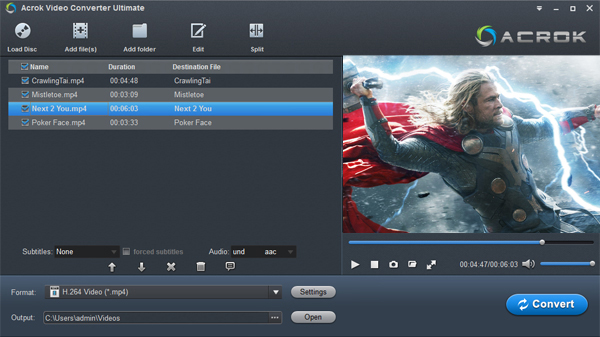
Install and run Acrok Video Converter Ultimate on your computer. Drag and drop your files into the main window, or click “Add File” to import them. All added files will appear in the left-hand list.
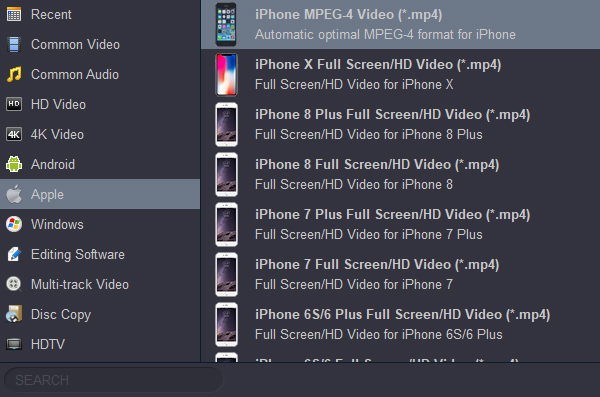
To play videos on iPhone 18 Pro Max, choose MP4 as the output format. You can find this profile under the “Apple” category.
Click the blue “Convert” button to begin. A progress bar will show how much of the conversion is complete. When it finishes, click “Open” to find the new files.
You can transfer the converted files to your iPhone using AirDrop, Finder, iTunes, or cloud storage. After that, you can enjoy them anywhere.
Can iPhone 18 Pro Max play MKV files?
Not natively. You need a third-party player or convert MKV to MP4/MOV first.
What is the best video format for iPhone 18 Pro Max?
For playback, HEVC is generally the best. For editing, ProRes is better.
Does iPhone 18 Pro Max support FLAC?
Yes, modern iPhones support FLAC playback.
Does iPhone 18 Pro Max support Dolby Atmos?
Yes, it supports Dolby Atmos for compatible content and devices.
Can I play AVI files on iPhone 18 Pro Max?
Not directly. Convert AVI to MP4 or MOV first.
The iPhone 18 Pro Max is a powerful media device, but it still has format limitations. For the best playback experience, use HEVC or H.264 in MP4/MOV. For professional editing, use ProRes. If you have unsupported files like MKV, AVI, WMV, or RMVB, a reliable converter such as Acrok Video Converter Ultimate can help you convert them quickly on Mac or Windows.
With the right format, you can play almost any video or audio file on your iPhone 18 Pro Max — freely and easily.


I use Acrok Video Converter Ultimate to convert some videos into MKV and WMV, so that I can watch them on my iPhone 13 Pro Max. It is so cool!
Jo-Anne Watts
Copyright © 2026 Acrok Studio All Rights Reserved. Terms and Conditions | Privacy | Refund Policy