

 >
iPhone Blu-ray Ripper
>
iPhone Blu-ray Ripper
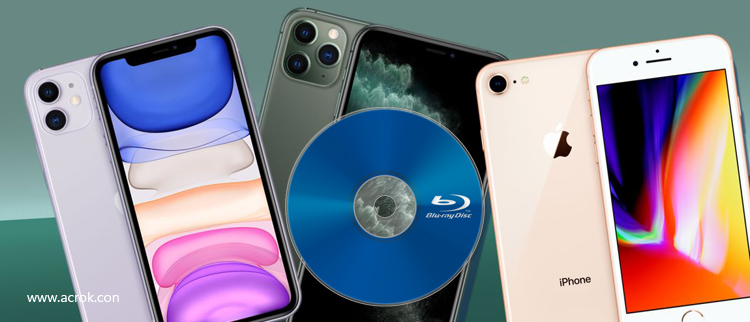
Ever since Apple released the iPhone 18 Pro Max to the market, it has aroused a lot of interest in people from around the world. One of the greatest appeals is that the phone is extremely light with a large high-resolution screen display of up to 6.9 inches and a Super Retina XDR OLED capacitive touchscreen. Besides that, the iPhone 18 Pro Max weighs only 8.47 ounces (240 grams) so it is quite handy and perfect for those who enjoy watching movies on a portable device.
Wouldn't it be great to digitize your Blu-ray library so that you could watch them on your iPhone (iPhone 18 series, iPhone 17 series, iPhone 16 series, etc)? The answer is definitely yes. This article will tell you how to rip, convert and transfer your Blu-ray collection to iPhone and play it anywhere you want.
As we know, most commercial Blu-ray movies are protected with the AACS encryption, BD+ protection and Cinavia protection. Usually, commercial Blu-ray movies cannot be ripped or copied unless you remove the Blu-ray copy protection. So far, Apple has made a great contribution on multimedia enjoyment. However, same as the other model of iPhone, one of the few drawbacks is that the iPhone is not designed with a built-in Blu-ray player software or BD-ROM, which means that you cannot play your Blu-ray movies directly. If you have movies on Blu-ray discs and you want to get them on your iPhone for amusement while on the go, you will find some useful information in the tutorial below on how to convert and get Blu-ray movies onto your iPhone.
1. A Blu-ray drive
2. Window or Mac PC
3. 30 GB - 60 GB hard disk space
4. iPhone Blu-ray Ripper
Acrok Video Converter Ultimate is the first full-featured Blu-ray ripper software that can read all kinds of Blu-ray discs/ISOs/folders, rip and convert them to any mainstream audio formats, 2D & 3D video formats, or devices that support video playback. With Acrok Blu-ray Ripper for iPhone, you will instantly experience the latest and most advanced technologies, including but not limited to Passthrough, HEVC, 4K, etc., and it will always keep updating to support the newest releases and devices. If you are a Mac user and plan to rip Blu-ray movies on Mac, Acrok Video Converter Ultimate for Mac can give you a hand.
Free download Blu-ray to iPhone Converter
 100% Safe & Clean 100% Safe & Clean
* Rip and convert Blu-ray, DVD to iPhone supported video/audio format.
* Convert MKV, AVI, MOV, WMV for playing on iPhone 18/17/16/15/14/13/12/11 (Pro, Pro Max), iPhone Air, iPhone 17e, etc.
* Edit iPhone recorded 4K footage with hot editing function.
* Convert Blu-ray/DVD/Video for playing on Android smartphone/tablet.
* Convert iPhone for uploading to YouTube, Facebook, Instagram, etc.
* Transcode other format such as MXF, MOV, MTS, MP4 for popular editing software.
Tip: iPhone Supported Video Formats: H.264, H.265, MPEG-4 in .mp4, .m4v, .mov formats
Download the free trial version and follow the steps to rip Blu-ray to iPhone supported video format on Windows 11, the watermark is the only limitation of the trial version compared to the full version.
Install and launch the best Blu-ray to iPhone Converter, and click the "Load disc" button to load the Blu-ray movies to the top iPhone Blu-ray Ripper. The software will directly select Blu-ray main movies to rip, or you can select the chapters by clicking the checkbox. Here, you need to choose the subtitle in the middle of the software interface.
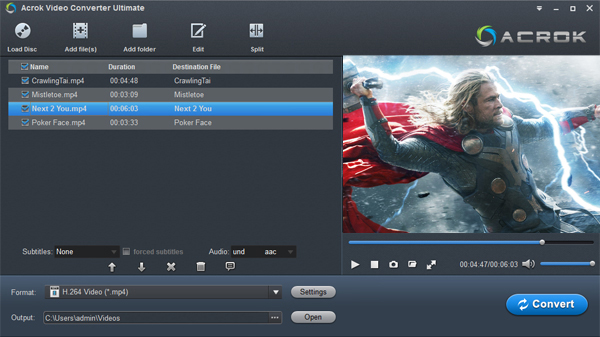
Tip: You can double-click the preview window to play the loaded Blu-ray movies on your PC in full screen. So, this software is a free Blu-ray player software for PC too.
Hit the "Format" drop-down menu to choose iPhone supported video format. Here, MP4 is your best choice. Hit "Common Video" then select "H.264 Video (*.mp4)" as output format. This profile can help you get original resolution movies. Of course, you can adjust video and audio parameters of output files like video codec, audio codec, bit rate, frame rate, sample rate, audio channel, etc, so that you can get a decent video as you need.
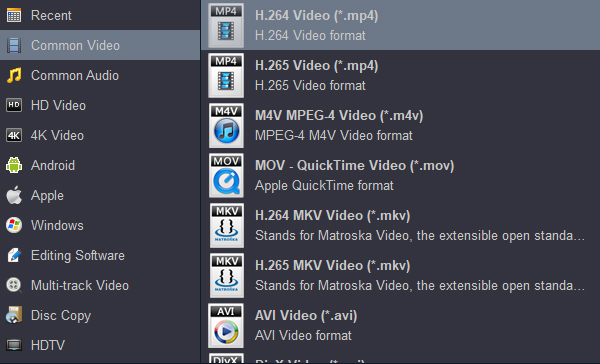
After finishing the above steps, tap the "Convert" button to start the Blu-ray ripping process. When the ripping ends, you can find the video files in the output folder. From here, you are able to transfer the newly created videos to iTunes to enjoy on your iPhone. There you have it, a quick and easy way to get your Blu-ray movies on your iPhone to watch conveniently on a gorgeous screen!
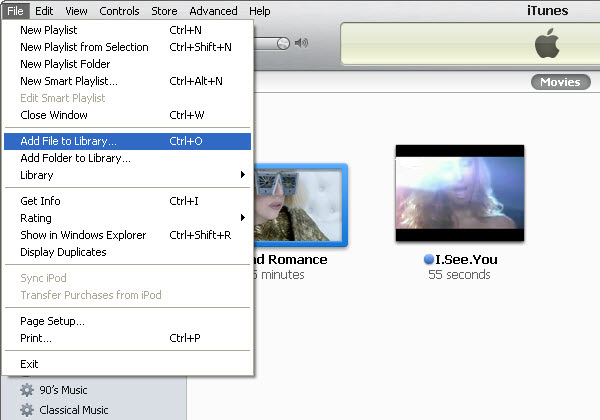
Tip: How to Import converted Blu-ray files to iTunes?
1. Run iTunes on your PC.
2.
Click "File"
3. Add File to Library...
4. Select the ripped Blu-ray movies
5. Click "Add"
Tip: Plan to track your kid's iPhone 18 Pro Max? New iPhone Spy App turn your iPhone into a bugging device by enabling you to remotely turn on the handset's microphone & listen in to its surroundings. This new spy app is undetectable & is designed to help parents protect troubled teens, & investigators to monitor communications.


Video Converter Ultimate is the best version of Acrok soft video conversion software. I can play any format on my iPhone 12 freely. Thank you very much.
Leif Persson
Copyright © 2026 Acrok Studio All Rights Reserved. Terms and Conditions | Privacy | Refund Policy