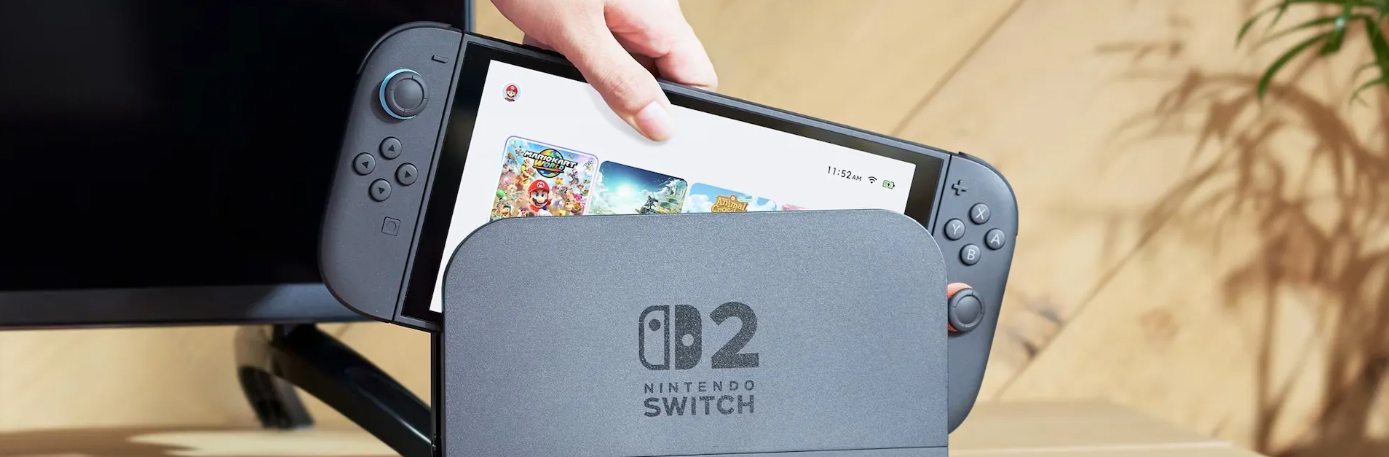
The Switch 2 has a lot of great new features and is surprisingly powerful for its form factor. The larger screen and more powerful processor are the most obvious upgrades, but every facet of the console is higher spec. I absolutely love the device as a whole, but I just don't find it comfortable to hold without some type of grip. PS5 and Xbox Series X are popular, but you can only use them at home. That is why they have types of storage for games, a Blu-ray and a hard drive. This also enables these consoles to play Blu-rays with movies. And that brings the question, can the Nintendo Switch also play Blu-rays and DVDs? Do you want to enjoy your classic movies with Nintendo Switch in your spare time This post holds that answer. So with no more delay, let's get right into it.
Contents
Part 1. Can Nintendo Switch Play Blu-rays & DVDs?
Can we play Blu-ray and DVD movies on Nintendo Switch or Switch 2? Unfortunately, the Nintendo Switch cannot play Blu-ray or DVD movies. Here’s a detailed explanation and some possible alternatives:
Why It's Not Possible:
-
No Optical Drive: The Nintendo Switch does not have a DVD, Blu-ray, or CD drive. It's a cartridge-based gaming console designed for digital downloads and physical game cards.
- Software & Licensing: Nintendo did not include Blu-ray and DVD playback software or license the necessary codecs for video Blu-ray/DVD playback.
Alternative Ways to Watch Movies on Your Switch:
1. Use Official Streaming Apps
2. Purchase or Rent Movies Digitally
3. Use a Different Device
-
For playing Blu-rays or DVDs specifically, you will need:
A DVD player, Blu-ray player, gaming console (like PlayStation or Xbox), or a computer with a DVD drive. You can connect that device to the same TV/monitor as your Switch.
The company aims to entice gamers to play on this dedicated gaming console, rather than on smartphones. You also use an SD card to store your games, but you cannot play media files. Additionally, you can connect to the internet to access websites and download different apps for free. It is physically small to fit a Blu-ray. That is why they use SD cards, perfect for small form factor devices. Plug-in Blu-ray drives via USB aren't working as well. It will power on, but nothing will happen. Don't lose hope. Nintendo may have a plan that supports Blu-ray/DVD playback on its Switchs.
Part 2. How to Play Blu-rays/DVD with Nintendo Switch?
Since Nintendo Switch does not support Blu-rays & DVD playback, is it impossible to play discs movies on Switch?
Actually, you have the solution.
Simply rip Blu-rays & DVD into digital formats, then stream the ripped content from your computer into the Nintendo Switch app. Streaming applications such as Hulu, YouTube, and Funimation are free to download and offer in-app subscriptions. Aside from that, you can use Plex.tv. Plex is an online video streaming website where you can watch your favorite and latest TV shows and movies.
Here, we will take the Plex app as an example to play Blu-ray and DVD on your Switch or Switch 2.
Rip discs into Plex-supported video Formats
Acrok Video Converter Ultimate is a best software that can convert Blu-rays/DVDs into digital formats supported by Plex, such as MP4, MKV, AVI, MOV, FLV, and more. The easy-to-use interface enables beginners to convert Blu-rays in just three simple steps. Supporting various Blu-ray types, including encrypted Blu-rays, it enables you to easily play Blu-rays/DVDs from any region on your Switch.
Step 1. Download this Blu-ray ripping software for your Windows or Mac computer.
Step 2. Click "Load Disc" to import a Blu-ray, folder, or ISO file into this program.
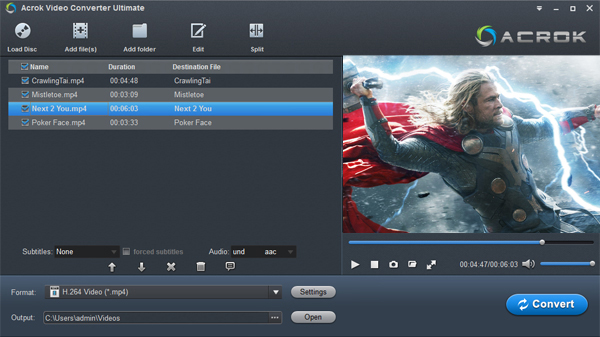
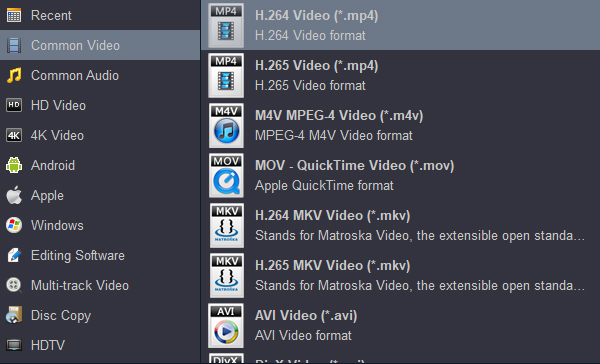
Step 3. Select the output format by clicking the Format drop-down list for Plex. Here, we can select from MP4, AVI, WMV, SWF, MOV, 3GP, and more under Common Video category.
Additionally, you can browse to select the destination where you want to store the ripped Blu-ray movies. Finally, click the Convert button to start ripping Blu-rays. Once the process is complete, you can navigate the converted Blu-ray files and proceed to the next step.
Play Blu-ray or DVD on Nintendo Switch via Plex
Here, we will set up Plex on both the Nintendo Switch and the computer, then stream the ripped movies from the computer to the Nintendo Switch.
Step 1. Set up your Plex Media Server on a computer
Download and install the appropriate installer for your computer's operating system. During the installation, you'll be prompted to sign up for a free Plex account. This account links your server to your Plex client apps.
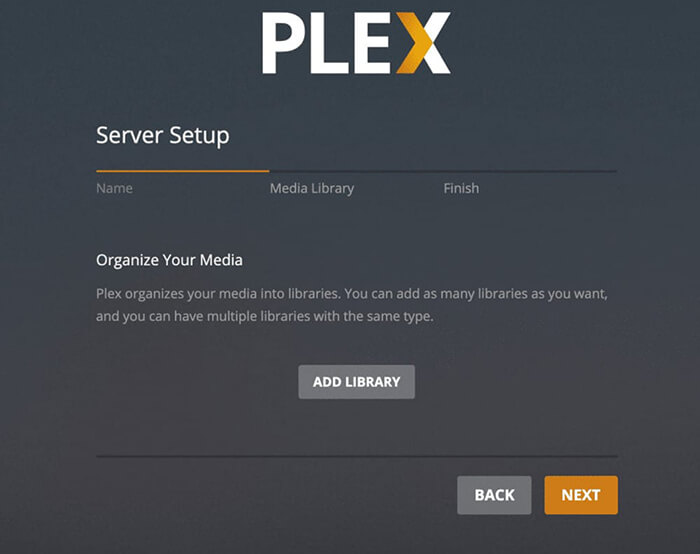
Step 2. Add your media libraries
Once the server is running, the Plex Web App will usually launch in your browser. This is where you manage your server.
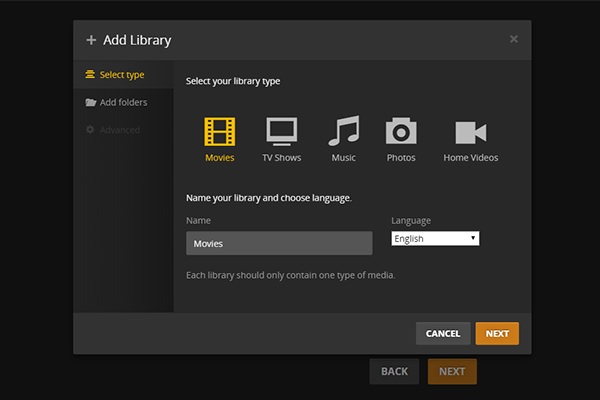
Step 3. Install Plex on your Nintendo Switch
Turn on your Nintendo Switch or Switch 2. Navigate to the Switch Store to install the Plex app. Once installed, launch the Plex app on your Nintendo Switch.
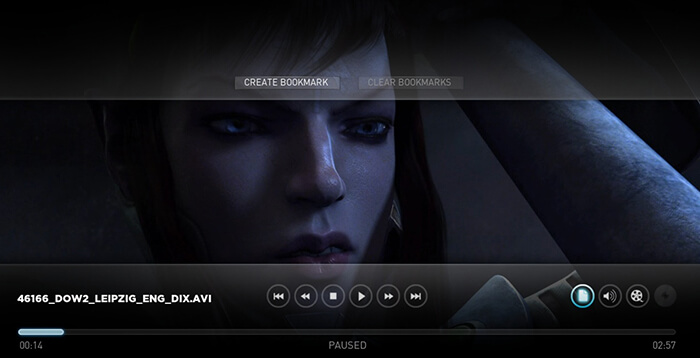
The app will display a four-character alphanumeric code and instruct you to go to plex.tv/link.
Note:
On your computer, open a web browser and go to plex.tv/link. Sign in with the same Plex account you used to set up your Plex Media Server.
Enter the four-character code displayed on your Nintendo Switch. Then click Link or Connect.
Step 4. Sync movies to a Nintendo Switch.
Once successfully linked, your Nintendo Switch Plex app will refresh and show your Plex Media Server and its libraries. You can now browse your ripped movies and start streaming them on your Switch .
Part 3. FAQs About Playing movies on Nintendo Switch
What type of SD cards are compatible with Nintendo Switch 2?
The Nintendo Switch 2 is only compatible with microSD Express cards. This new standard of memory card is designed for faster data transfer speeds, which are necessary for the Switch 2's performance.
What are the supported video file formats for Switch 2?
The Nintendo Switch 2 supports several video file formats, including MP4, AVI, MOV, and potentially others like MKV, WMV, 3GP, and WEBM.
Can I directly transfer the movies to Switch's storage card?
No, you can't do that.
Switch can't read any media files from SD card.
CONCLUSION
I hope this guidepost answers your question: Can you play Blu-rays/DVDs on Nintendo Switch satisfactorily? It may disappoint you since the Switch cannot play discs, unlike other gaming consoles like PlayStation and Xbox. However, there is still a solution to get Blu-ray/DVD to play on a Switch. You just need to rip Blu-ray/DVD to digital formats and then use a streaming app that works on Nintendo Switch, such as Plex or YouTube, to stream the ripped Blu-rays from your computer to your Nintendo Switch. Now, you can play Blu-rays on Switch and Switch 2 freely.


 100% Safe & Clean




