

 > Play Blu-ray on Plex Media Player
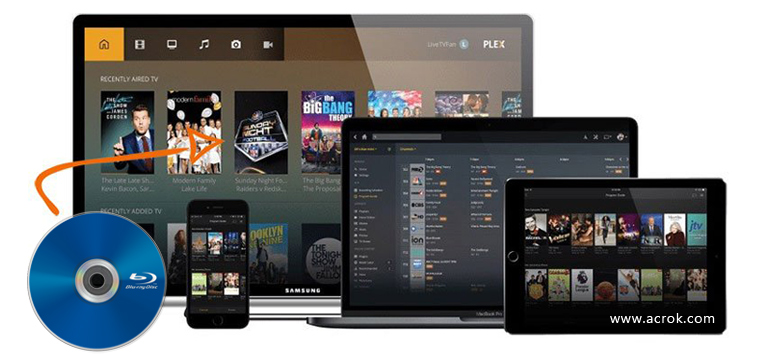
Do you want to play Blu-ray movies (Disc, ISO, Folder) on almost all of your devices, without storing them on every device you own? Plex is a powerful media server that helps you organize and stream your media library. You can store your Blu-ray movies on a computer or NAS, and after logging in to your personal account, you can enjoy them on any device. However, Plex cannot read the native Blu-ray file structure (BDMV and CERTIFICATE) directly, so you need to rip the Blu-ray to a Plex-friendly format first.
CONTENTS
1. Select A Blu-ray Ripper for Plex Media Server
2. [Step by Step] Convert Blu-ray to Plex Supported Format
3. How to Make the Blu-ray Videos Look Like "A Real Blu-ray" in Plex
Can I play 4K Blu-ray files on Plex Media Server? Plex can't read Blu-ray file structure (BDMV and CERTIFICATE), so the only way to enjoy Blu-ray movies on Plex is to rip Blu-ray to a regular video format that Plex supported. Finding a reliable Blu-ray to Plex converter can be challenging, but Acrok makes it simple. At this time, some people would consider using MakeMKV to Rip Blu-ray. Unfortunately, you may also find that ripping Blu-ray by using MakeMKV is problematic itself. For instance, ripping Blu-rays with MakeMKV may break down in the process. As for HandBrake, please give it up without hesitation. HandBrake is a good video conversion software, but it is definitely not an expert with the ability to crack commercial Blu-ray discs.
Then, good Blu-ray ripping software - Acrok Video Converter Ultimate can help you avoid such problems. It can bypass the copyright protection and convert almost all your Blu-ray Disc, Blu-ray ISO and Blu-ray Folder to Plex supported format, so you can transfer them to the Plex Media Server for watching.
Acrok Blu-ray Ripper for Plex is widely recognized as the best Blu-ray to Plex Media Server converter so far. Assisted by the powerful program, you could rip Blu-ray files to Plex with a wide variety of video formats like MOV, AVI, and so on. Unlike some other similar programs in the market, the most advanced feature of the software is its fast ripping speed. And the function of converting 4K Blu-ray could surely enable you to enjoy the latest Blu-ray movies on Plex. All in all, Acrok Blu-ray Ripper could make ripping 1080P/4K Blu-ray files no longer a time-consuming job.
Just download its free trial version and open the software directly. It presents a clean and intuitive interface. And then follow the tutorial.
 100% Safe & Clean 100% Safe & Clean
Just insert your Blu-ray disc to your computer hard drive. You will see several menus on the top bar of the main interface. Click the "Load Disc" button to import the Blu-ray files that you want to convert to Plex. Of course, you can click "Add file" or "Add Folder" to import Blu-ray ISO and Blu-ray Folder files. If you want to play other downloaded / recorded MKV, MTS, MXF files with Plex Media Server, this program can give you a hand too.
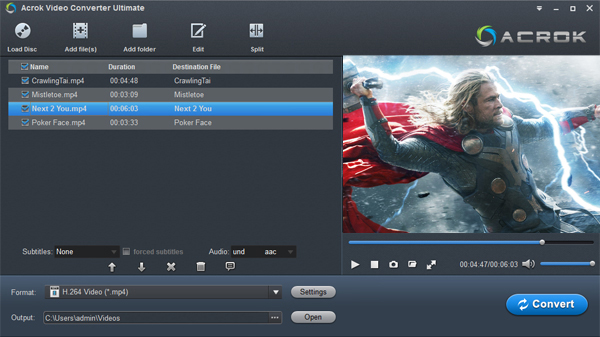
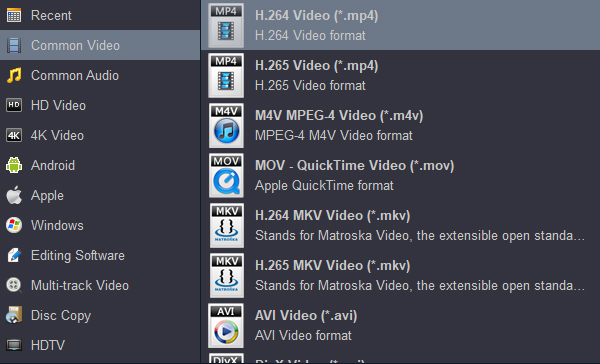
The loaded Blu-ray files with the information in detail could appear in the interface. Just click the "Format" bar, in order to pop up one window where you could choose Plex Media Server compatible video formats like MP4, MOV, AVI from the drop-down list.
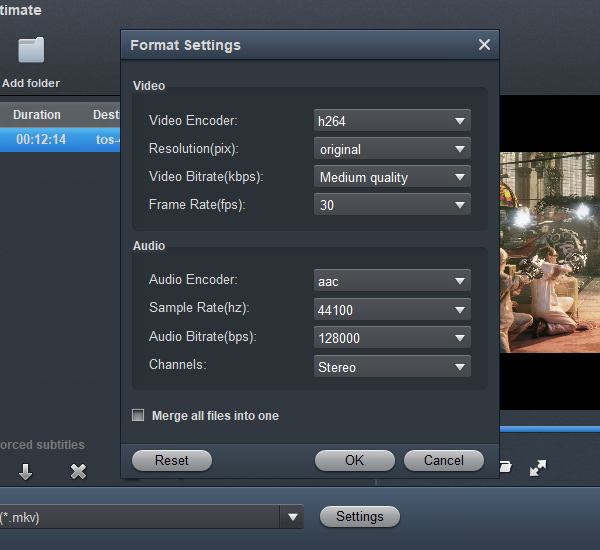
Click the "Settings" button and customize proper video/audio parameters including Video size, bitrate, frame rate, and more. Usually 1920×1080 video size and 30fps video frame rate are recommended for video playback. Well, if you prefer to work with the original video resolution, you can select "Original" in the Resolution (pix) column.
Remember to select all the audio tracks you want and select one of the subtitle tracks. After you upload the Blu-ray, its audio tracks will be selectable in Plex and the subtitle track will embed into the Blu-ray video as a permanent subtitle.

Check the Blu-ray playlists that you want to rip, then click the "Convert" button in the bottom right corner, and the conversion process for Blu-ray to Plex will start immediately.
After that, you could get a ripped Blu-ray movie file on the computer hard drive that you've selected before easily. Then you could stream Blu-ray movies to Plex Media Server.
Q: How to Rip Blu-ray to play "like a Blu-ray"?
This is often asked in the Plex Forum. We will guide you on how to install Plex and upload Blu-ray to Plex in detail. But before this, let's focus on how to rename your converted Blu-ray file before uploading to Plex, so it can act like a real Blu-ray in Plex.
Tips: After you rip Blu-ray to Plex with this Acrok Blu-ray ripping software and upload Blu-ray to Plex in a right way, the Blu-ray movie in Plex will look like this: it has selectable audio tracks and extras (Blu-ray playlists).
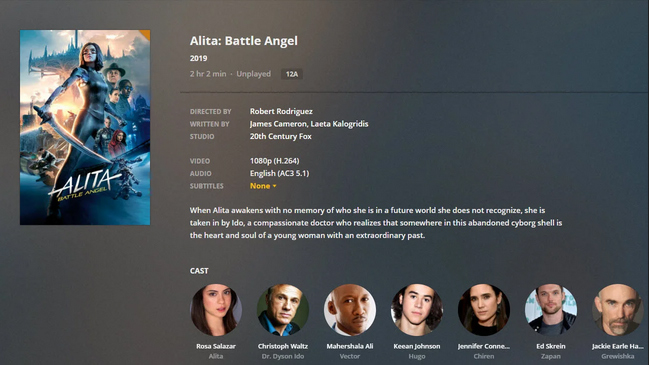
1. Create a folder on your computer name "Movies". In this folder, create a folder name as your Blu-ray name + (release year), such as "Alita (2019)".
2. Name your main movie the same as the movie folder and name your extras Blu-ray playlists based on the extra type:
-behindthescenes
-deleted
-featurette
-interview
-scene
-short
-trailer
-other
So, the ultimate folder structure can be like this:
/Movies
/Alita (2019)
Alita (2019).mp4
Bar Fight-deleted.mp4
Fight-scene.mp4
"
Step 1. Just download Plex Media Server and install. During the installation, sign in to your Plex account on its website.
Note: you should download "Plex Media Server," not "Apps & Devices". "Apps & Devices" is for installing Plex Player.
Step 2. After installation, launch Plex Media Server, then right-click the icon of Plex Media Server and click on "Open Plex".
Step 3. Its main interface would appear on the web page. Click on "Movies-Edit-Add folders" to add Blu-ray to Plex.
Step 4. Click on "Browse For Media Folder" and choose the whole Blu-ray movie folder "/Movies" and then click the "Add LIBRARY" button. Wait a while, Plex will need some time to load the Blu-ray movie information from its database.
Now, you have finished the process of convert Blu-ray for Plex and upload the Blu-ray movie to Plex. Plex gives you the ability to access all your media files on TVs, computers, or phones, no matter where you are. So, for example, if you have installed Plex Player on your Galaxy S22 Ultra, you can play Blu-ray with Plex directly without importing the Blu-ray to Galaxy S22 Ultra.
Tips: If you use your computer as Plex Media Server, the computer must be turned on while you watch a Blu-ray movie on other devices. Because of this, some people install Plex Media Server on a NAS. NAS is designed to run 24/7 without interruption.
Lastly, let me take a minute to sum up the main points of this article. People convert Blu-ray to Plex Media Server because they want to play Blu-ray files on various devices anytime and anywhere. Many choose MakeMKV when ripping Blu-ray, yet they're unable to rip copy-protected discs—especially the newest ones—with that tool. If you use software like Acrok Video Converter Ultimate, which offers the best price-to-performance ratio, you can save both time and effort. What's your opinion? Free download and try the Blu-ray to Plex Converter.
Free download and try Blu-ray to Plex Converter
100% Safe & Clean 100% Safe & Clean

My TV has the function of playing 3D movies, but it's a pity that I have no 3D video resources. Now, I can get 3D videos easily. The 3D TV will show itself better.
Jeffrey hayes
This is one of the best DVD and Blu-ray ripping software I have ever used! It works flawlessly, and has a user friendly UI!
Peter Ward
Copyright © 2026 Acrok Studio All Rights Reserved. Terms and Conditions | Privacy | Refund Policy